
In the previous guide, you configured a simple product – one product, one key pool, simple setup. Variable products work a little differently, and understanding that difference is the key to getting this right.
A variable product in WooCommerce is a product that comes in different versions. Think of a software license that has a Personal edition, a Business edition, and an Agency edition – all sold from the same product page, but each with a different price and different feature set. In WooCommerce, each of those editions is called a variation.
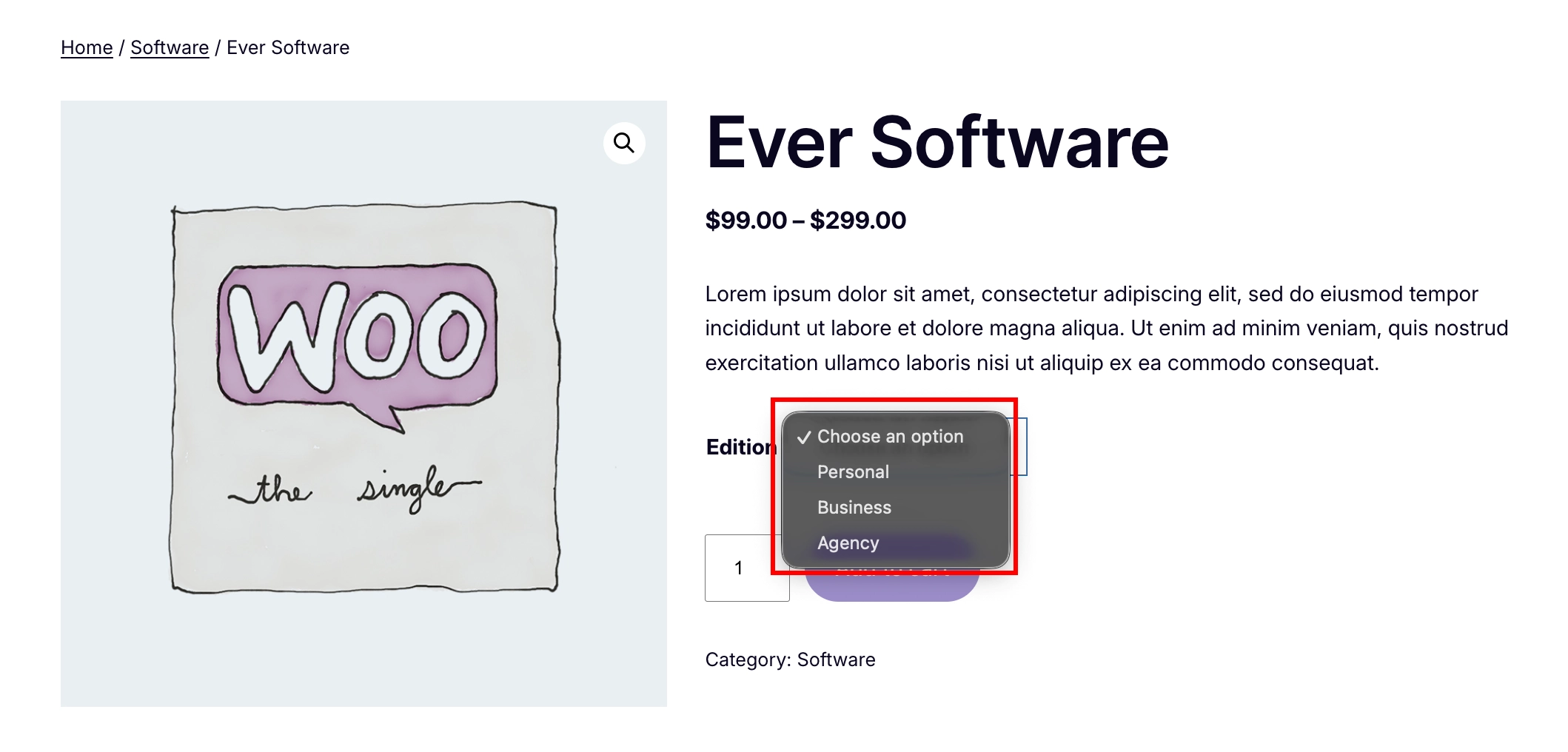
With WC Serial Numbers Pro, you configure key delivery separately for each edition. That means the Personal edition has its own key pool, the Business edition has its own, and so on. A customer who buys the Business edition will never receive a Personal key by mistake. Each variation is treated as an independent product for key delivery.
Note:
Variable product support is a Pro-only feature. You will need WC Serial Numbers Pro installed and activated to follow this guide. If you are on the free version, you can only configure simple products – see Configure a Simple Product.
Before You Begin
Make sure the following are in place before you start:
- Both the WC Serial Numbers and WC Serial Numbers Pro are installed and activated on your site. If not, follow the Installation and License Activation guide first.
- You have a variable product already set up in WooCommerce with at least one variation saved. If you need to create one, go to Products → Add New, set the product type to Variable Product, add your attributes and variations, and save before continuing here.
Step 1: Open the Variable Product
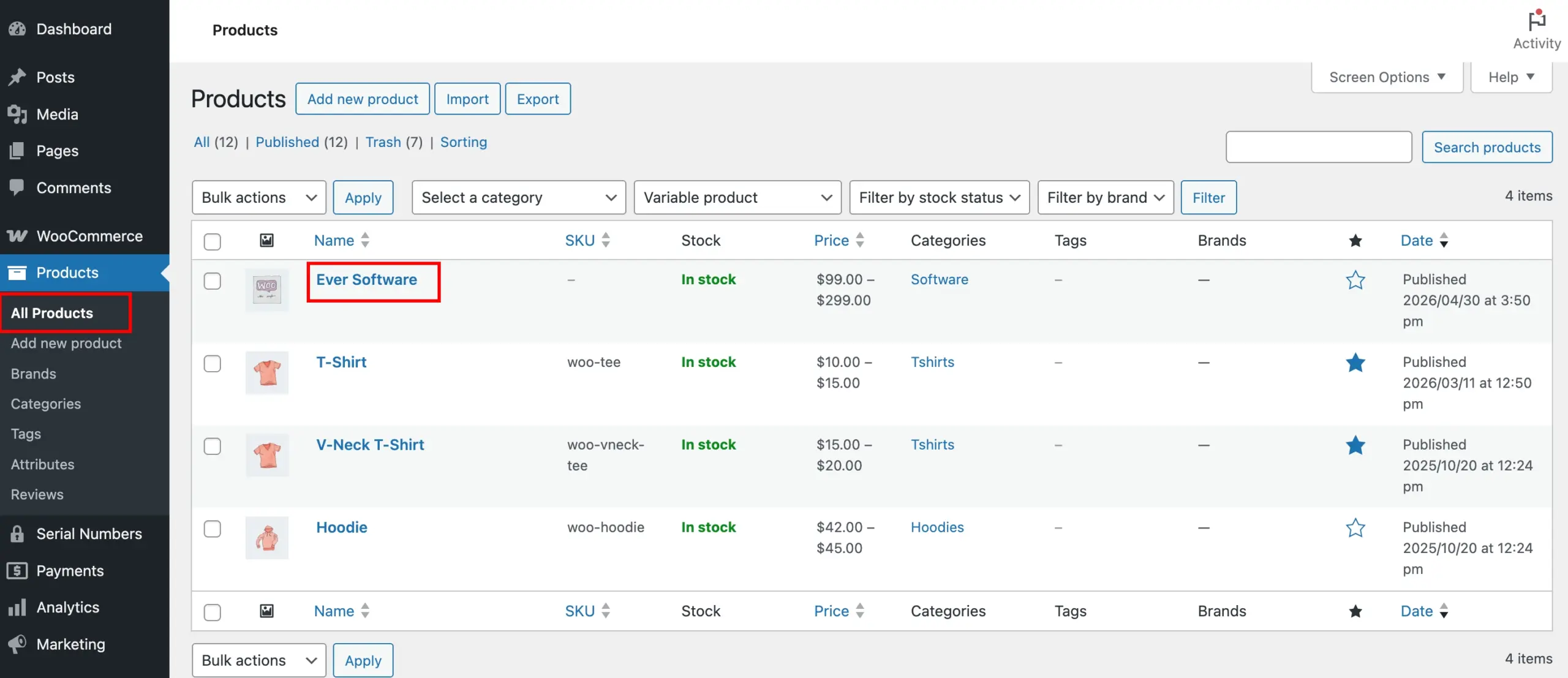
Go to Products from your WordPress admin menu and open the variable product you want to configure.
Step 2: Navigate to the Variations Tab
Scroll down to the Product Data section. Unlike simple products, where you click the Serial Numbers tab, key delivery for variable products is configured within each variation, not at the top-level product.
Click the Variations tab.
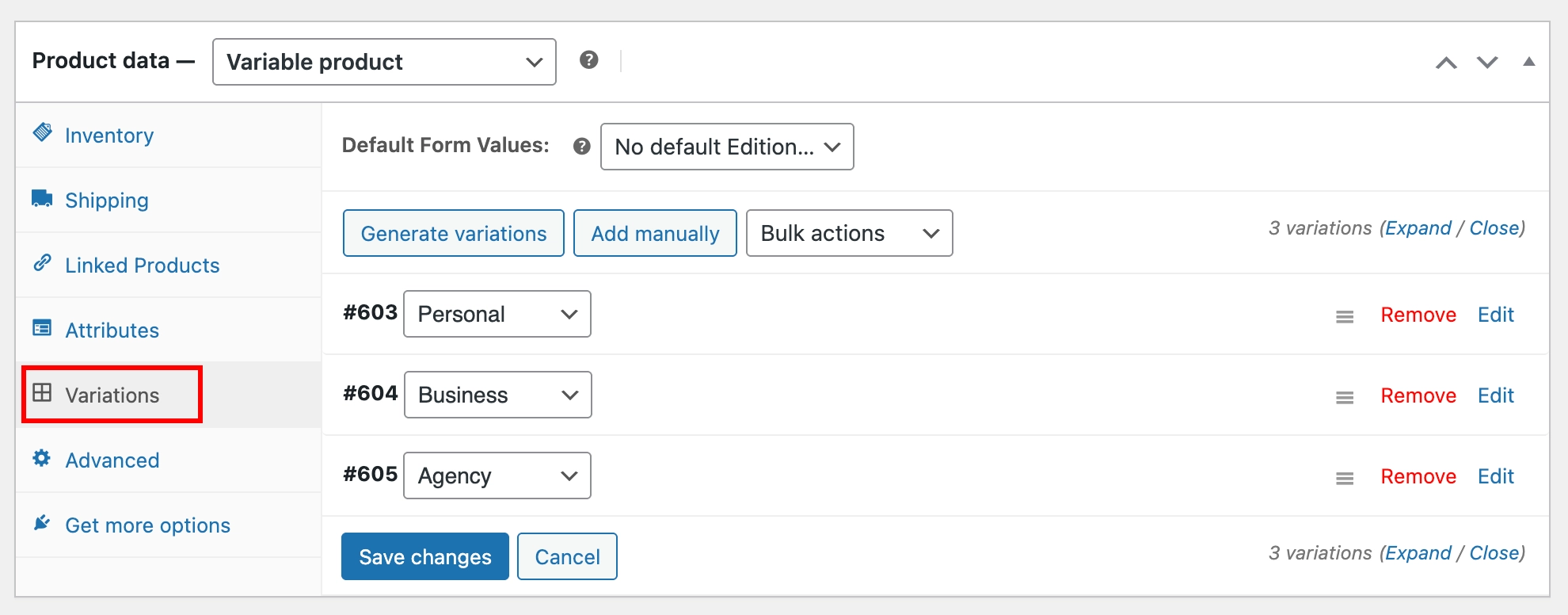
You will see a list of all the variations you have created. Each variation can be expanded to reveal its own settings. This is where you will configure key delivery, one variation at a time.
Step 3: Expand and Enable Key Delivery for Variation
Click on a variation to expand it. You will see the Sell Key checkbox alongside the standard variation fields – SKU, price, stock, and shipping.
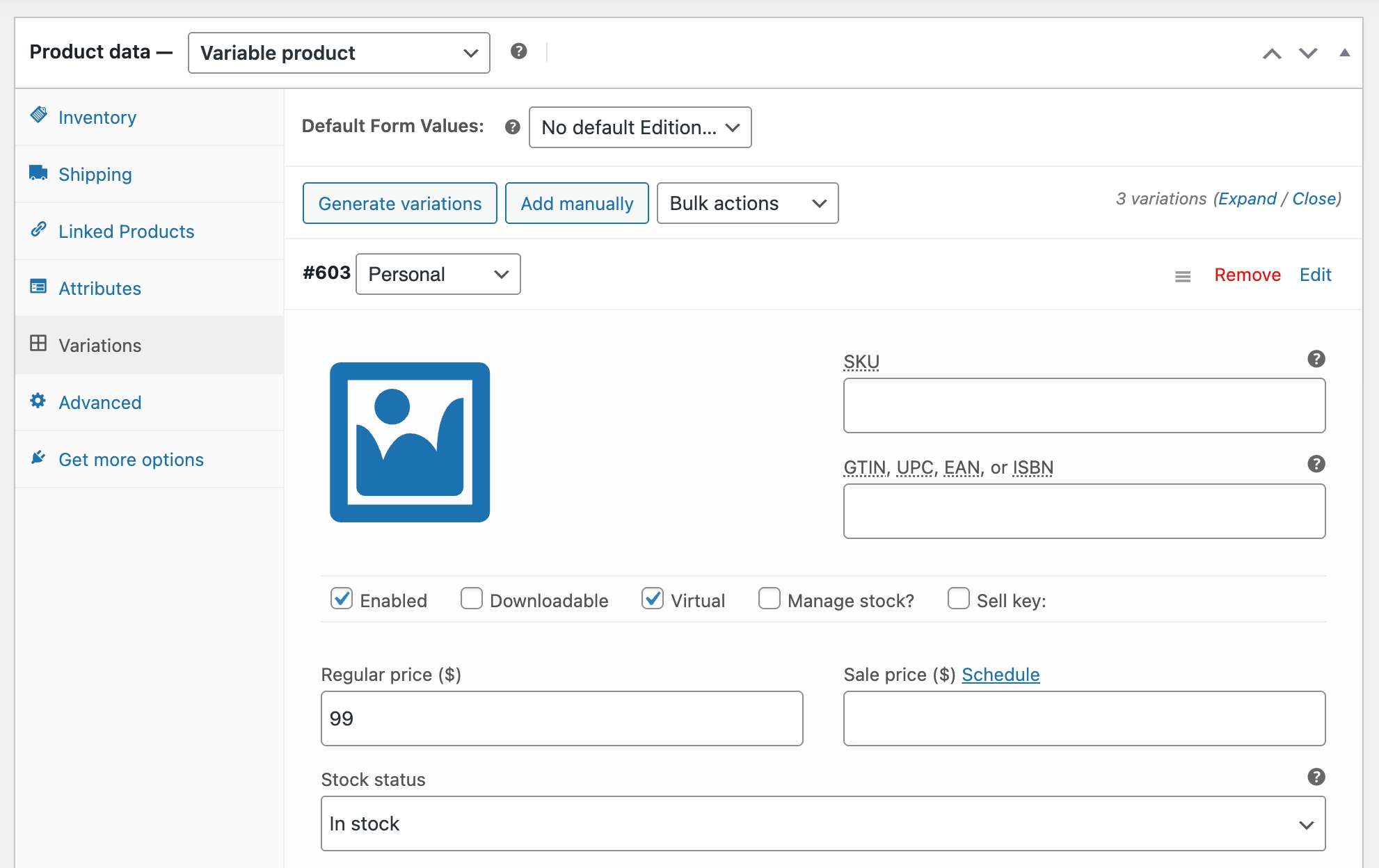
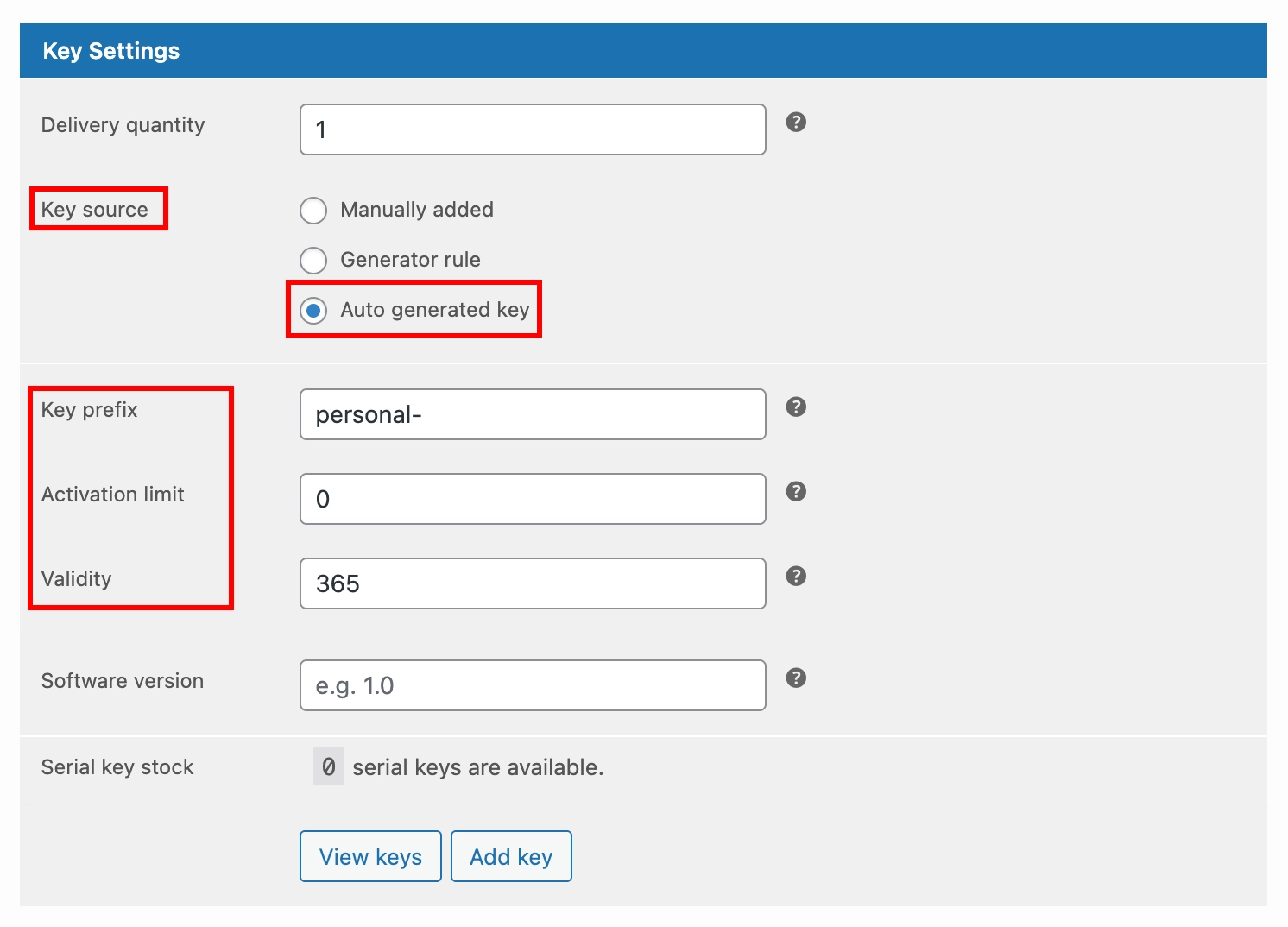
Check the Sell Key to enable key delivery for this variation, and a Key Settings section will appear below it with all the key delivery options.
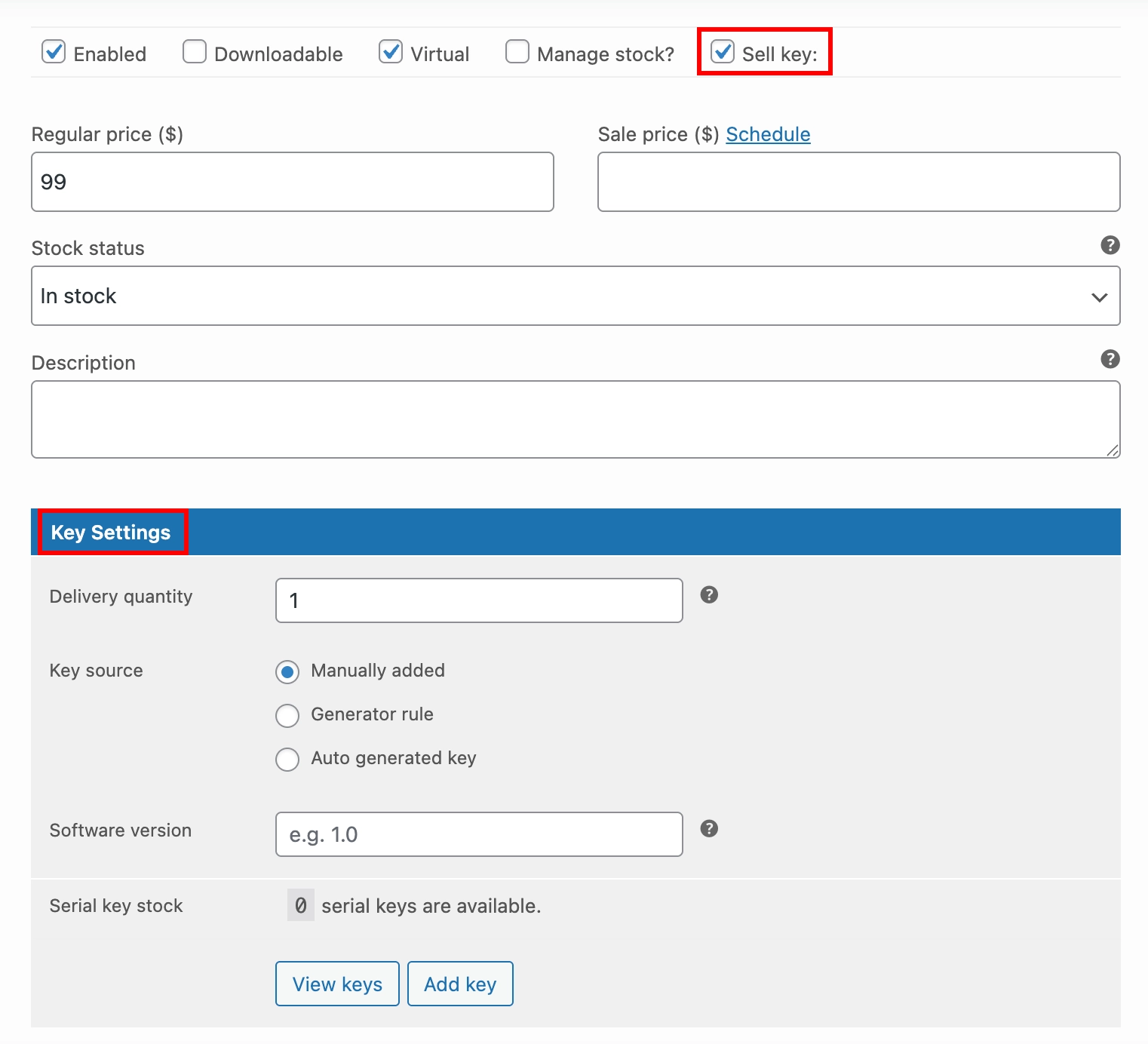
This section works exactly the same way as the Serial Numbers tab on a simple product. Every option you saw there – Delivery Quantity, Key Source – is available here, but it applies only to this specific variation.
Tip:
If you have many variations, work through them one at a time. Expand one, configure it fully, then move on to the next. This keeps things organized and reduces the chance of missing a variation.
Next, set the Delivery Quantity – the number of keys delivered per unit of this variation ordered. In most cases, this stays at 1.
Step 4: Choose the Key Source for This Variation
As with simple products, you can now choose where the keys for this variation come from. The Key Source option gives you the same three options, each suited to a different workflow.
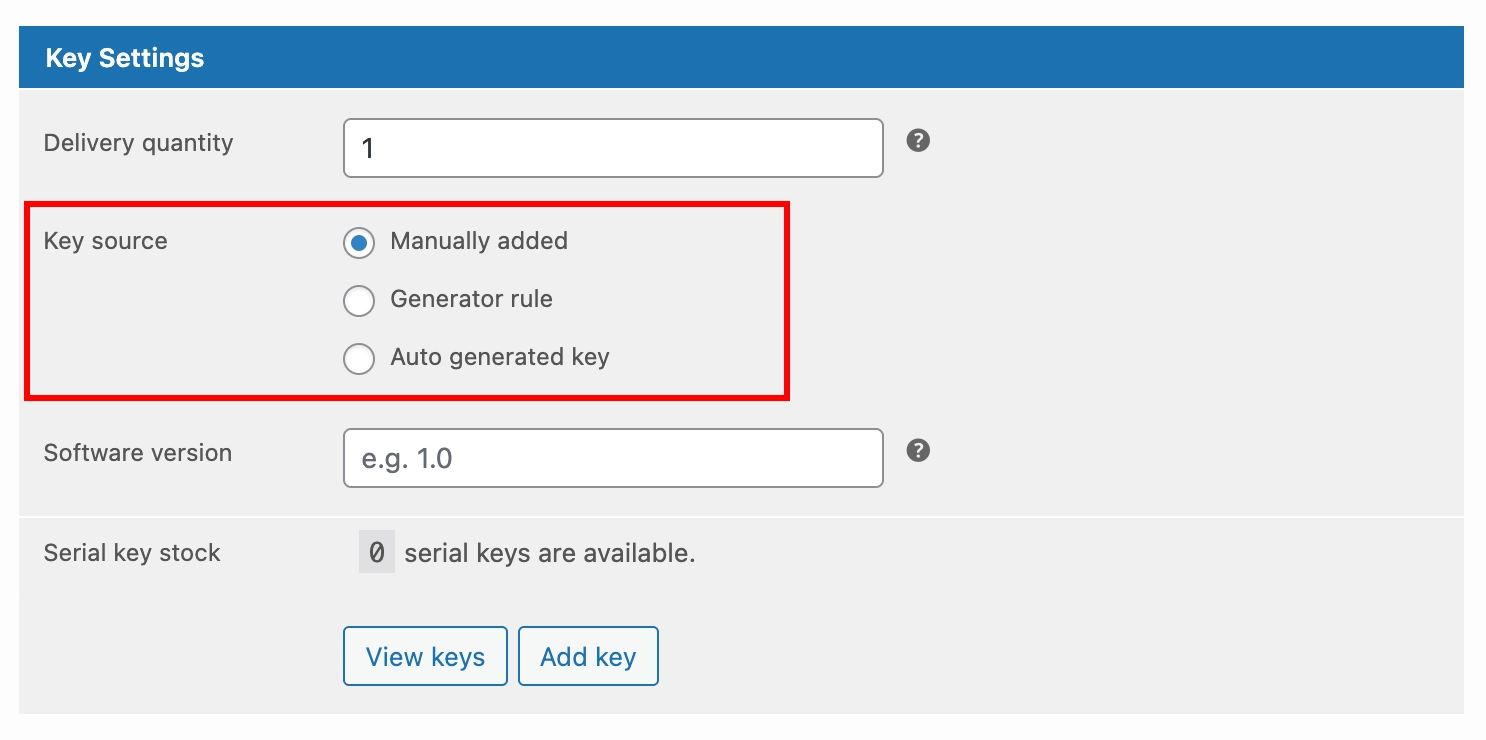
Option 1 – Manually Added
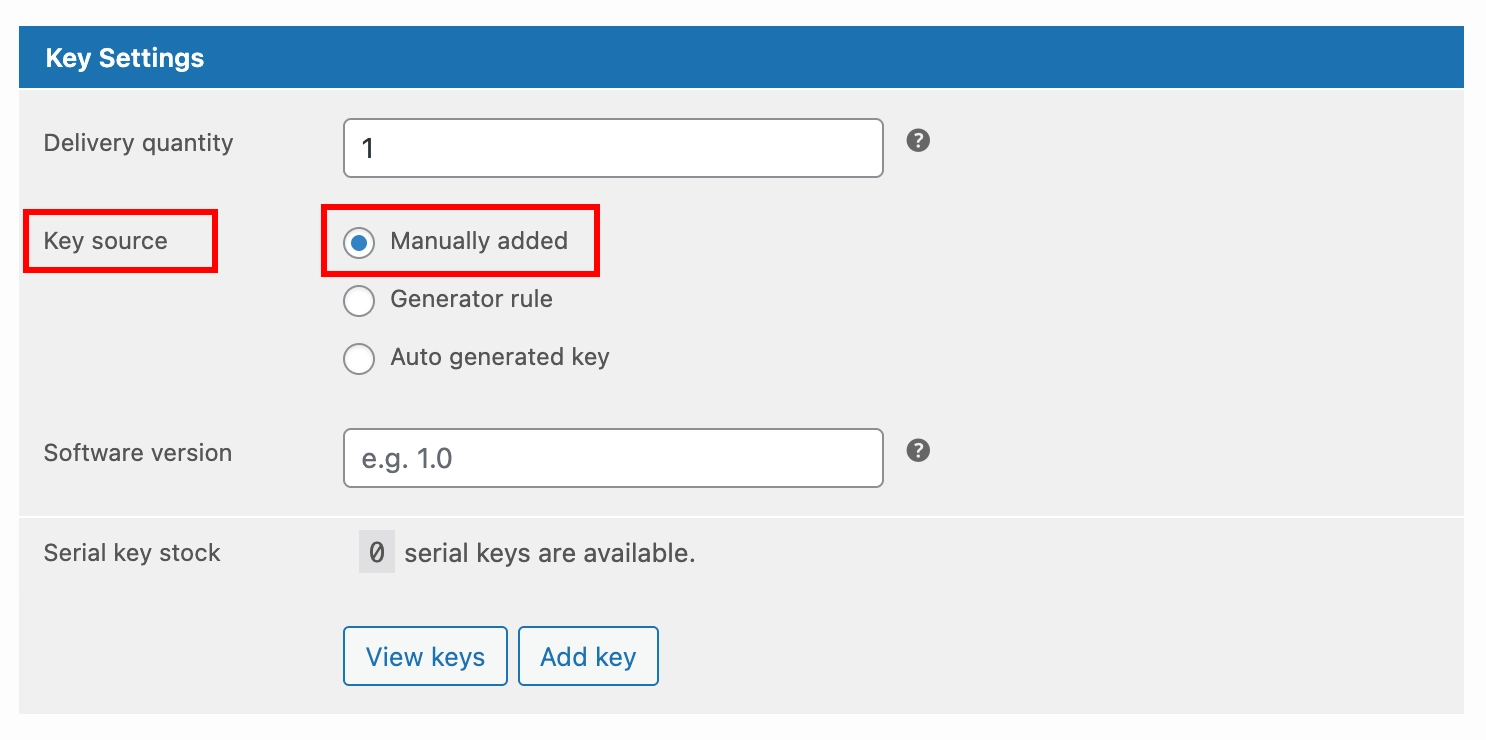
Choose this if you have a ready-made list of keys for this specific variation and want to upload them yourself. Each variation has its own separate key pool – keys assigned to the Personal edition will only ever be delivered to customers who buy the Personal edition.
To add keys for this variation, follow the Add Keys Manually guide and make sure to assign each key to the correct variation (not just the parent product). If you have a large batch, the Import Keys in Bulk guide also supports variation-level assignment.
Note:
Each variation maintains its own stock count independently. If the Business edition runs out of keys, other variations are unaffected. Set up Low Stock Alerts for each variation so you stay ahead of stock running out.
Option 2 – Generator Rule (Pro)
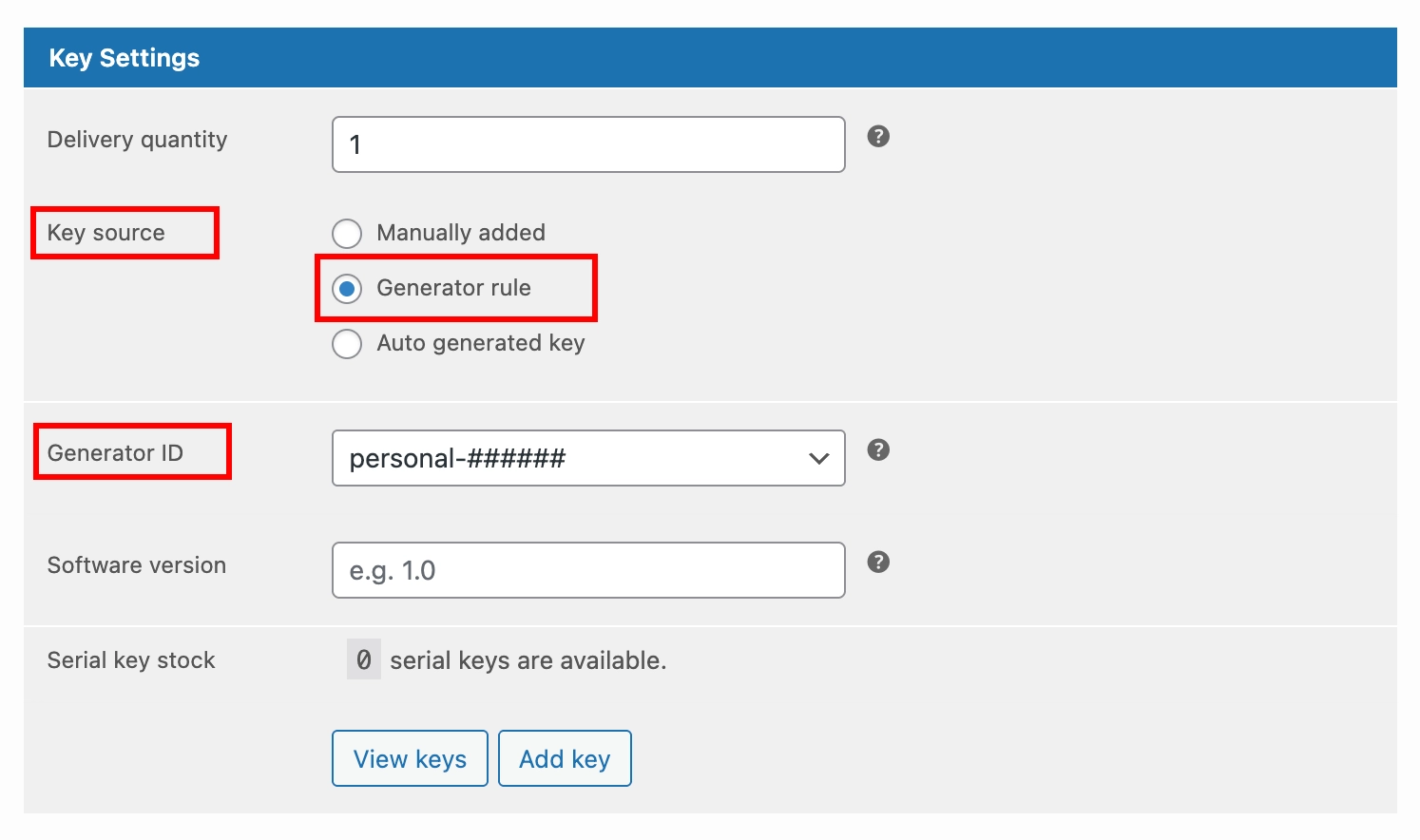
With a Generator Rule, the plugin automatically generates a new key each time this variation is ordered, using a custom pattern. You can set up different generator patterns for different variations – for example, a key prefixed with PERSONAL- for one variation and BUSINESS- for another – so your keys are always meaningful and easy to identify.
Follow the Set Up a Key Generator guide to create a generator, then follow Deliver Keys with a Generator Rule to connect it to this variation. You can use a different generator for each variation, or share the same generator across multiple variations if the format is the same.
Option 3 – Auto-Generated Key (Pro)
Auto-Generated Key works the same way here as it does on simple products – the plugin creates a unique random key for every order, with no generator setup required. If you want quick automation without setting up a generator, this is the most straightforward option.
You can configure a different prefix per variation, so you can still tell keys apart by looking at them. Follow the Deliver Keys Using Auto-Generation guide for the full setup.
Step 5: Repeat for Every Variation
Once you have fully configured the first variation, scroll down to the next one, expand it, and repeat Steps 3 and 4. Every variation that you want to deliver keys must have Sell Keys checked and a Key Source selected.
Tip:
If all of your variations use the same key source type (for example, all use Auto-Generated Key), you can configure them quickly one after another – the settings are simple and consistent. It is only when variations have different key sources that you need to slow down and be careful about which pool or generator you are assigning.
Step 6: Save the Product
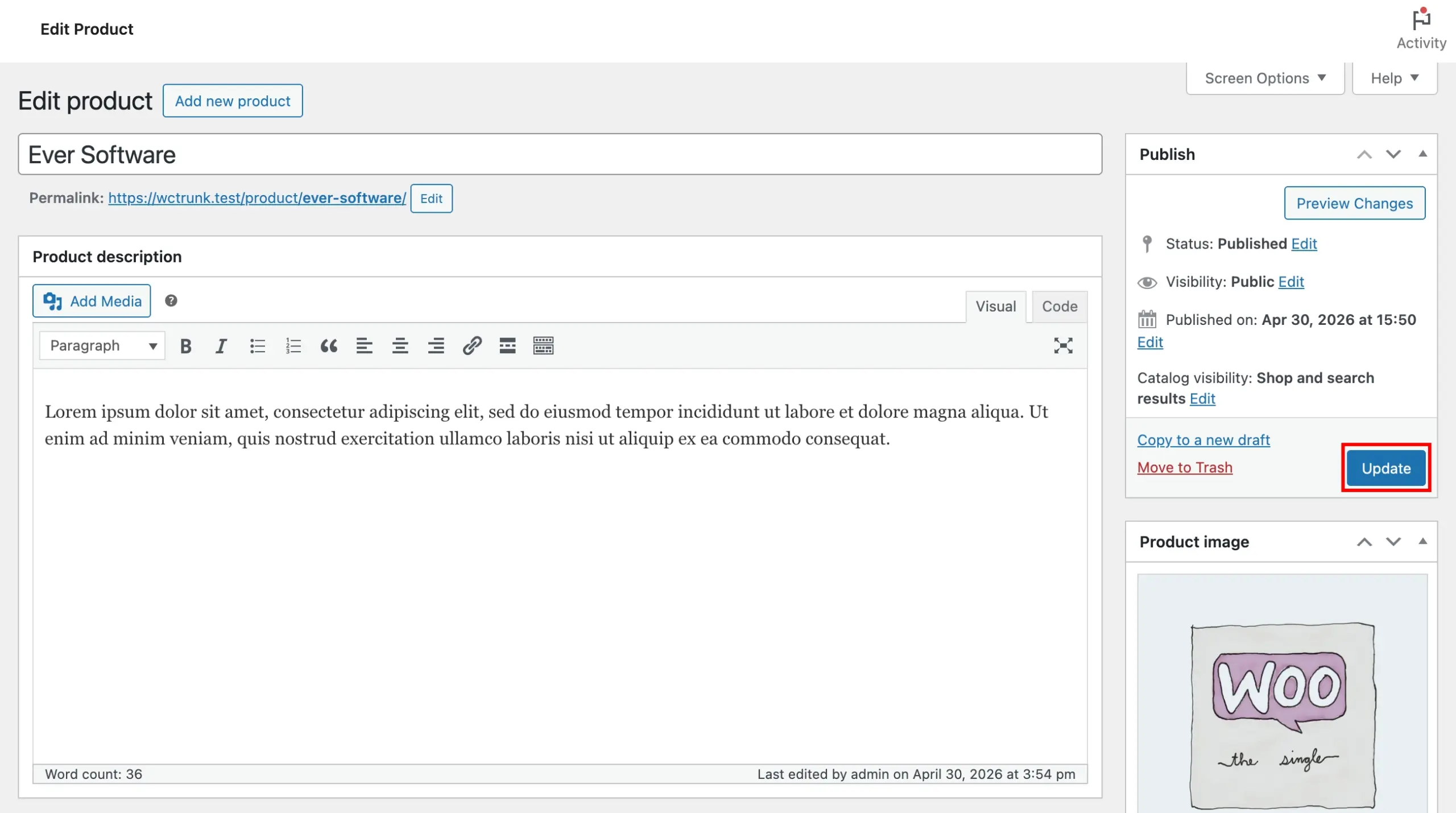
Once all variations are configured, scroll up and click Update to save the product.
Step 7: Place a Test Order for Each Variation
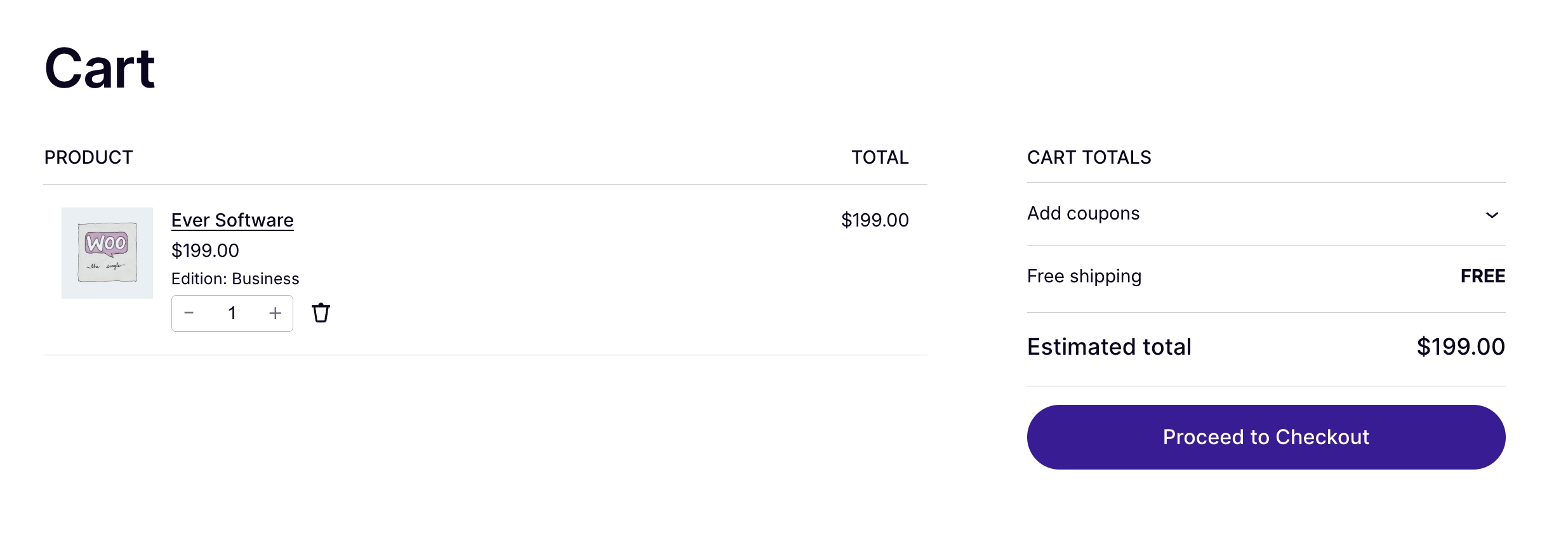
Before going live, test each variation separately to confirm that the correct key is delivered for each variation. Add a specific variation to your cart, complete checkout using a test payment method, and check that the correct key arrives.
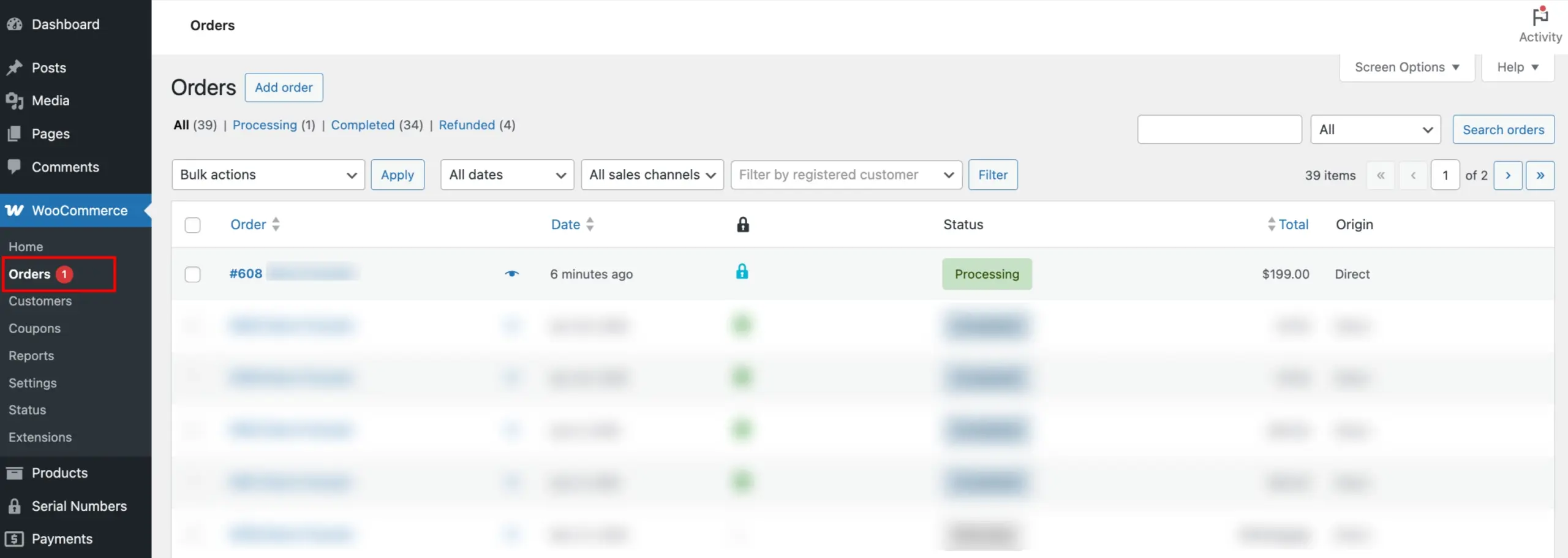
Go to WooCommerce → Orders and open the test order.
Step 8: Mark the Order as Completed
As with simple products, key delivery is triggered when the order status changes to Completed. Open the order, change the Order Status to Completed, and click Update.
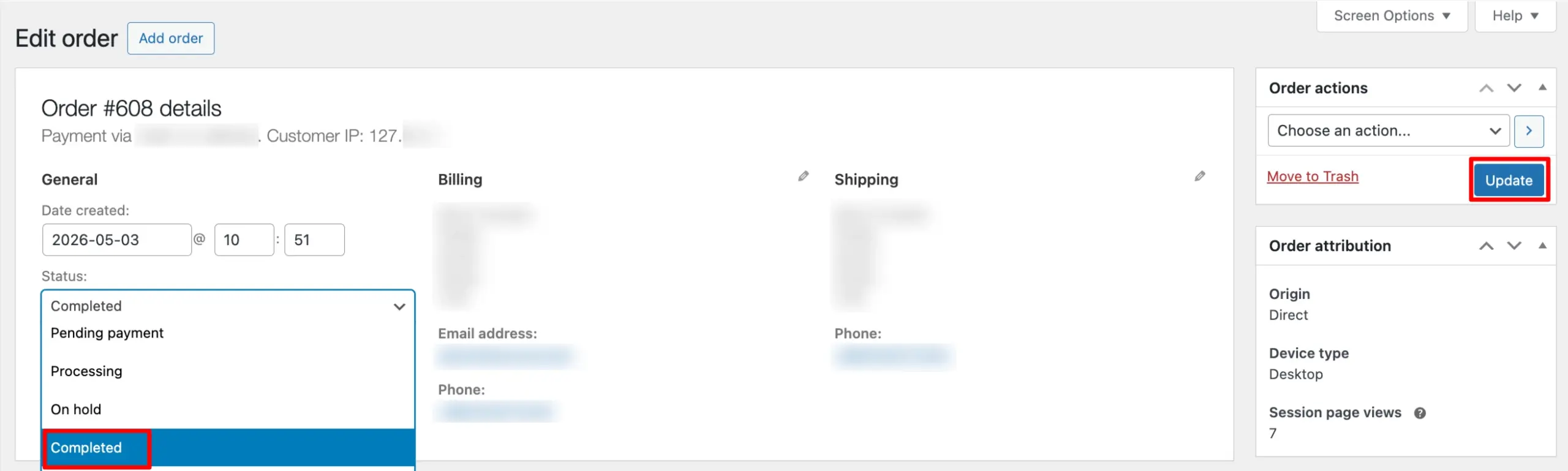
If you want this to happen automatically after every successful payment, enable Auto-Complete Orders After Payment in Serial Numbers → Settings.
Step 9: Verify the Right Key Was Delivered
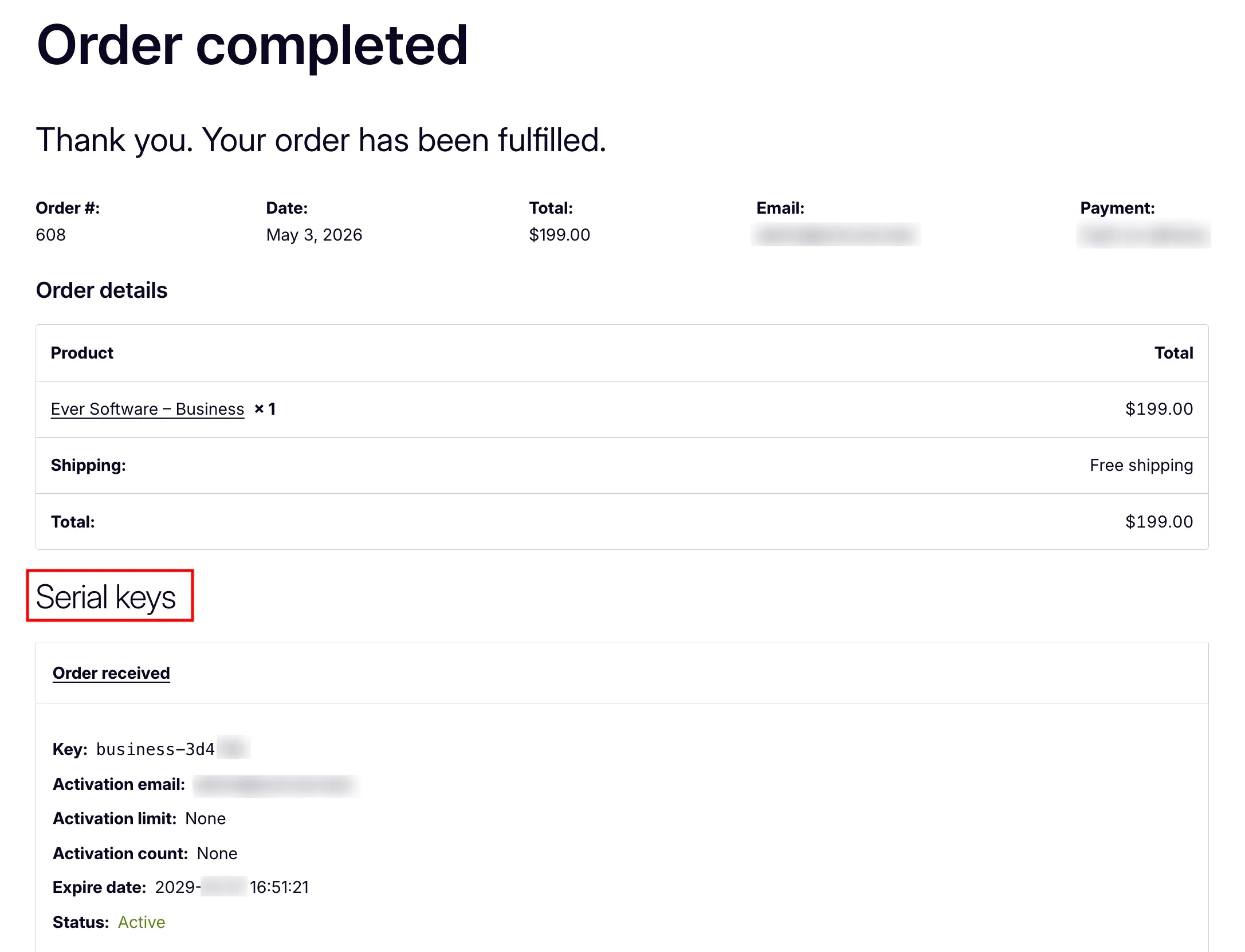
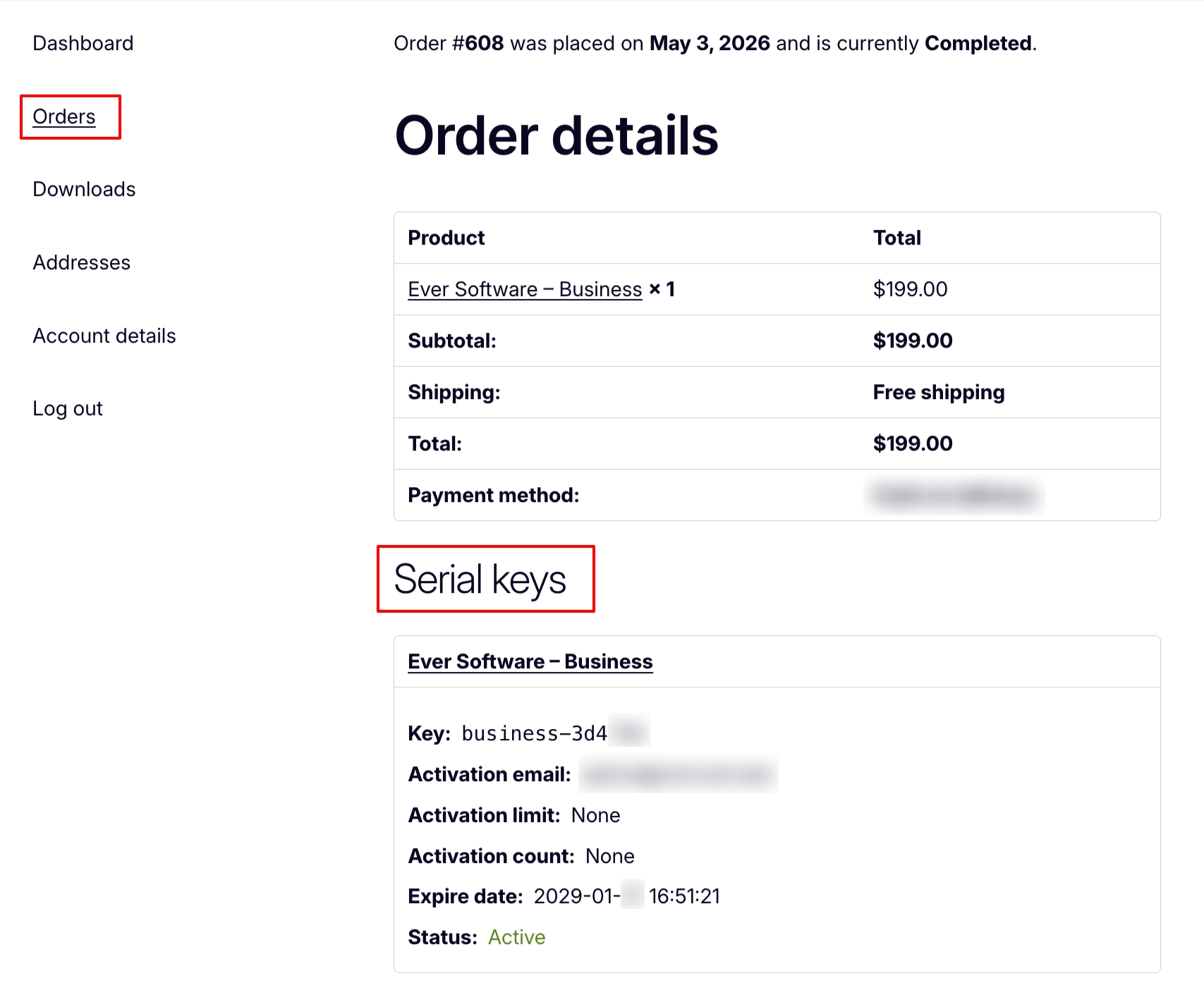
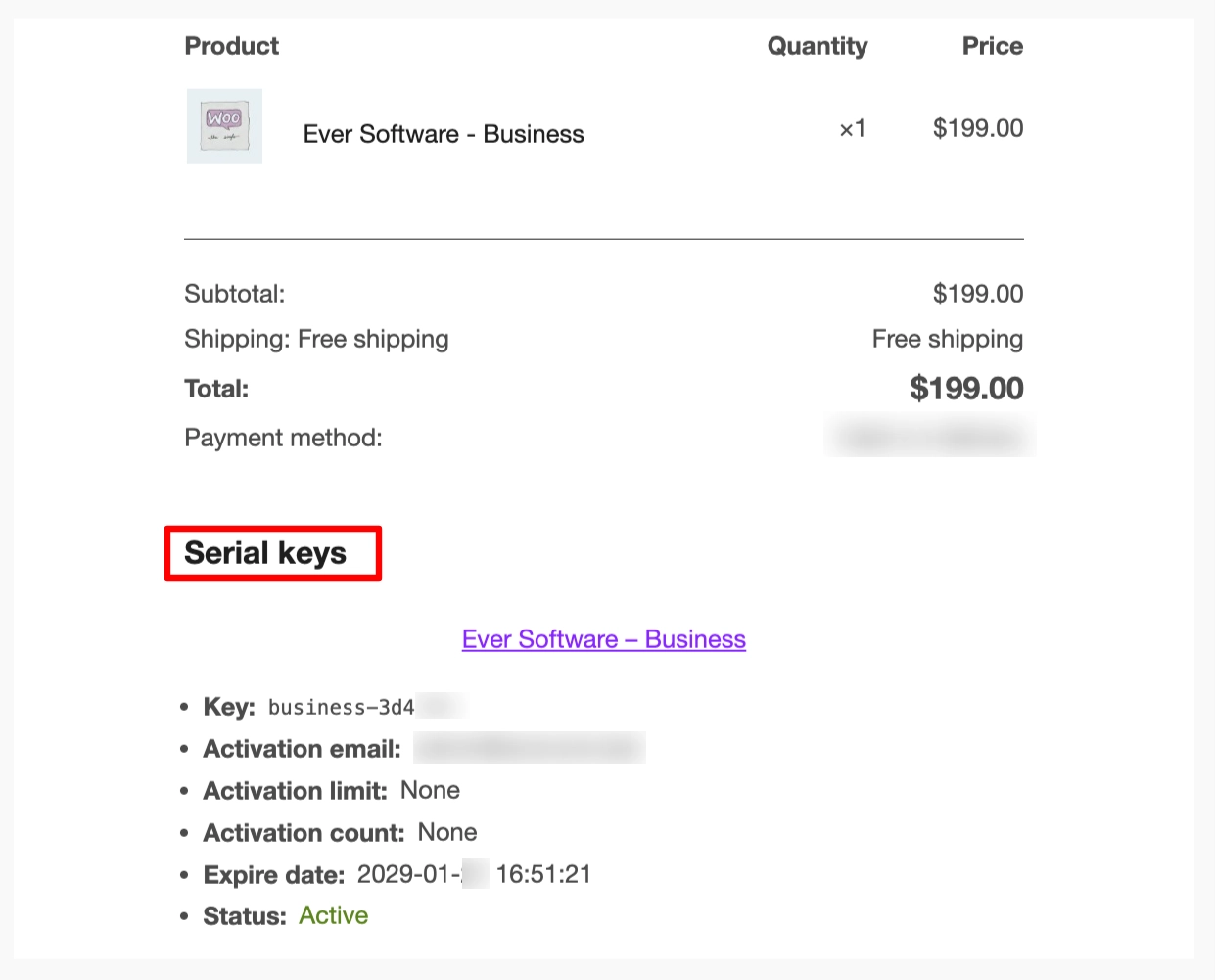
Once the order is Completed, check three places to confirm the correct key was delivered for the variation the customer purchased:
On the Order Details page – scroll down to the Serial Keys section and confirm the key shown matches what you expect for that specific variation.
On the Customer’s My Account page – the key appears under the order in their account. Your customer can log in to view it at any time.
In the Order Confirmation Email – the key is included in the confirmation email automatically. Check the inbox for the billing address used during the test.
Repeat this test for each variation to make sure everyone is set up correctly before you start taking real orders.
If a key does not appear after completing the order, see the Resolving Key Delivery Issues guide.
What’s Next
Now that your variable product is set up and delivering keys, here are a few things worth configuring to get the most out of WC Serial Numbers Pro.
- Sell Keys Without Stock – Allow customers to place orders even when a variation’s key pool is empty, and fulfill the key manually once stock is replenished.
- Allow Duplicate Keys – Allow the same key to be added to your key pool more than once, useful when a single key is valid for multiple customers.
- Translate Key Property Labels – Customize or translate the key property labels shown to customers on the order page and in emails, so everything matches your store’s language and tone.