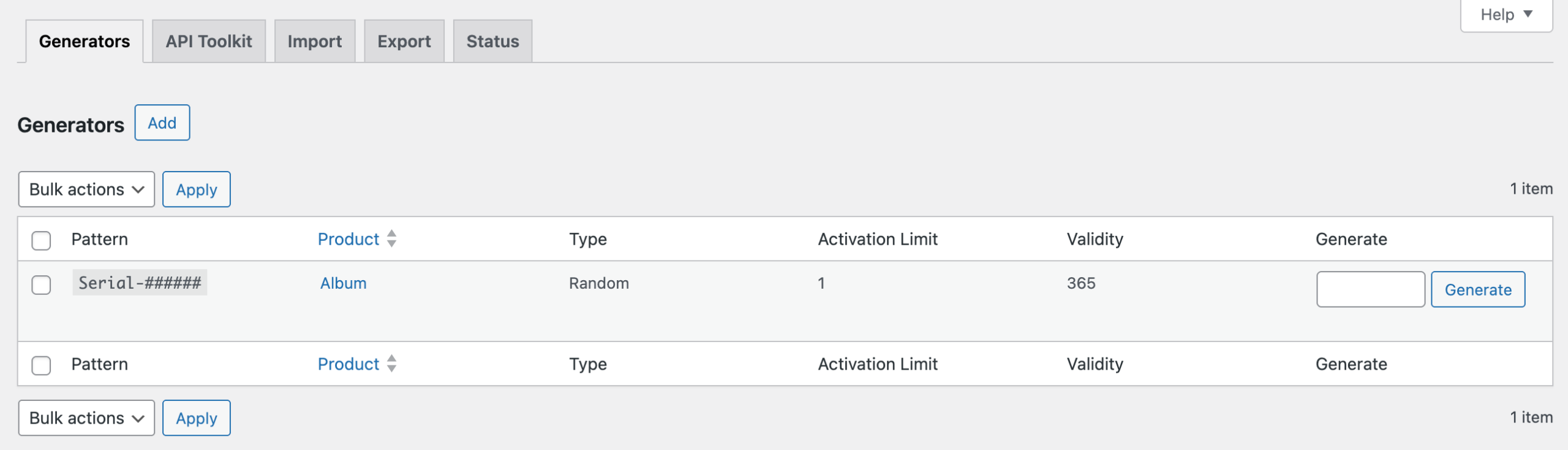
Adding keys manually works well when you have a ready-made list to upload. But if you want the plugin to create keys for you, a generator is what makes that possible.
A generator is a reusable rule that defines the format of your keys using a custom pattern. Once set up, it serves two purposes. You can connect it to a product so the plugin automatically generates and delivers a new key for every order placed. You can also use it to generate a large batch of keys in one click and add them directly to your key pool, ready to be delivered when orders come in.
You set the generator up once, and it handles both from that point on.
Note: Key Generator is a feature of WC Serial Numbers Pro. You will need to upgrade to Pro to access them.
Step 1: Open the Add New Generator Page
Go to Serial Numbers → Tools → Generators from your WordPress admin sidebar and click Add.
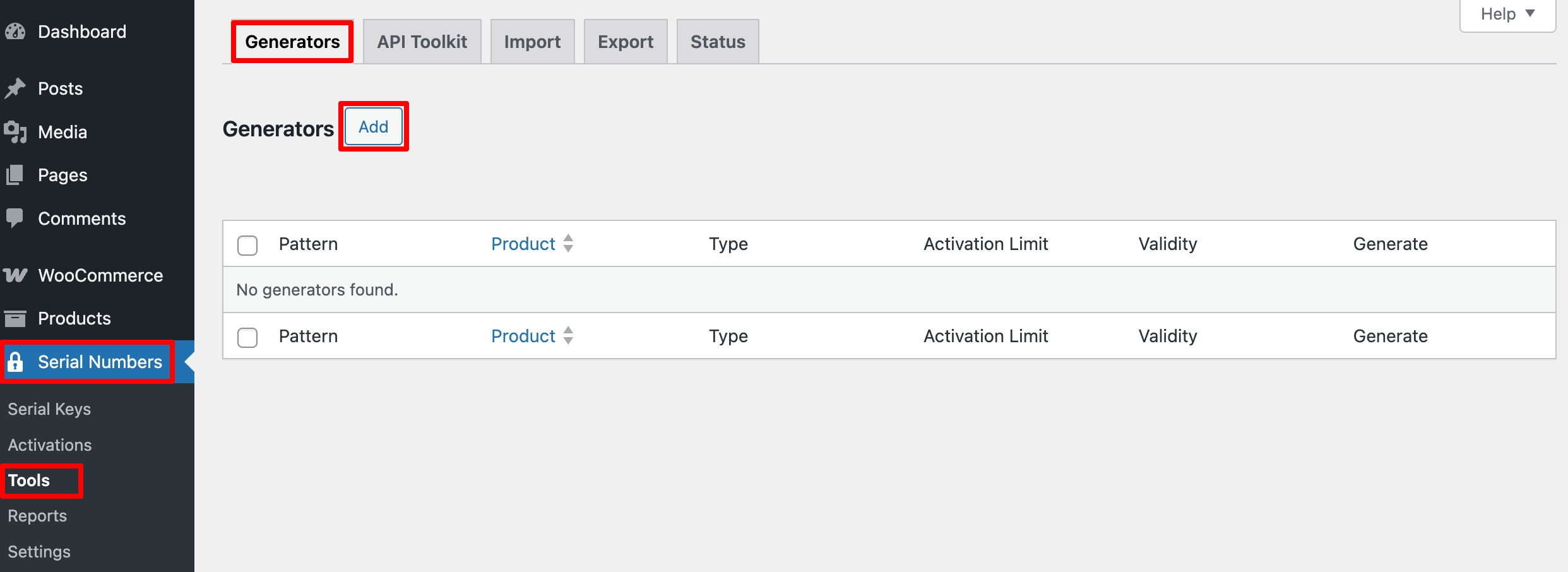
You will land on the Add New Generator page, where you configure the pattern and properties for the keys this generator will produce.
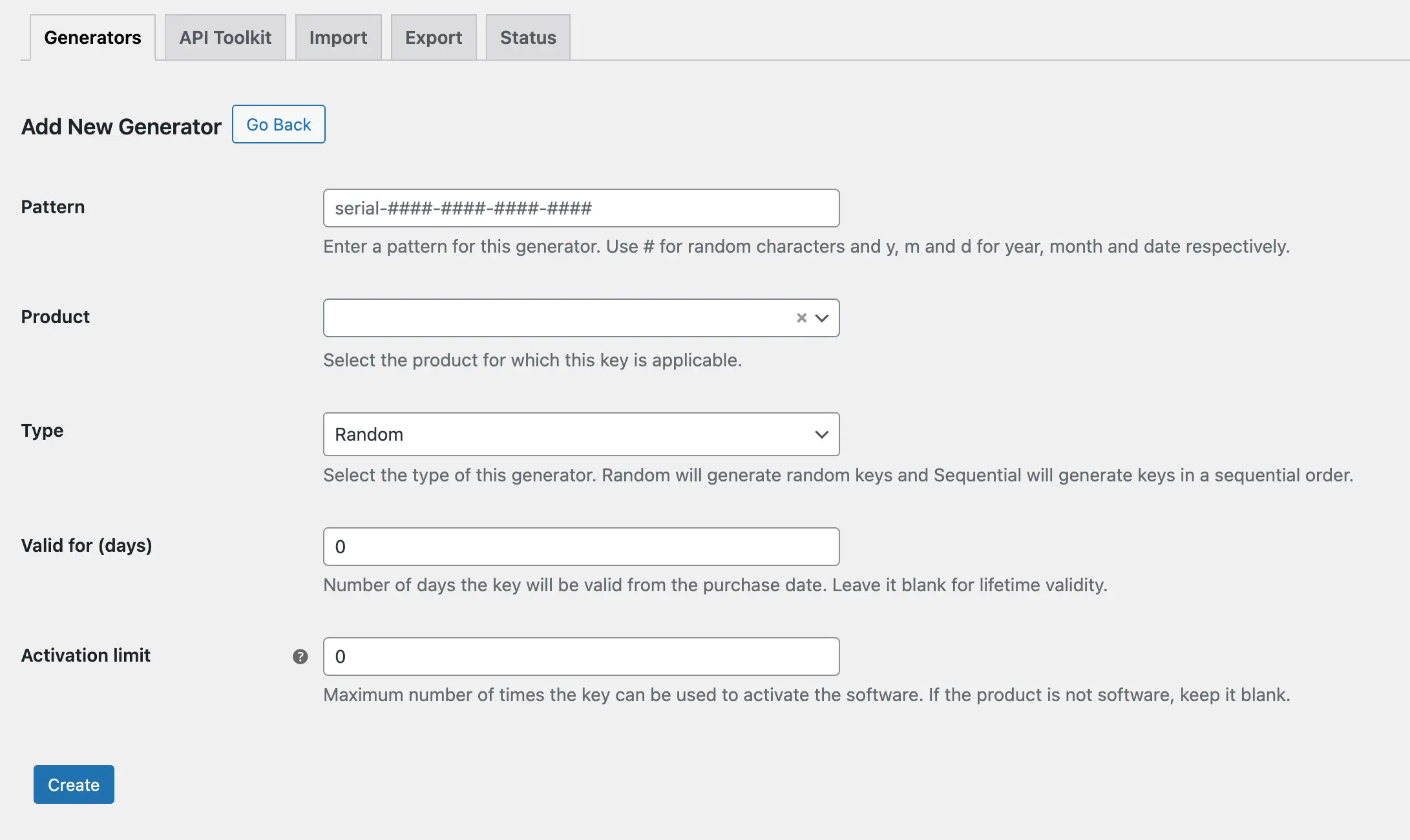
You can create multiple generators for the same product.
Step 2: Fill In the Generator Details
Pattern
This is the most important field. The pattern defines the structure of every key this generator produces. You build it using a combination of text and numbers (using the # character) and date tokens.

Each # in the pattern is replaced with a single alphanumeric character when a key is generated. Date tokens automatically insert the current year, month, or day.
| Token | Description | Example Output |
|---|---|---|
| # | Single alphanumeric or numeric character | A, 3, Z |
| {y} | Current year | 2026 |
| {m} | Current month | 08 |
| {d} | Current day | 15 |
For example, a pattern of Serial-###### produces keys like Serial-000001, Serial-000002 (Sequential) or Serial-A3XK92, Serial-7PMQR1 (Random).
A pattern of {y}-{m}-{d}-###### produces keys like 2026-08-15-000001, 2026-08-15-000002 – useful when you want the purchase date embedded in the key.
Product

Select the product this generator will produce keys for. When a customer orders this product, the plugin will use this generator to automatically create and deliver a key.
Type

Controls the order in which keys are generated.
Sequential produces keys in order, 000001, 000002, 000003, making it easy to track and audit.
Random produces keys in a randomized order, A3XK92, 7PMQR1, making them harder to predict or guess.
Valid For (Days)

The number of days the key stays valid, counted from the purchase date. For example, 365 gives the customer a one-year key. Leave blank to grant lifetime validity with no expiration.
Activation Limit

Sets the maximum number of times this key can be used to activate the software on a device. If your product is not software-based or you do not use activation, leave this blank.
Step 3: Save the Generator
Once all the fields are filled in, click Create.
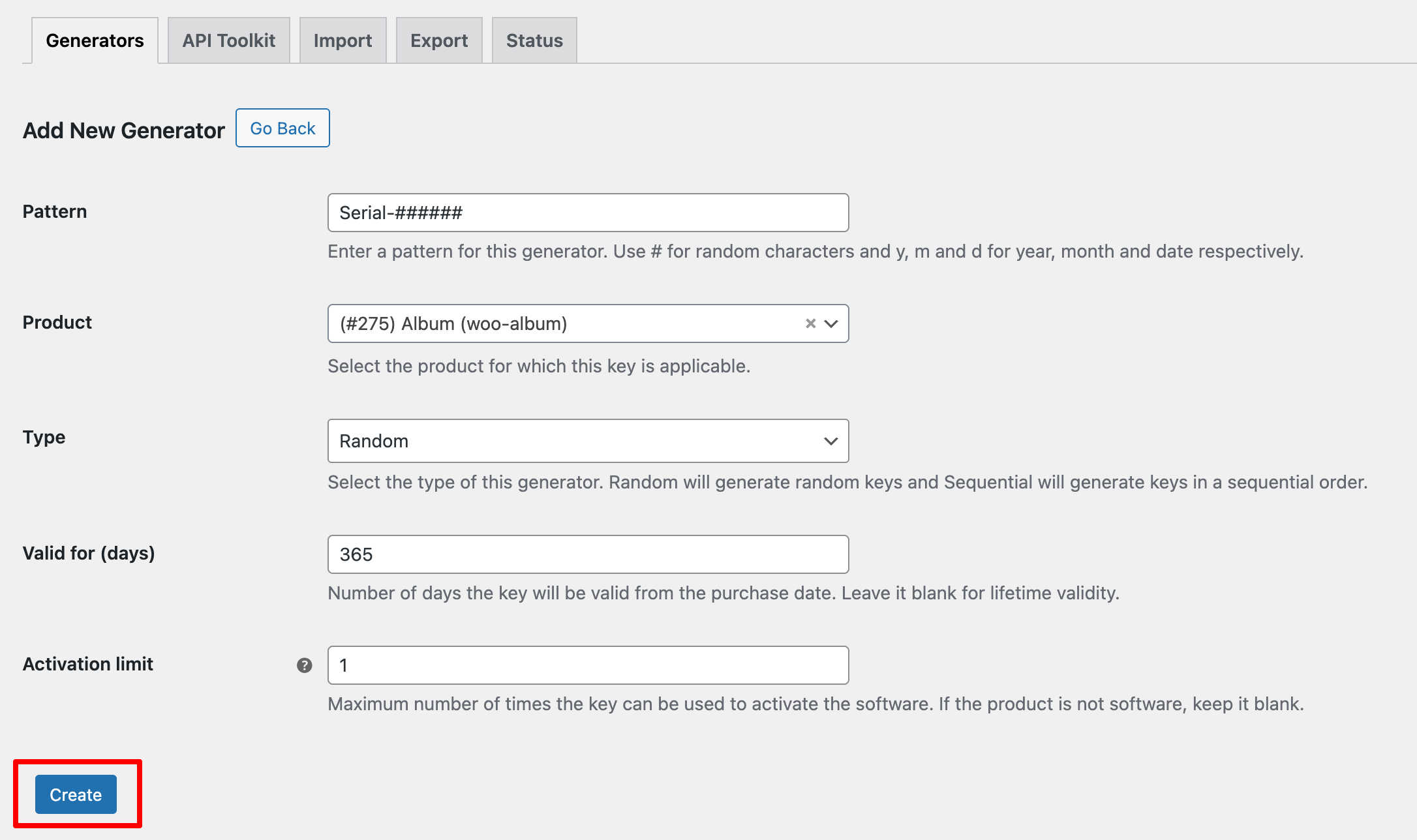
The generator will appear in the Generators list and is now ready to be connected to a product.