
Configure a product to automatically generate and deliver a unique serial key with each order. Useful when you want to skip adding keys manually and let the system handle key creation on the fly.
Configuration Steps
Step 1: Configure the Product
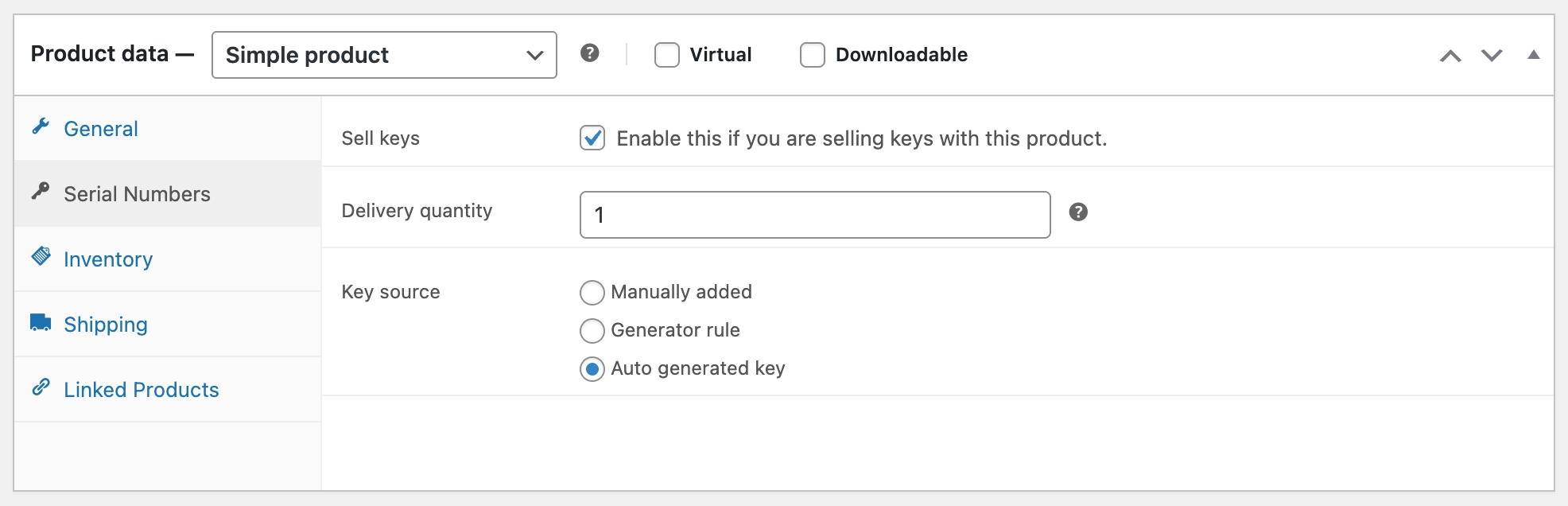
- Go to Products from your WordPress admin menu and edit your product.
- In the Product Data section, click the Serial Numbers tab.
- Check Sell Keys to enable key delivery for the product.
- Set the Delivery Quantity to define how many keys are delivered per unit ordered.
- Set the Key Source to Auto Generated Key.
Step 2: Configure the Key
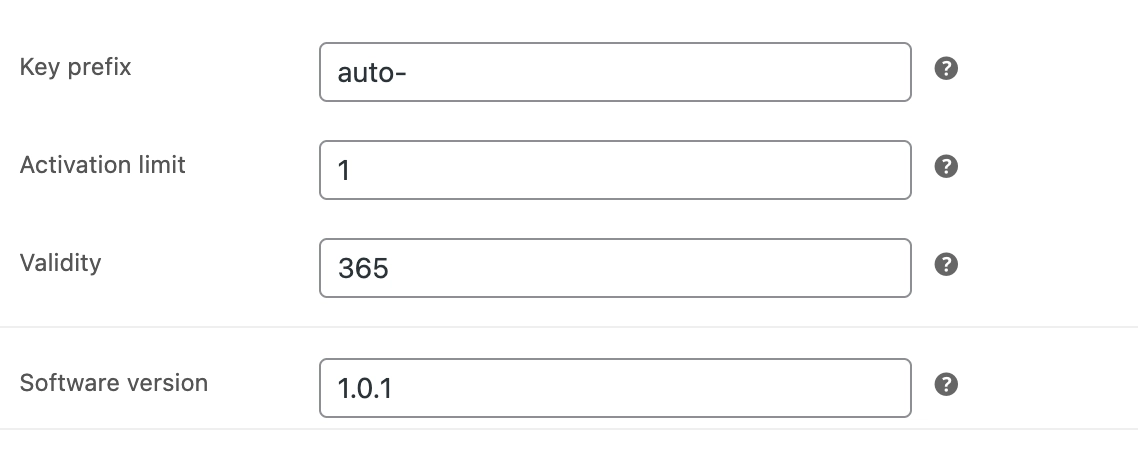
Once Auto Generated Key is selected as the key source, the following fields will appear:
- Key Prefix: Add a prefix to each generated key. For example, entering auto- produces keys like auto-t9a7jnlu34rtkbx5xooecfrnben.
- Activation Limit: Sets the maximum number of times the key can be used to activate the software. If the product is not software-based, leave this field blank.
- Validity: Number of days the key remains valid, counted from the purchase date. Leave blank to grant lifetime validity with no expiration.
- Software Version: Bind the key to a specific software version. (Optional)
Click Update to save the changes.
What Happens After Purchase
When a customer places a successful order, a unique alphanumeric key is generated automatically using the configured prefix and settings. The key is linked to the order once payment is complete and appears on the order confirmation page.