
Configure a product to automatically generate and deliver serial keys using a generator rule. When Generator Rule is selected as the key source, a new key is created and assigned to the order based on the generator you set, each time a customer makes a purchase.
Configuration Steps
Step 1: Set Up a Generator
Follow the steps in Set Up a Key Generator to create and configure a generator before proceeding.
Step 2: Assign the Generator to the Product
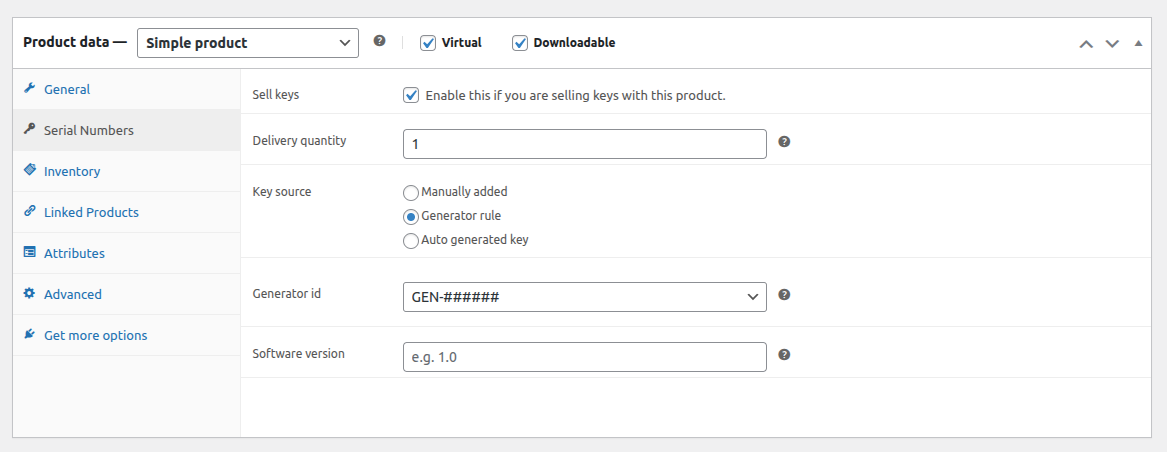
- Go to Products from your WordPress admin menu and edit your product.
- In the Product Data section, click the Serial Numbers tab.
- Check Sell Keys to enable key delivery for the product.
- Set the Key Source to Generator Rule.
- If a generator rule already exists for the product, the Generator ID will load automatically.
- Set the software version to bind the key to a specific version. (Optional)
- Click Update to save the changes.
You can create multiple generator rules for the same product, but only one generator can be active at a time. Make sure to select the correct generator from the Generator ID field.
What Happens After Purchase
When a customer places a successful order, a new key is generated using the configured pattern and assigned to the order. The key appears on the order confirmation page once the order is completed.