

Exporting keys lets you pull your serial key data from WooCommerce into a CSV file. This is useful when you need to audit your key pool, share sold key records with a vendor, back up your data, or analyze key usage in a spreadsheet.
You can filter the export by product, status, and date range, so you get exactly the data you need rather than your entire key database at once.
Note: The Export feature is available only in WC Serial Numbers Pro. You will need to upgrade to Pro to access it.
Step 1: Open the Export Page
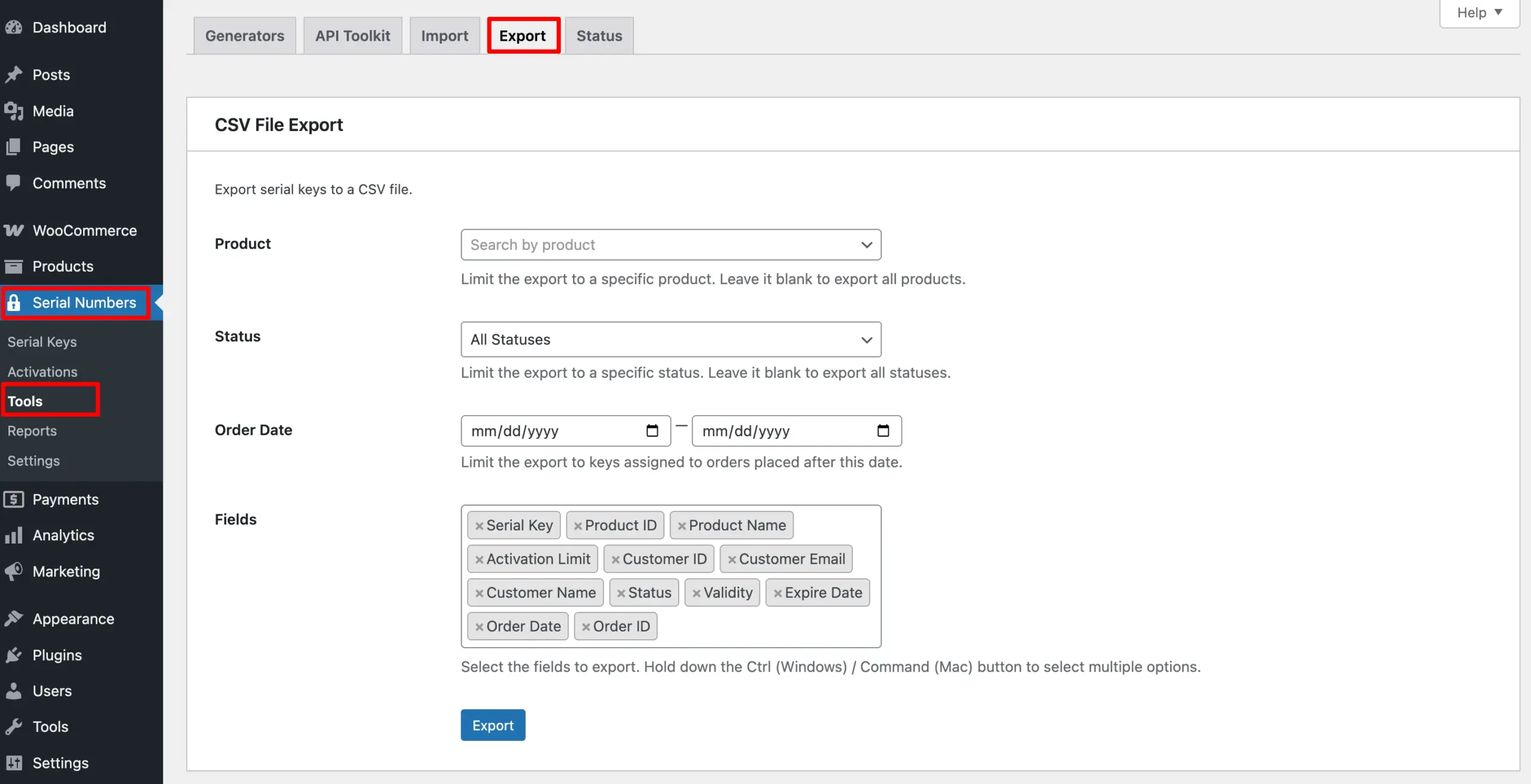
Go to Serial Numbers → Tools from your WordPress admin sidebar and click the Export tab.
Step 2: Configure Your Export Filters
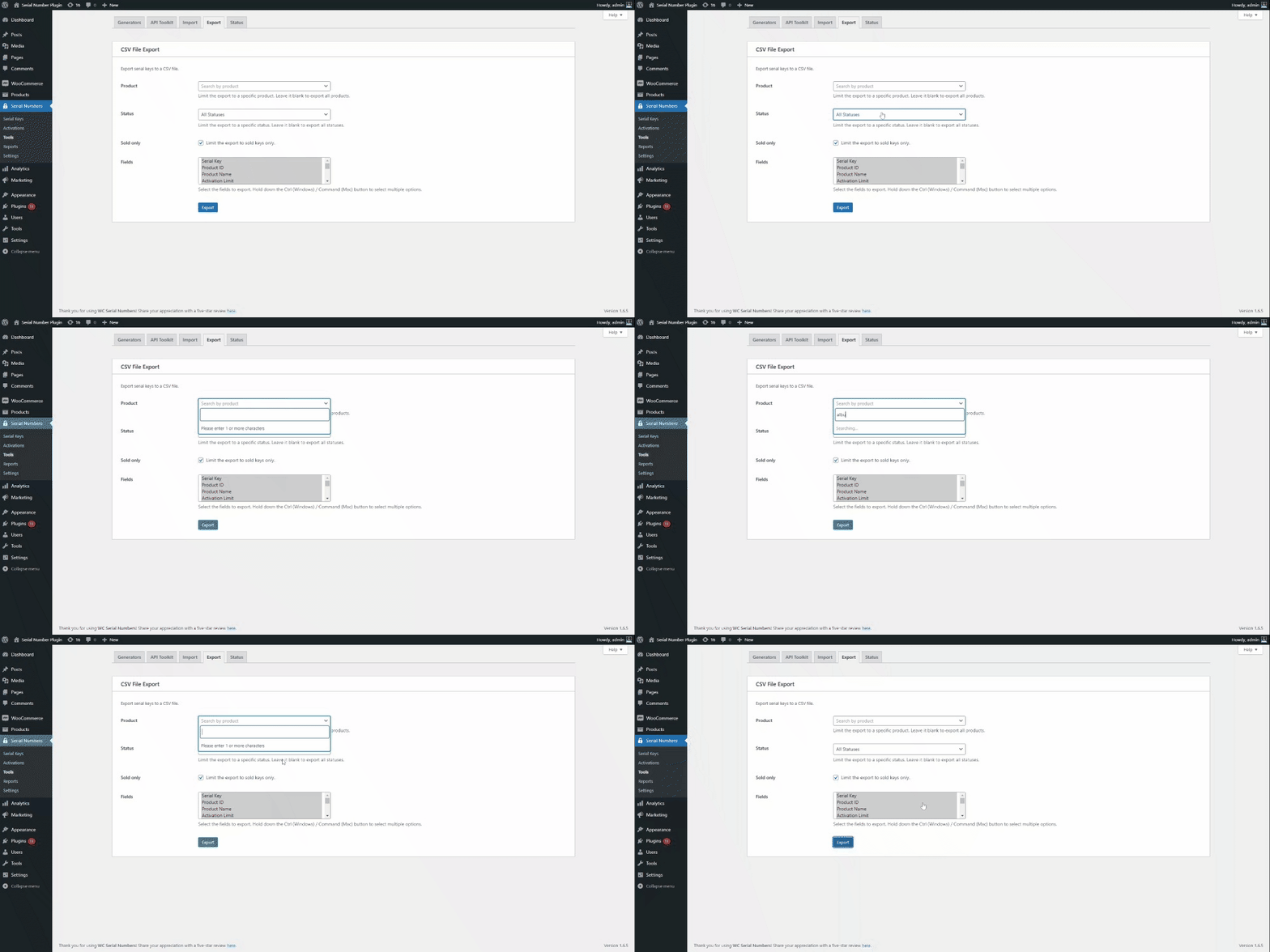
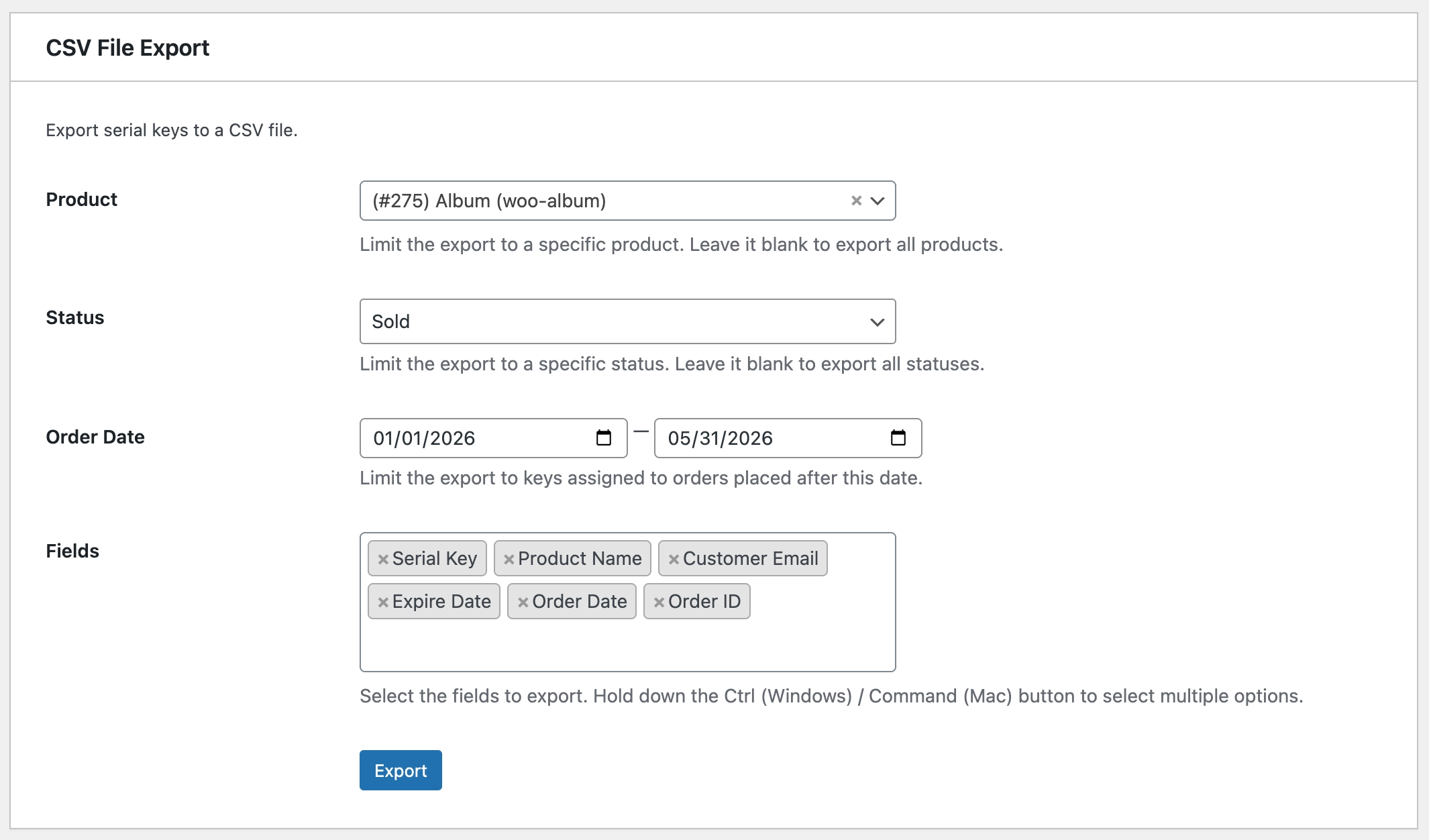
Before downloading, use the available filters to narrow down exactly which keys you want to export. Leave any filter blank to include all records for that field.
Product
Select a specific product from the dropdown to export only the keys assigned to that product. Leave this blank to export keys across all products.
Status
Filter keys by their current status. For example, select Available to export only keys that have not been sold yet, or Sold to export keys that have already been delivered to customers. Select All Statuses to include every key regardless of status.
Order Date
Filter sold keys by a specific date range. This is useful when you need records for a particular period. For example, keys sold in a specific month. Leave both date fields blank to export all-time data.
Fields
Select which data columns you want included in the exported CSV file. Only check the fields you actually need; this keeps the file clean and easy to work with.
Step 3: Export and Download
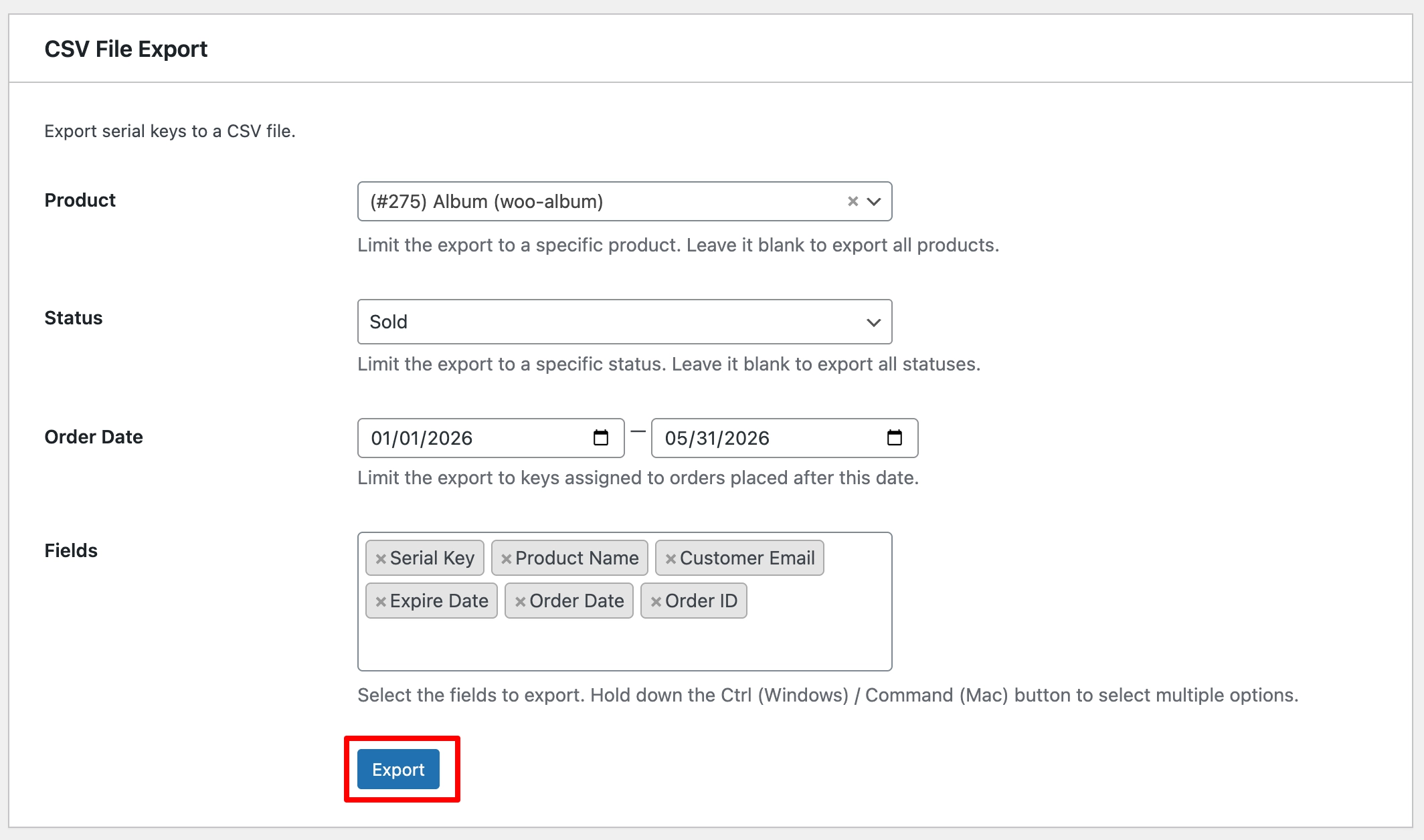
Once your filters are set, click Export. The CSV file will download to your computer automatically.
You can open the file in any spreadsheet application, such as Microsoft Excel, Google Sheets, or LibreOffice Calc, to review, sort, or share your key data.