
Configure a product to deliver serial keys from a pool of manually added keys. Useful when you have pre-existing keys and want to assign them to a product before making it available for purchase.
Configuration Steps
Step 1: Enable Key Selling on the Product
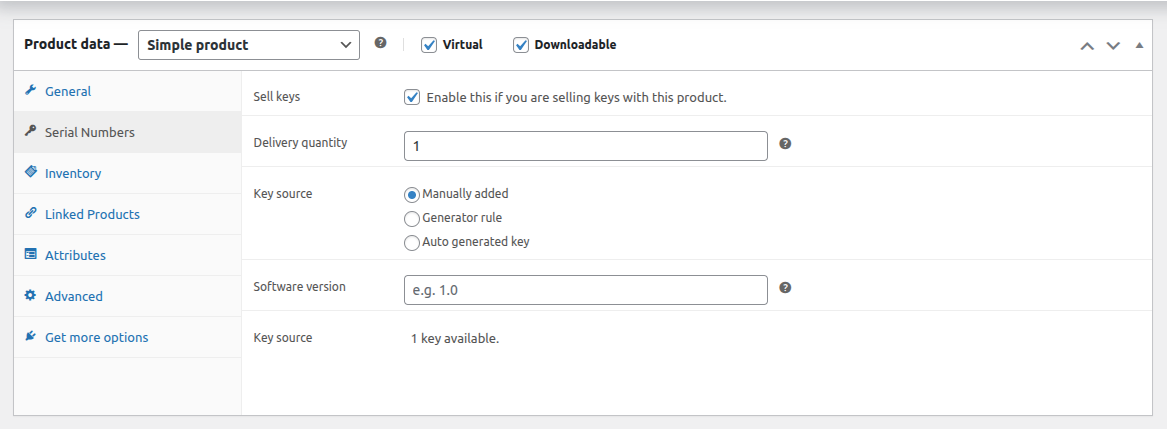
- Go to Products → All Products from your WordPress admin menu and edit your product.
- In the Product Data section, click the Serial Numbers tab.
- Check Sell Keys to enable key delivery for the product.
- Set the Delivery Quantity to define how many keys are delivered per unit ordered.
- Set the Key Source to Manually Added.
Step 2: Add Keys to Your Key Pool
Follow the steps in Add Keys Manually to add keys and assign them to this product.
Review and Manage Keys
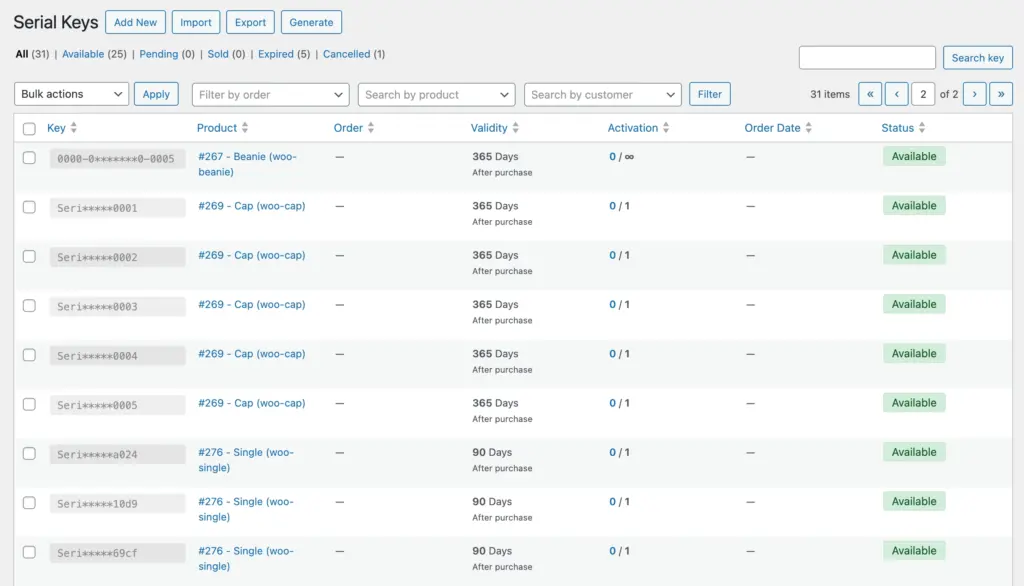
Go to Serial Numbers → Serial Keys to view all added keys. Each entry shows the key value, associated product, activation limit, validity period, and current status.
What Happens After Purchase
When a customer places a successful order, they receive the same number of keys as the product quantity ordered. Keys appear on their My Account page and in the order confirmation email.