
By default, WooCommerce marks orders as Processing after a successful payment and waits for you to manually update the order status. Enabling this setting skips that manual step and delivers keys to customers instantly, the moment their payment goes through.
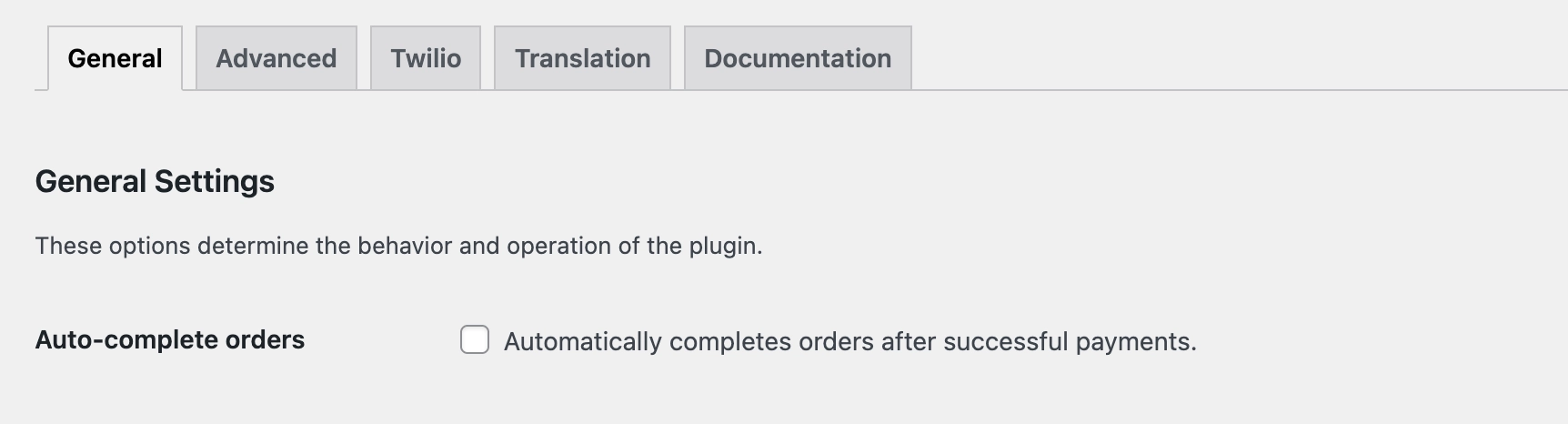
Where to Find This Setting
- Navigate to Serial Numbers → Settings → General from your WordPress admin menu.
- Find the Auto-complete orders checkbox and enable it.
What This Setting Does
When enabled, WC Serial Numbers listens for a successful payment event and automatically transitions the order status from Processing to Completed. This triggers key delivery instantly without requiring any manual action from you or your team.
| Disabled (default) | Orders stay in Processing status after payment. You must manually change the status to Completed to deliver keys. |
| Enabled | Orders move to Completed automatically after payment. Keys are delivered instantly. |
Example
A customer purchases a software license and pays via Stripe. With Auto-Complete Orders enabled, the order immediately moves to Completed, and the customer receives their key in the order confirmation email with no delays and no manual steps required.
This setting works best when you have reliable payment gateways. If you process orders that sometimes require verification (e.g., bank transfers), keep this disabled so you can review orders before marking them complete.
Looking for a Standalone Solution?
If you want to auto-complete orders for all digital products across your store without configuring it per plugin, check out our free Autocomplete Orders for WooCommerce plugin. It automatically completes orders for digital products the moment payment is confirmed, with no additional setup required.