
BOGO for WooCommerce plugin by PluginEver lets you create automatic Buy One, Get One promotions on your WooCommerce store. Below are step-by-step instructions for installing the plugin.
Step 1: Downloading and Activating the Plugin
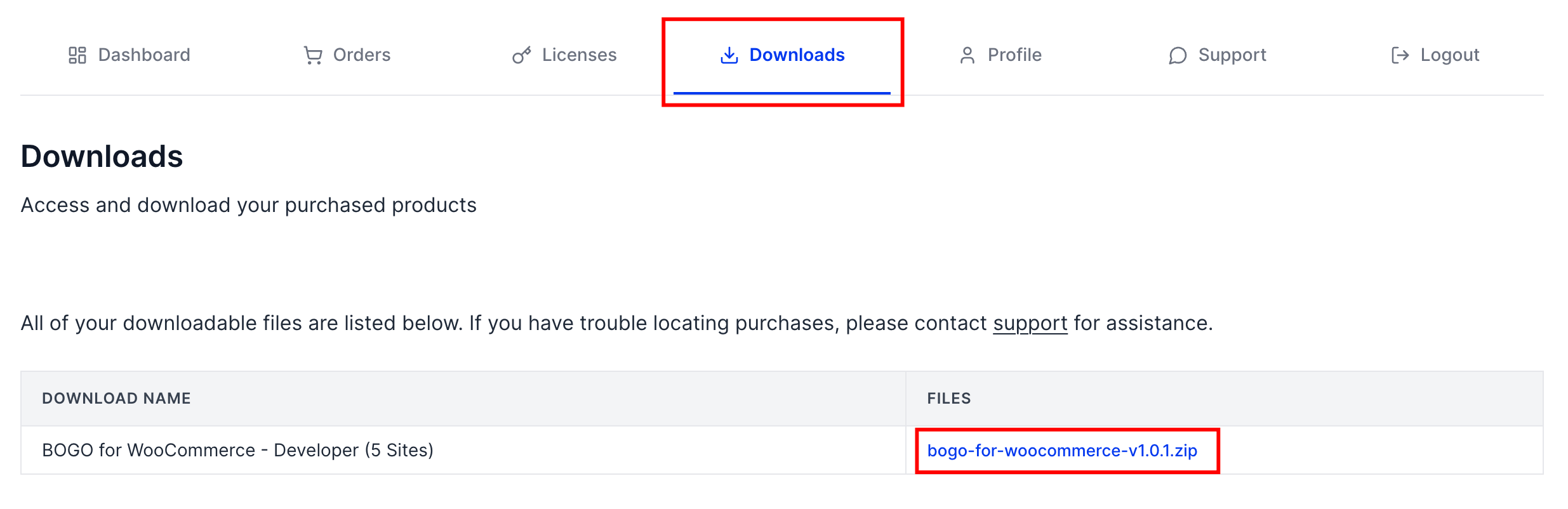
If you’ve purchased the plugin, follow these steps to obtain your copy:
- Log in to your PluginEver Account and go to My Account > Downloads.
- Click on the downloadable ZIP file next to your purchased plugin.
- The plugin ZIP file will download to your local machine’s Downloads folder.
You’ll also receive a download link via email after your purchase.
Option 1: Installation via WordPress Admin Dashboard (Recommended for Most Users)
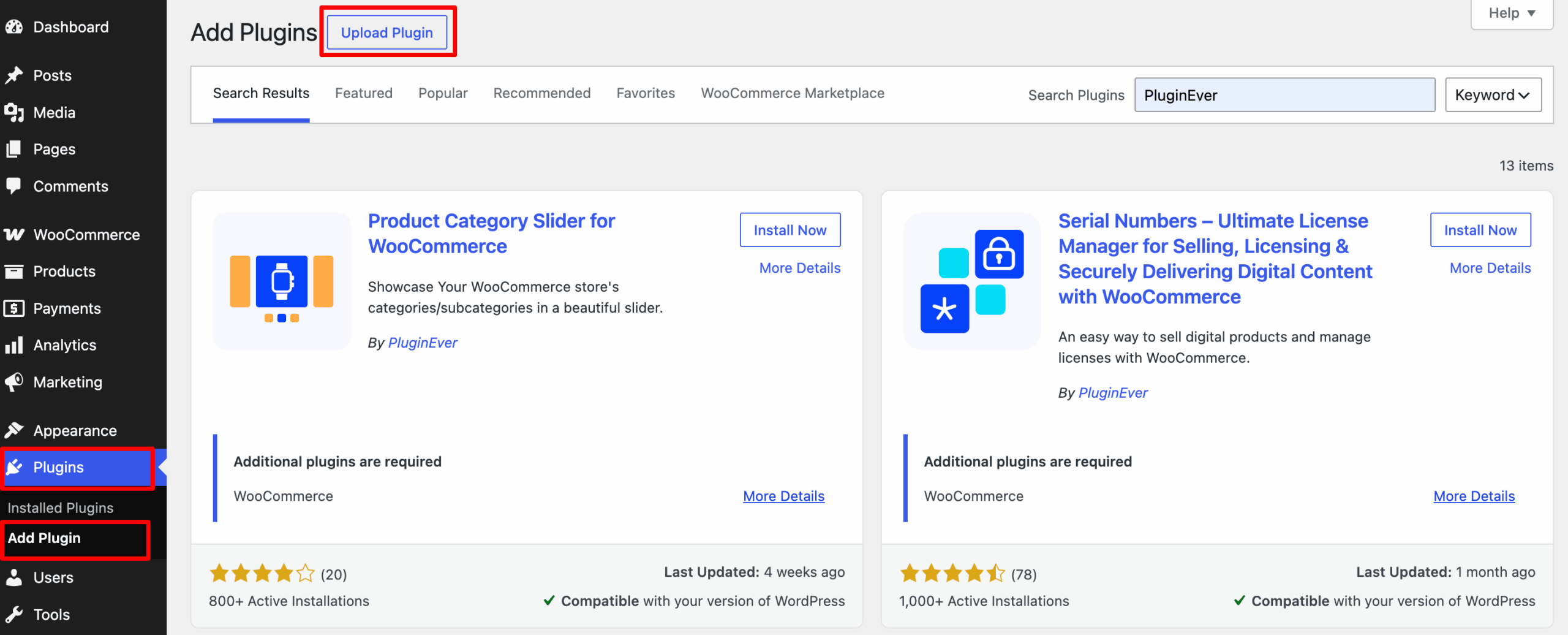
- Log in to your WordPress site and navigate to Plugins > Add Plugin > Upload Plugin.
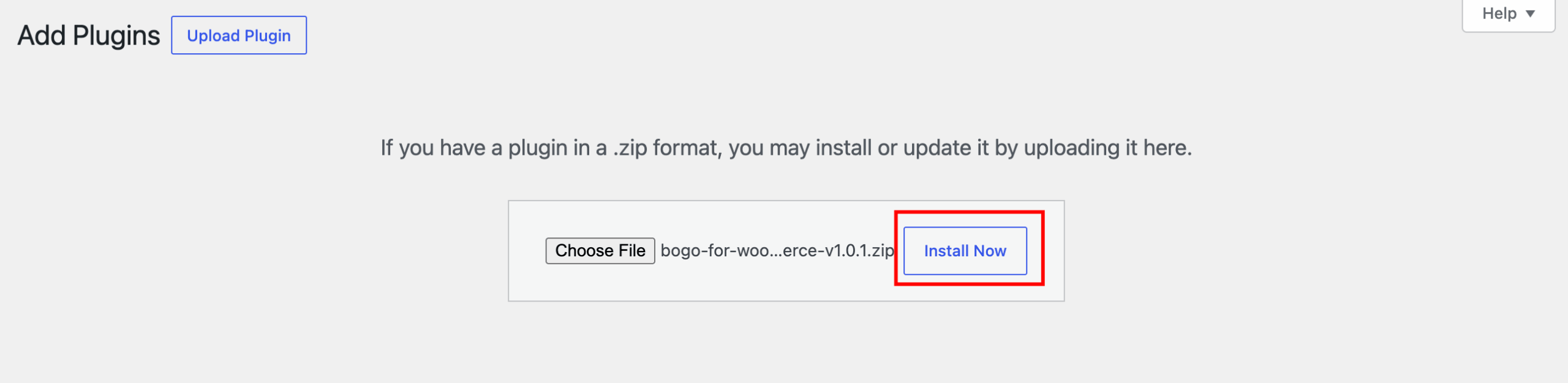
- Click Choose File and select the plugin ZIP file you downloaded.
- Click Install Now, and once the installation is complete, click Activate Plugin.
Option 2: Installation via FTP/SFTP (Recommended for Developers)
- Unzip the file locally.
- Use an FTP client, such as FileZilla, to connect to your server.
- Navigate to your WordPress installation path
wp-content/plugins/ - Upload the unpacked plugin folder into the plugins directory.
- In your WordPress dashboard, go to Plugins > Installed Plugins.
- Locate BOGO for WooCommerce and click Activate.
Ensure your server has the proper permissions for file uploads.
Step 2: Activating the License
Once installed, follow these additional steps to fully activate and enable features:
Find Your License
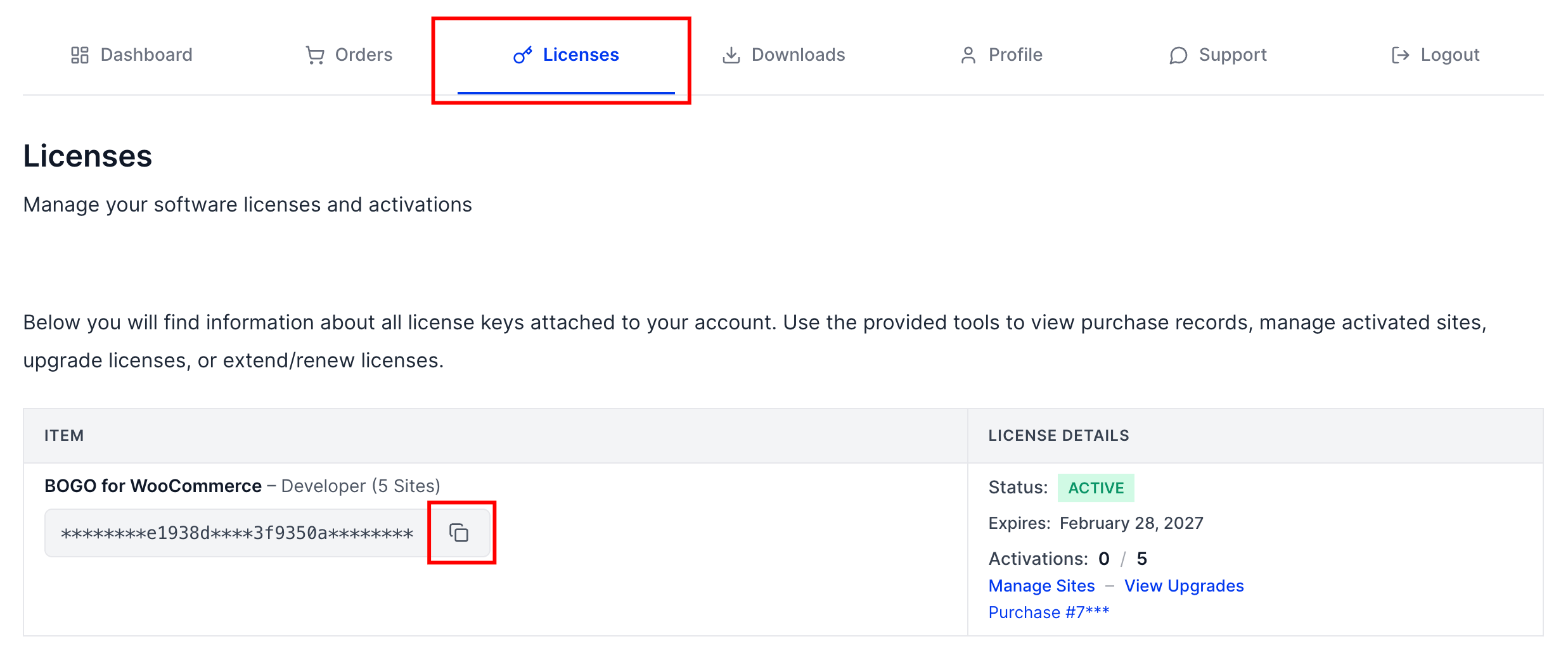
- Find your license key by checking your order confirmation email or logging into your PluginEver Account and navigating to My Account > Licenses.
- Copy the license key corresponding to the BOGO for WooCommerce plugin.
License Activation
After activating the plugin, a notice will appear: “Activate BOGO for WooCommerce”.
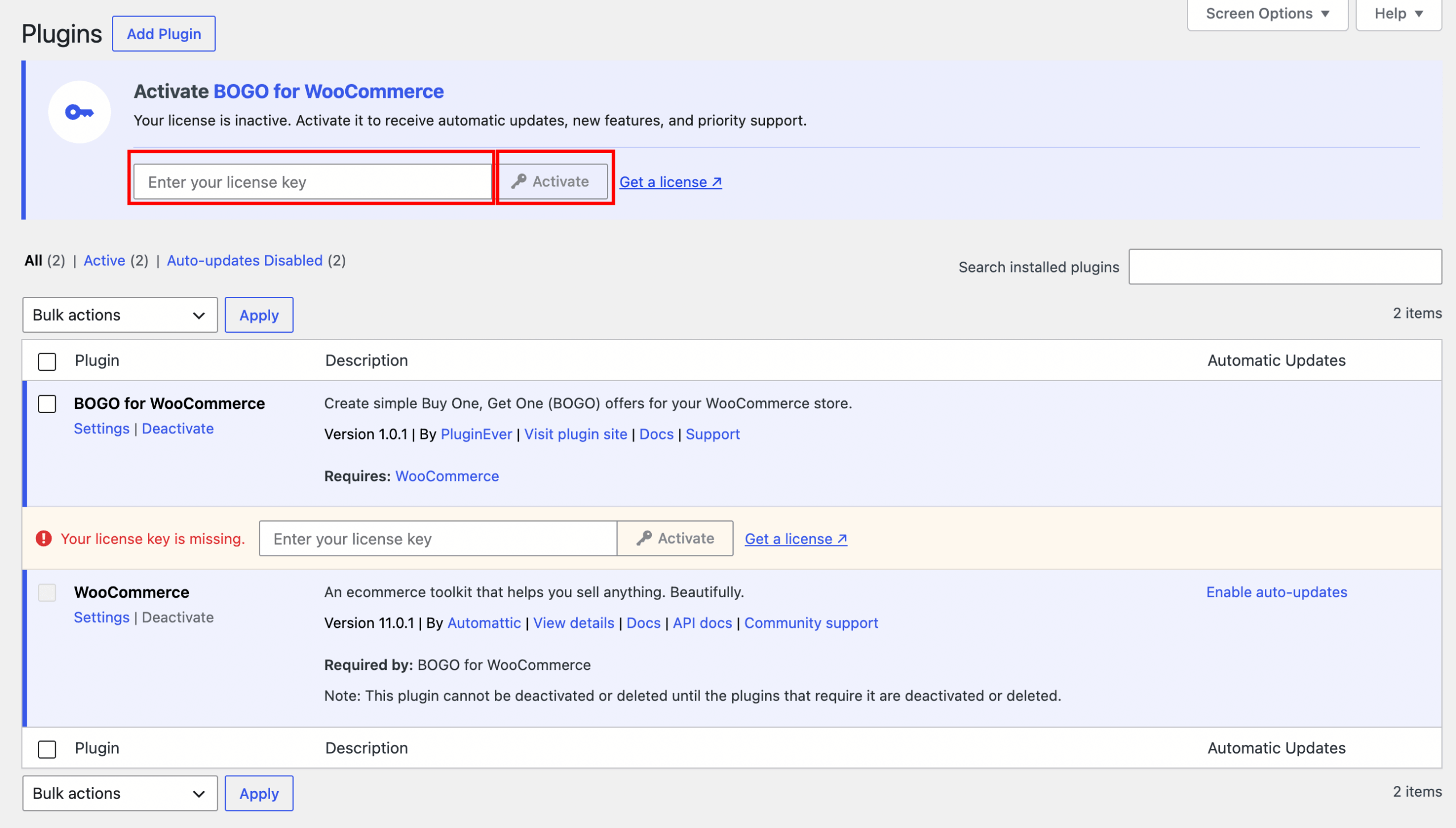
To activate your license:
- Paste the key into the license field.
- Click Activate.
Once activated, you’ll have full access to all premium features and updates.
Troubleshooting Tips
- Plugin not activating? Check PHP version compatibility (minimum PHP 7.4 recommended).
- Installation failed? Make sure your server configuration isn’t limiting file uploads (e.g., upload_max_filesize, post_max_size).
- White screen after activation? Enable WP_DEBUG in your wp-config.php to catch errors.
- License not saving? Double-check that your domain matches the activation limit and that your license hasn’t expired.