
The Sale Badge gives products with an active BOGO offer a visual callout, like “Buy 1 Get 1” or “Free Gift”, directly on their product image. This helps the offer catch a shopper’s eye before they even open the product page.
Step 1: Navigate to the Sale Badge Settings
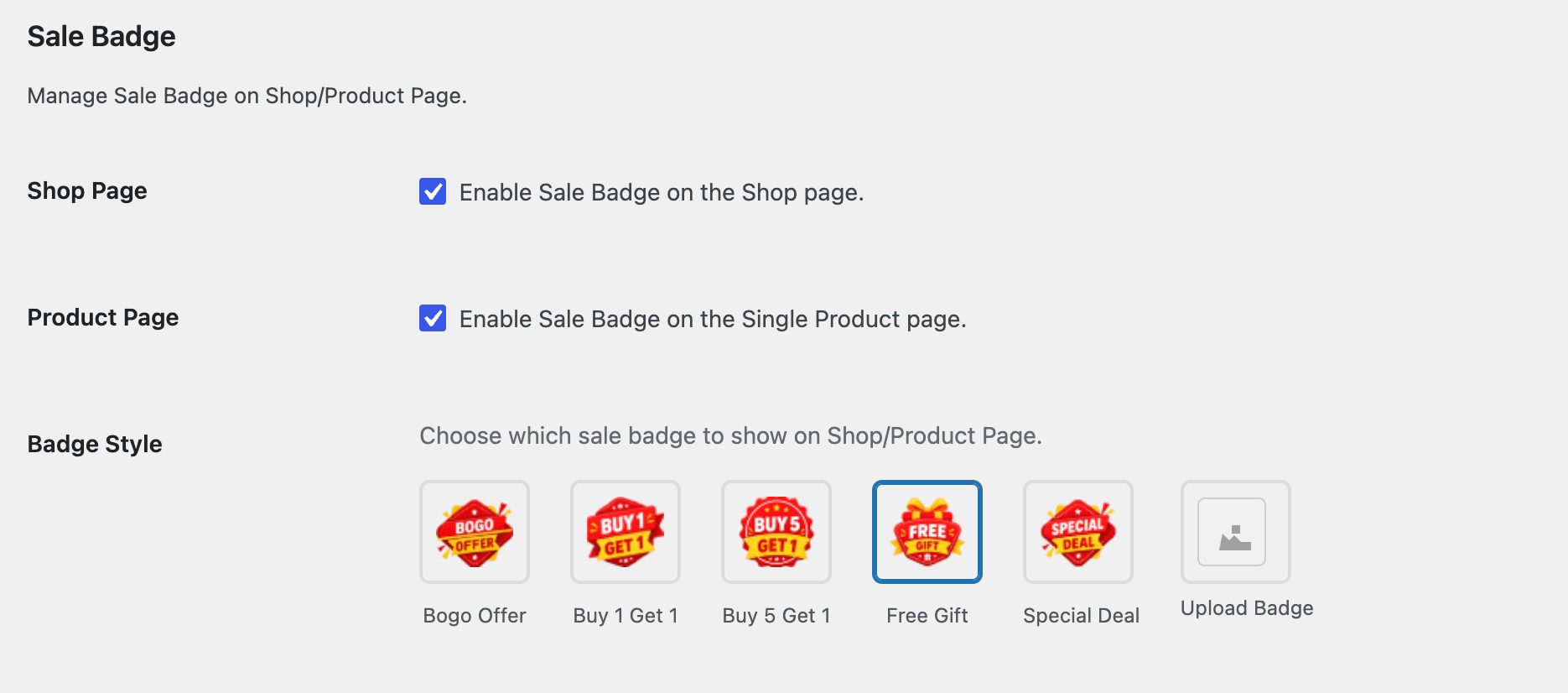
You’ll find these settings under WooCommerce > BOGO > General, in the Sale Badge section.
Step 2: Enable the Badge on the Shop Page
Check Shop Page to display the badge on product images throughout your shop and category archive pages.

Step 3: Enable the Badge on the Product Page
Check Product Page to display the badge on the main product image on individual product pages.

Step 4: Choose a Badge Style
Select a badge design from the available presets: Bogo Offer, Buy 1 Get 1, Buy 5 Get 1, Free Gift, or Special Deal. Click a style to select it.
If none of the presets fit your branding, choose Upload Badge to use your own custom badge image instead.

Note: The Sale Badge is a store-wide style choice; it applies to every product with an active BOGO offer and doesn’t change based on the individual offer’s details.
Step 5: Save Your Settings
Once you’ve configured all the options above, click Save Changes at the bottom of the page.

What’s Next
Continue to Offer Banner to configure how the BOGO offer appears on the single product page itself.