
The Same Product reward source rewards customers with more units of the exact item they’re already buying, always fully free, whether that’s a classic “Buy 1 Get 1” or a bulk structure like “Buy 5 Get 2.” This guide walks through configuring it on a product.
Step 1: Enable the BOGO Offer
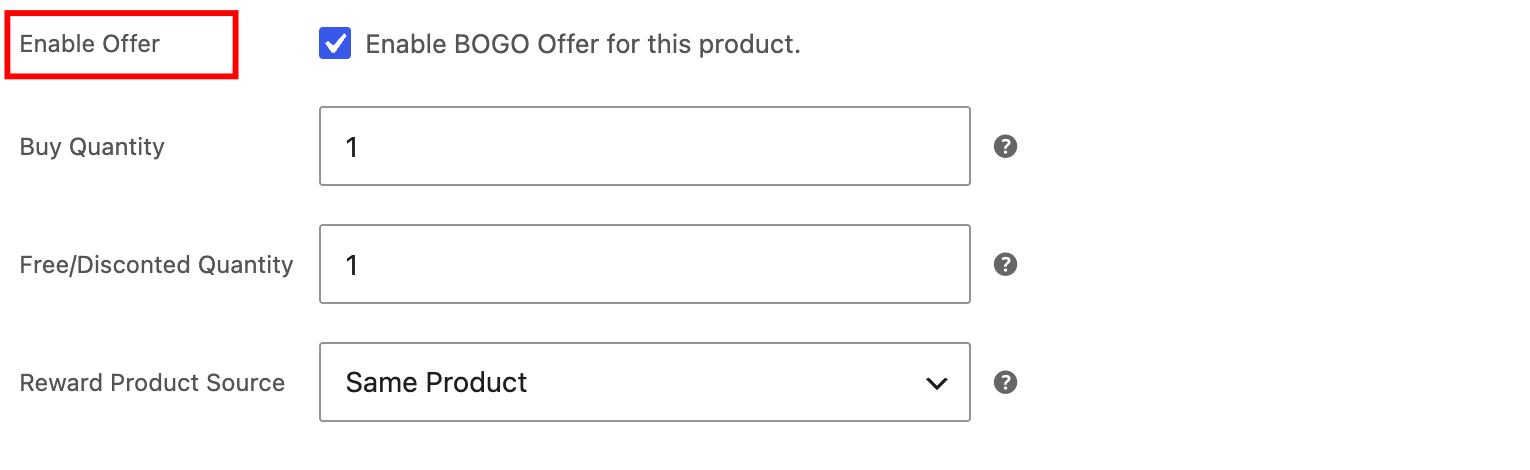
Open the product you want to run the offer on, go to Product Data > BOGO Options, and check Enable Offer. This turns on the offer for this product; none of the other settings takes effect until it’s checked.
Step 2: Set the Buy Quantity
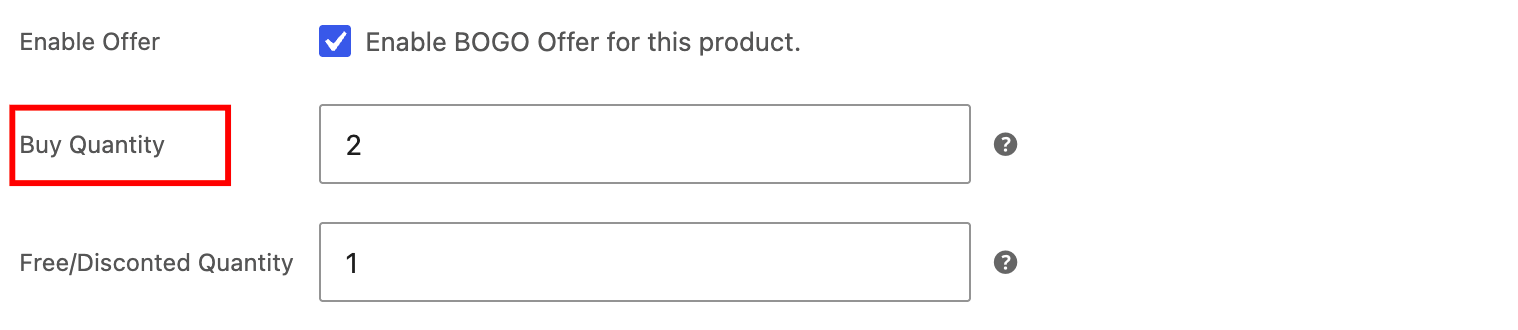
In the Buy Quantity field, enter how many units the customer needs to add to their cart to trigger the offer. For example, setting this to 2 means the customer must buy 2 units before the reward unlocks.
Step 3: Set the Free/Discounted Quantity
In the Free/Discounted Quantity field, enter how many additional units the customer receives for free. This offer type doesn’t support a partial discount; the quantity you set here is given entirely free, not at a reduced price.
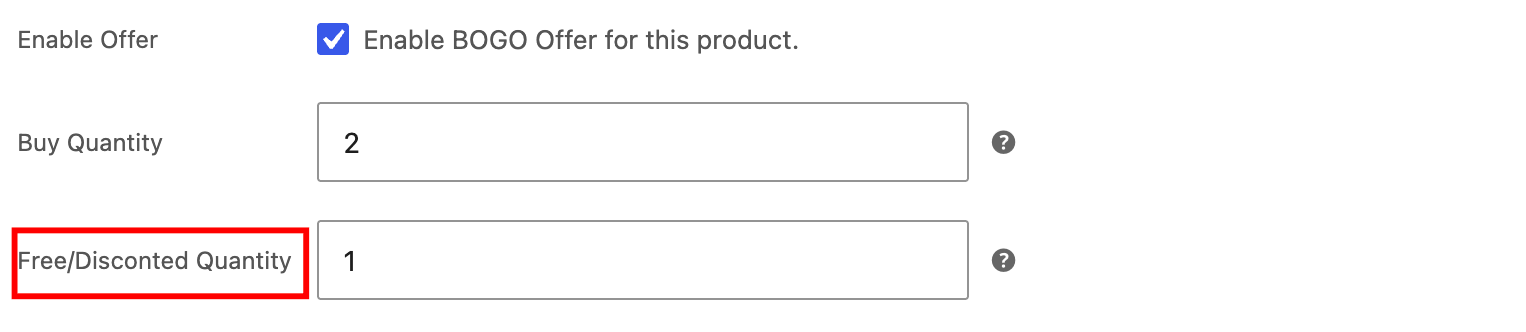
For example, a “Buy 2 Get 1 Free” deal would use a Buy Quantity of 2 and a Free/Discounted Quantity of 1.
Step 4: Choose Same Product as the Reward Source
In Reward Product Source, select Same Product. This tells the plugin to give the customer more of the exact product they’re already buying, rather than a different item.

Step 5: Publish and Verify
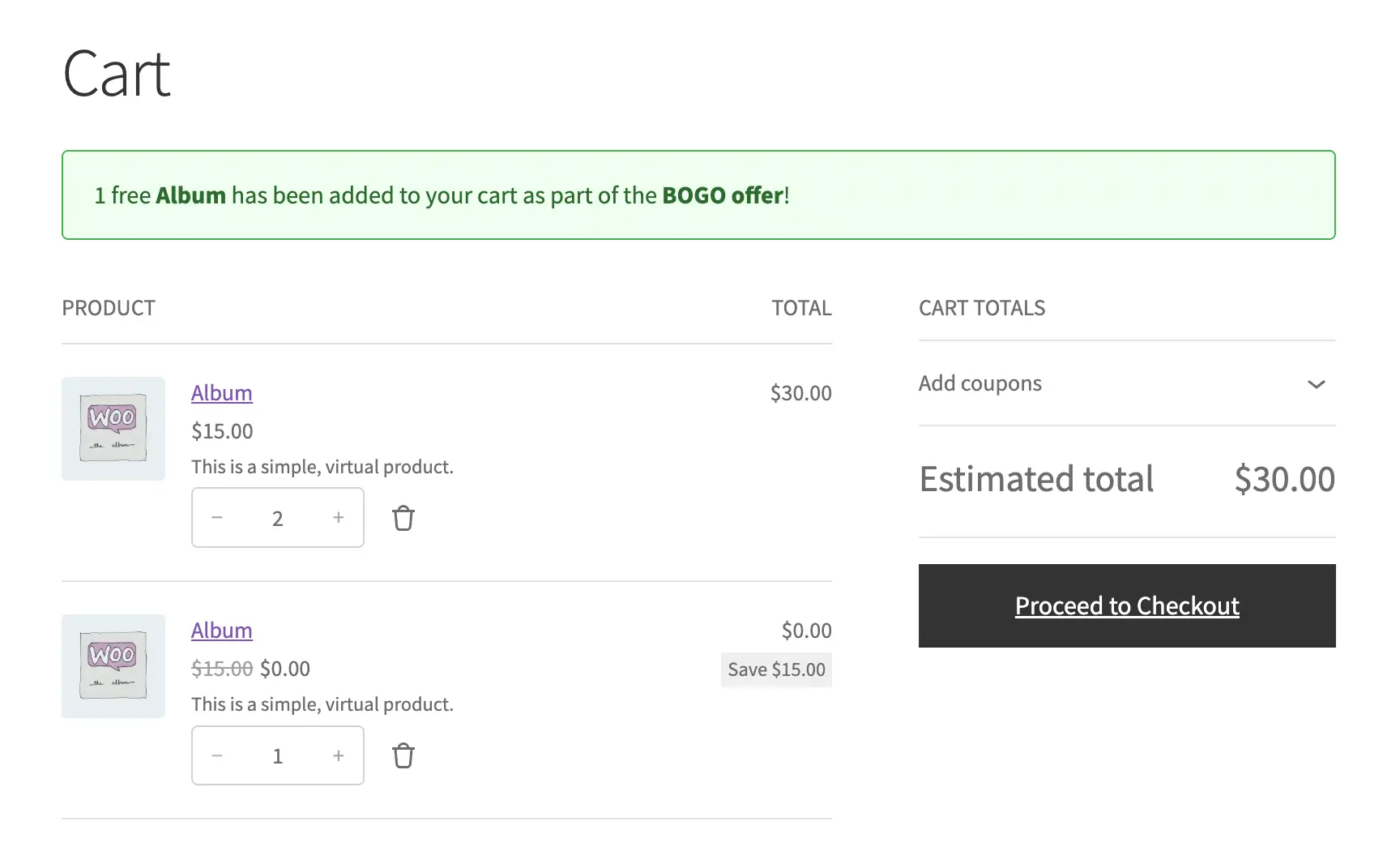
Update the product, then visit its page on the frontend. Add the Buy Quantity to your cart and confirm the free units are added automatically once the quantity is met.
What’s Next
Want to offer a different product as the reward instead? See Set Up a Buy X Get Y Offer.