
If a product has variations, like different sizes or colors, you’re not limited to one BOGO offer for the entire product. BOGO for WooCommerce lets you configure a separate offer on individual variations, which overrides the parent product’s offer for that variation only.
How Variation-Level Offers Work
Any variation with its own offer configured overrides the parent-level configuration, but only for that specific variation. Every other variation without its own configuration continues to use the parent product’s BOGO settings.
Note: This is an override, not a stacking rule. A configured variation uses only its own settings, not a combination of the parent’s and its own.
Step 1: Open the Product’s Variations
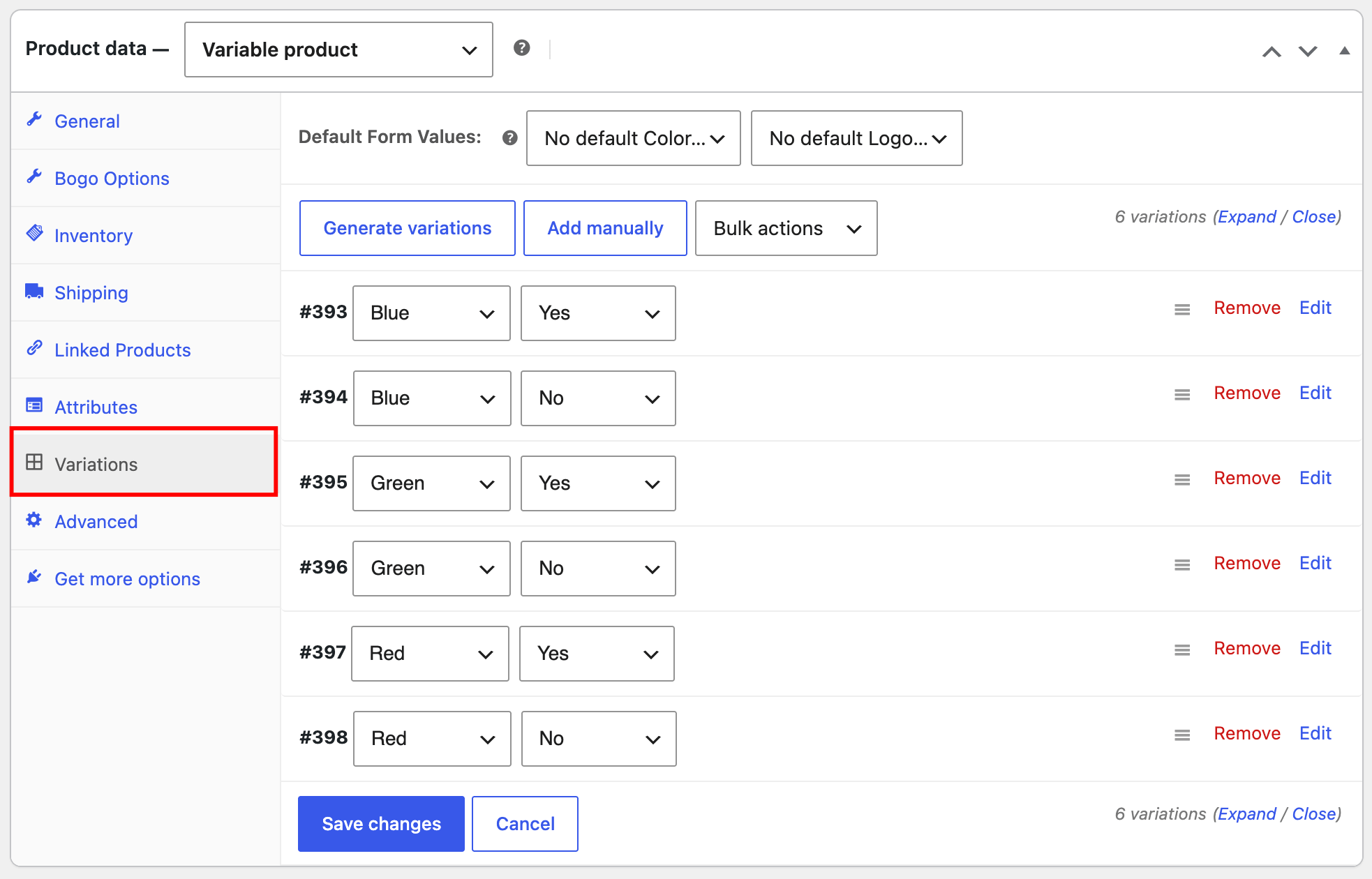
Go to Products > All Products, open the variable product you want to configure, and click the Variations tab under Product Data.
Step 2: Expand the Variation You Want to Configure
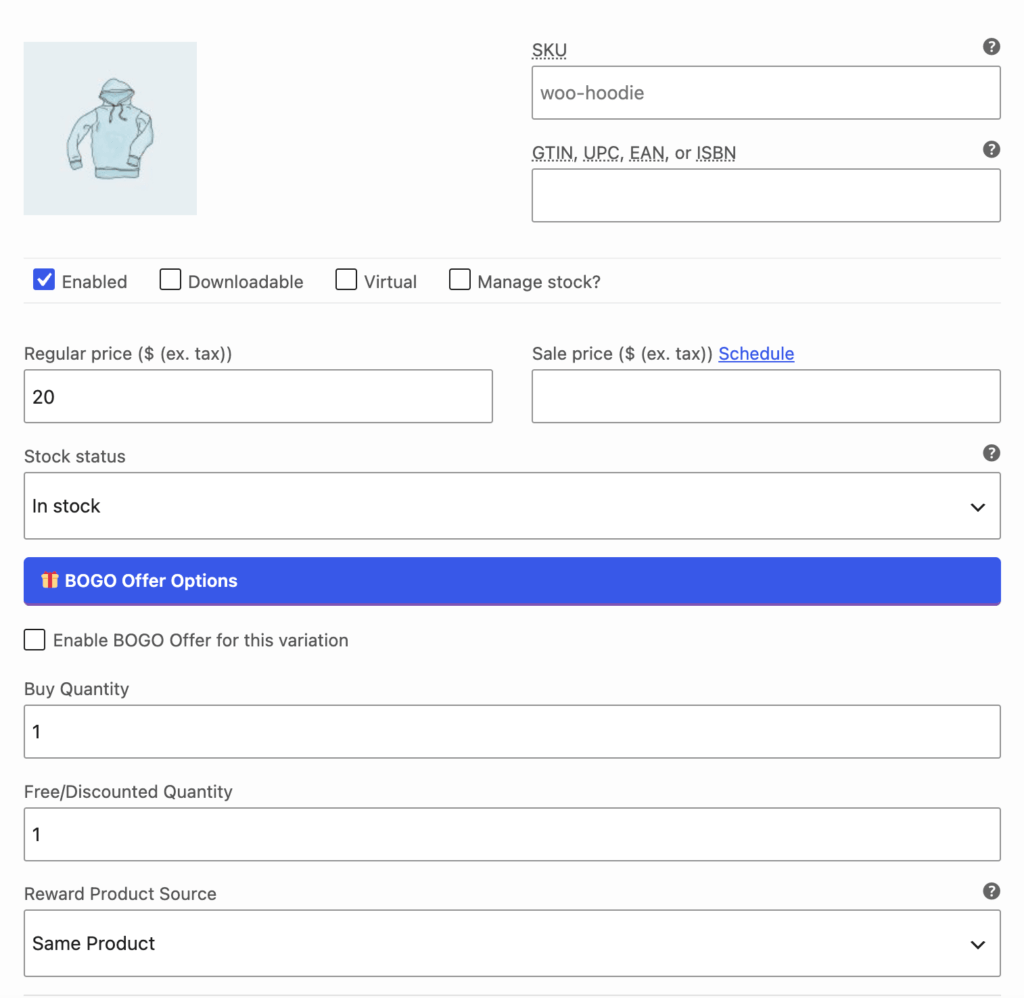
Click on the specific variation, for example a particular size or color, to expand its settings.
Step 3: Enable the Variation-Level Offer
Check Enable BOGO offer for this variation. This unlocks the same BOGO fields you’d see at the product level, scoped to this variation only.

Step 4: Configure the Offer
From here, the fields work exactly the same as they do at the product level, Buy Quantity, Free/Discounted Quantity, Reward Product Source, and Pricing Method all behave identically. See Configure BOGO Offer for the full breakdown of each field.
Step 5: Save and Verify
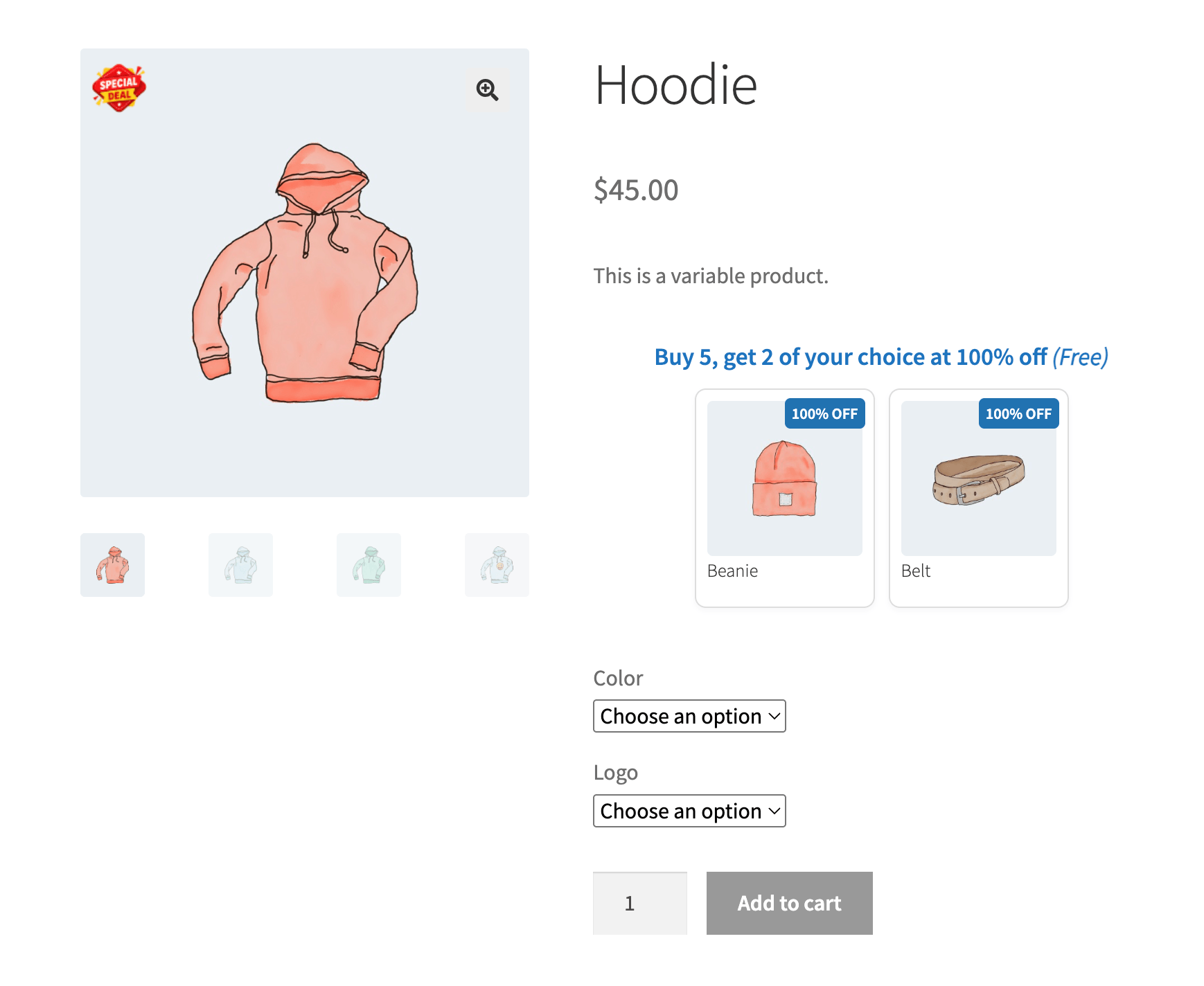
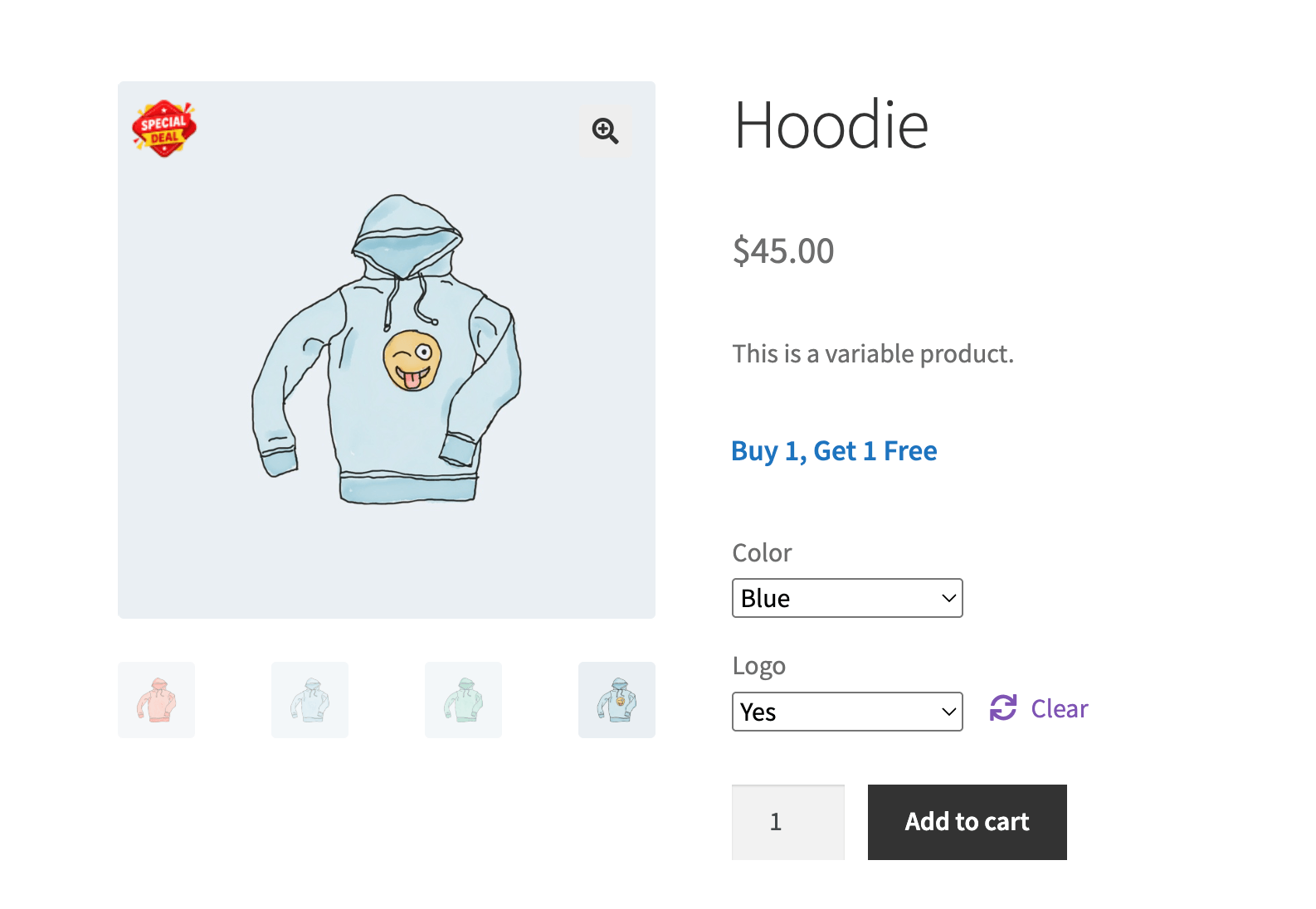
Click Update to save the product. On the frontend, test each variation combination:
- Combinations without a variation-level offer will show the parent product’s BOGO configuration.
- Combinations with a variation-level offer enabled will show only that variation’s own configuration.
What’s Next
Haven’t set up the parent product’s offer yet? Start with Configure BOGO Offer.