
The Badge section lets you style the small badge shown on each reward product’s image inside the BOGO Offer Banner, displaying its price, like Free, $10, or 90% off.
BOGO for WooCommerce applies this badge styling across every reward product shown in the banner, so you only need to configure it once.
Step 1: Navigate to the Badge Settings
You’ll find these settings under WooCommerce > BOGO > Banner tab, and scroll down to the Badge section.
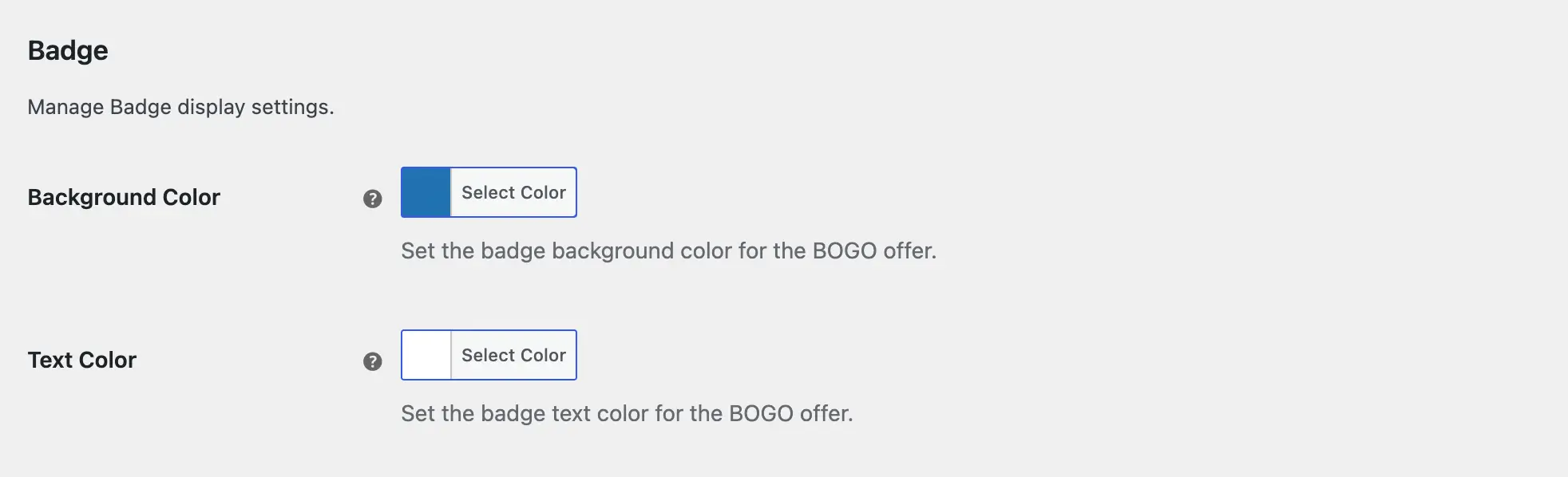
Step 2: Set the Background Color
Set the background color of the badge shown on reward product images.
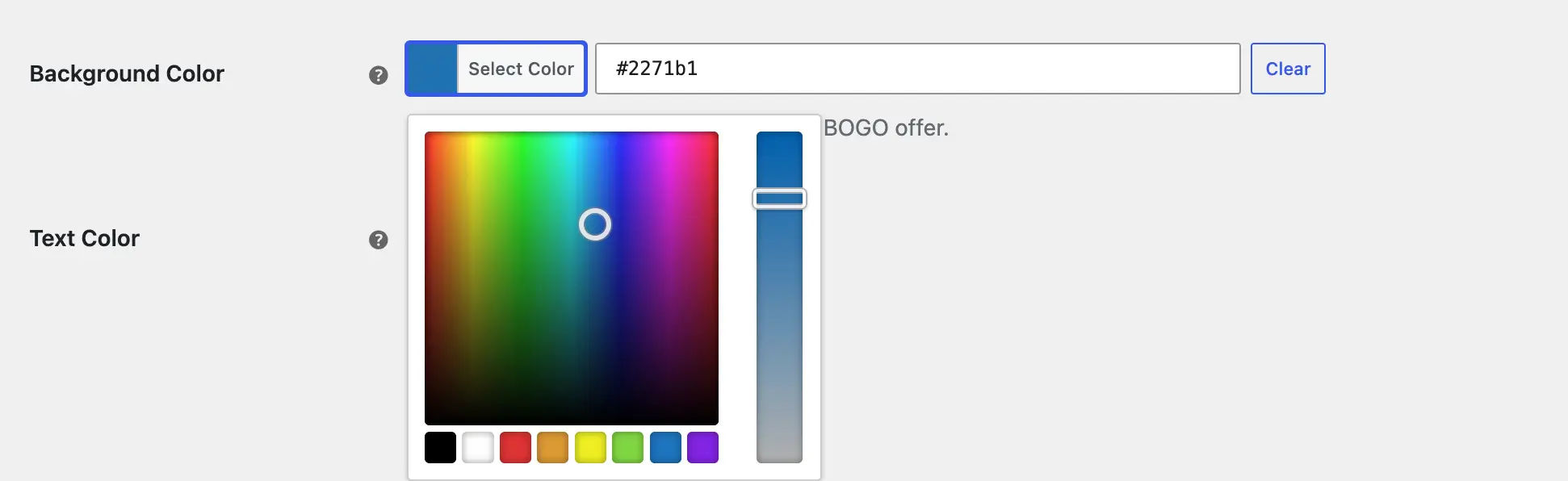
Step 3: Set the Text Color
Set the color of the text displayed inside the badge.
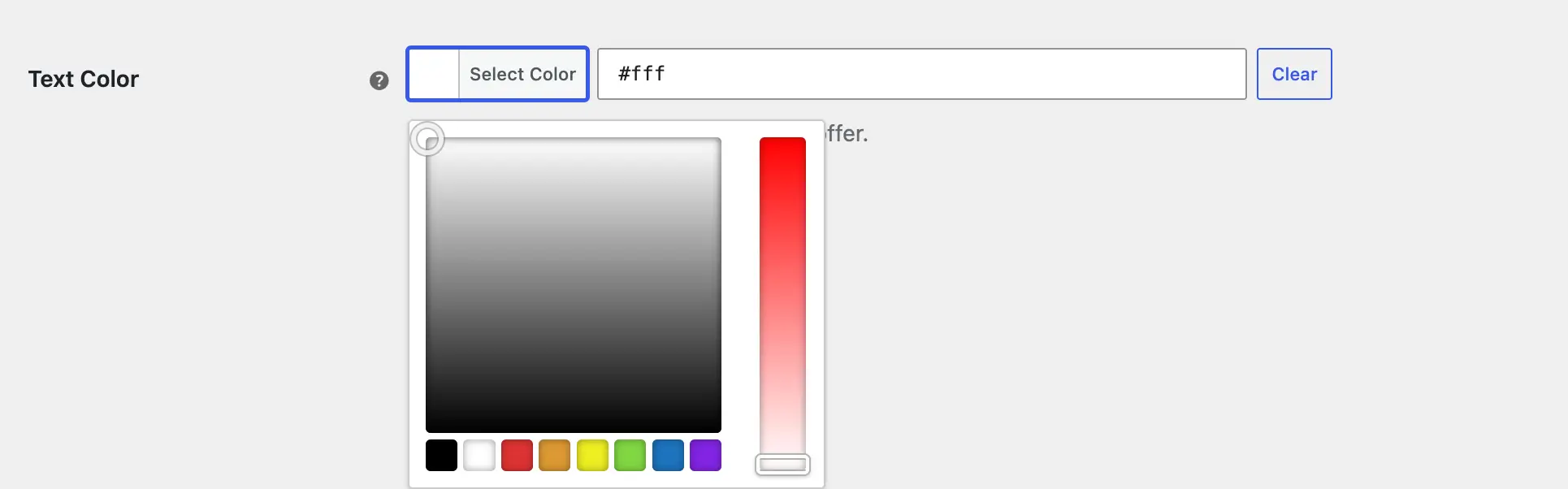
Step 4: Save Your Settings
Once you’ve configured the colors above, click Save Changes at the bottom of the page.

Note: This badge only appears when the reward type is Specific Products/Categories (Fixed Price or Percentage) and Display Reward Products is enabled, since it’s shown directly on the reward product images. It doesn’t appear for Same Product offers, since those don’t display reward products.
What’s Next
Haven’t configured a reward type yet? See Configure BOGO Offer to get started.