
Learn how to configure a simple WooCommerce product to sell serial keys. This guide covers all three key source options so you can choose the delivery method that best fits your workflow.
Before You Begin
Make sure you have at least one simple product created in WooCommerce before proceeding.
Configuration Steps
Step 1: Open the Product
- Go to Products from your WordPress admin menu.
- Locate the product you want to configure and click Edit.
Step 2: Enable Key Delivery
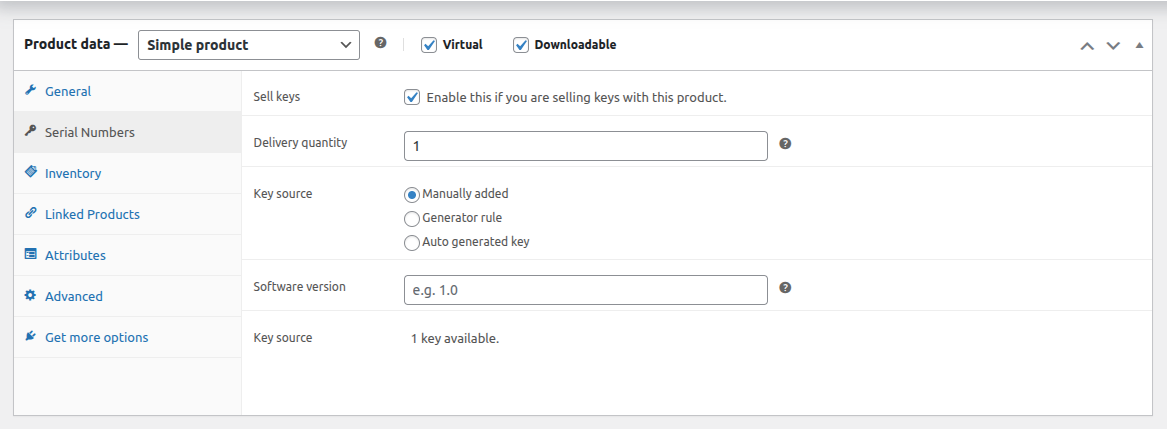
- In the Product Data section, click the Serial Numbers tab.
- Check Sell Keys to enable key delivery for the product.
- Set the Delivery Quantity to define how many keys are delivered per unit ordered. For example, if a customer orders 5 units, they will receive 5 keys.
Step 3: Choose a Key Source
Select how keys will be sourced and delivered for this product. Choose one of the following options based on your preferred delivery method.
| Key Source | Description | Guide |
|---|---|---|
| Manually Added | Deliver keys from a pool of keys you have added manually | Deliver Keys from Manual Key Pool |
| Generator Rule | Automatically generate and deliver keys using a generator rule | Deliver Keys Using a Generator Rule |
| Auto Generated Key | Automatically generate and deliver a unique key with each order | Deliver Keys Using Auto-Generation |
Step 4: Save the Product
Click Update to save the changes. Your product is now configured to deliver serial keys to customers upon purchase.
What Happens After Purchase
When a customer places a successful order, keys are automatically assigned and delivered based on the key source you selected. The customer can view their keys on the My Account page and in the order confirmation email.