
By default, WooCommerce displays product tabs in a fixed order: Description, Additional Information, and Reviews. Product Tabs Manager lets you change that order to whatever makes the most sense for your store, whether that means putting Reviews first to build trust or leading with Additional Information for spec-heavy products.
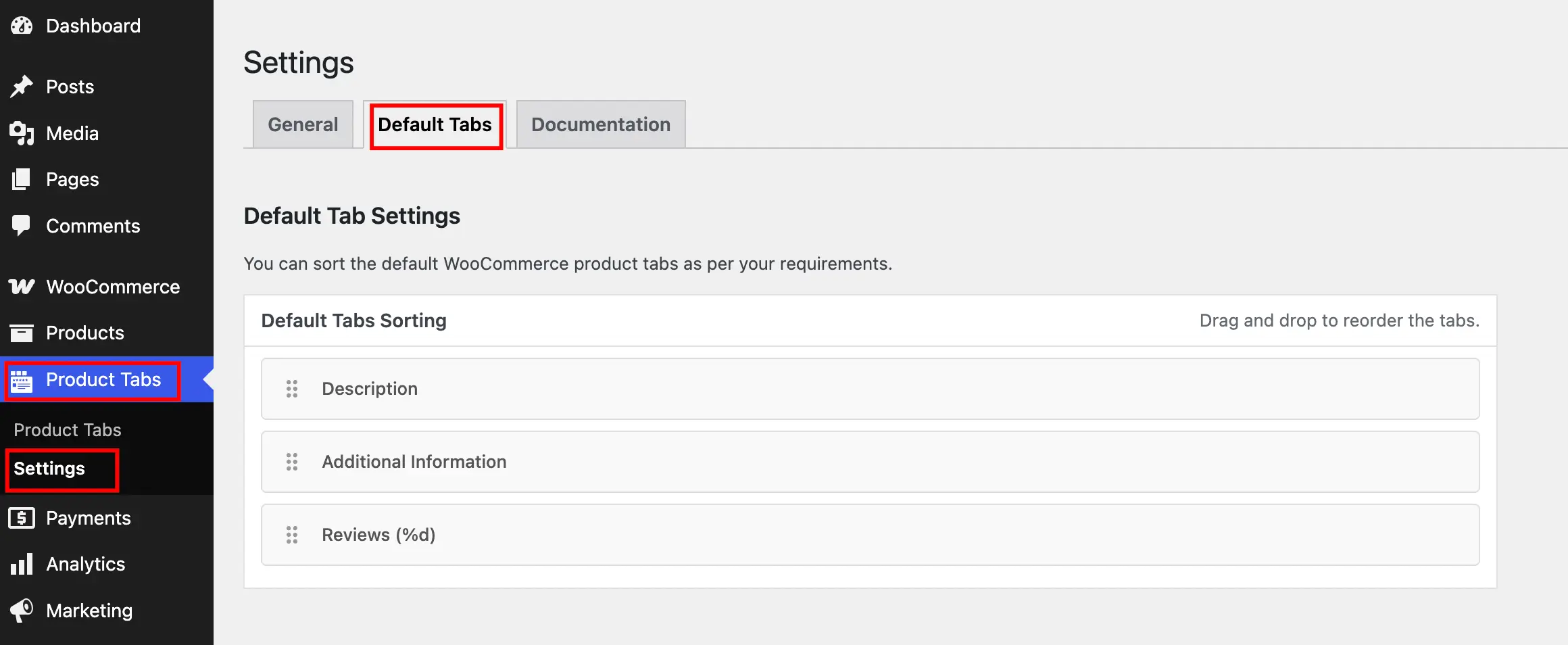
You’ll find this option by navigating to Product Tabs > Settings > Default Tabs.
Reordering Tabs
Each default tab appears in a list that you can reorder by dragging.
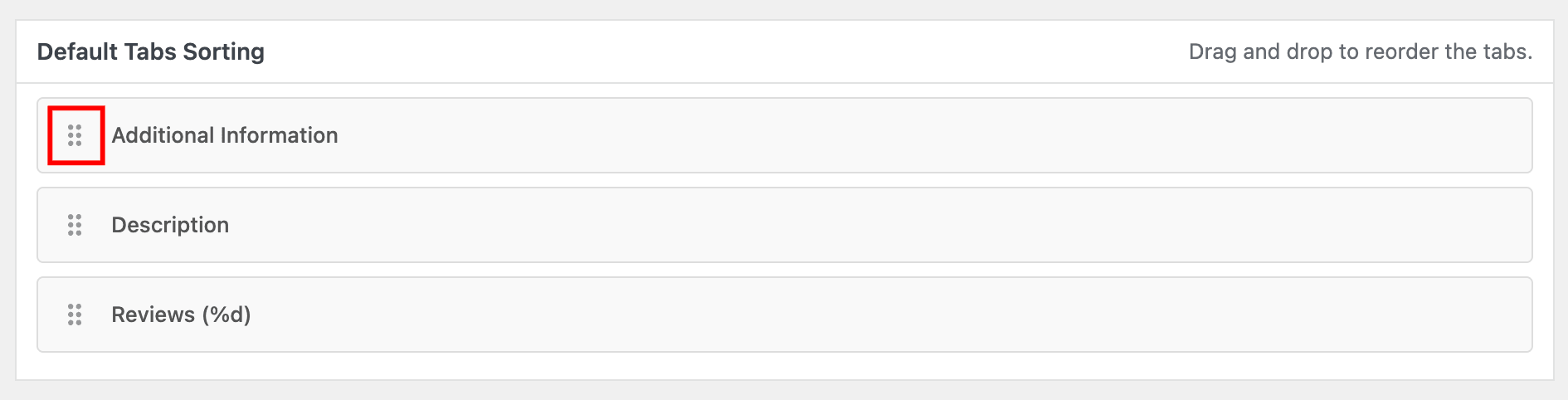
- Click and hold the tab you want to move.
- Drag it up or down to the position where you want it to appear.
- Release to drop it into place.
Repeat this for as many tabs as you want to reorder, then save your changes.
Tip: The order you set here applies across your entire store. If a product also has custom tabs added through Add a New Custom Product Tab, their position is controlled separately using each custom tab’s Tab Priority setting.
Verifying the Order
Visit any product page on the frontend and confirm the tabs appear in the sequence you set.
What’s Next
If you’d rather remove a default tab entirely instead of reordering it, see Hide Default WooCommerce Tabs.