
Every custom tab you create in Product Tabs Manager needs a content type, which determines what kind of information the tab displays and how it’s laid out on the frontend. You’ll choose one from the Content Type section while adding a new custom product tab.
General Content (Free)
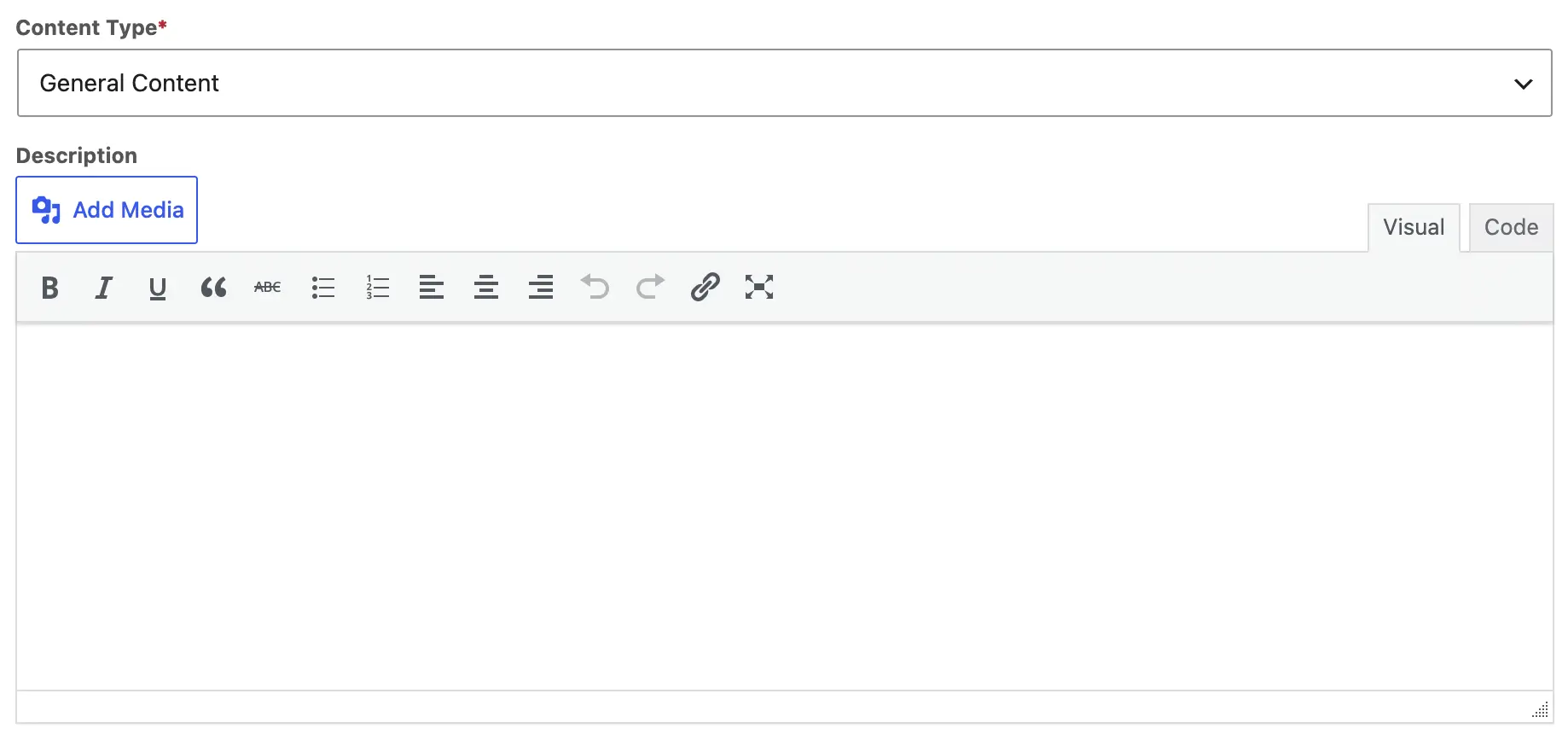
General Content is the most flexible option and is available on every plan. Use it for straightforward tabs like descriptions, policies, or care instructions, and it also supports richer content types:
- Embedded videos – add a product demo or unboxing video directly in the tab.
- Image galleries – showcase multiple product photos beyond the main gallery.
- HTML – insert custom markup for dynamic or styled content.
This is the right choice whenever you’re building a tab from freeform text, media, or custom code.
Question/Answer (Pro)
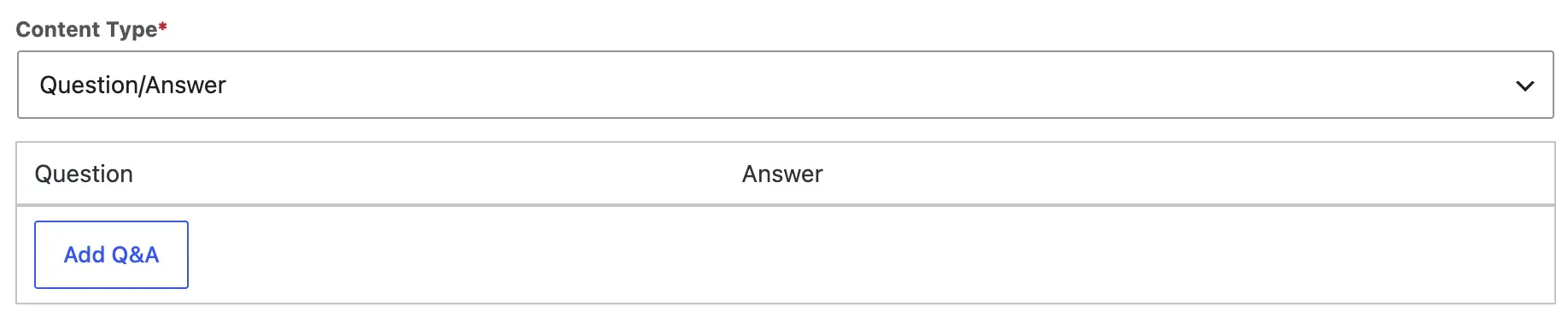
The Question/Answer content type turns your tab into an FAQ-style accordion, where each question expands to reveal its answer when clicked. This is a good fit for:
- Sizing or fit questions
- Shipping and returns policies broken into individual Q&A items
- Product-specific troubleshooting
Tip: Because each question collapses by default, this content type works well for tabs with a lot of information that would otherwise make customers scroll through a wall of text.
Product List (Pro)
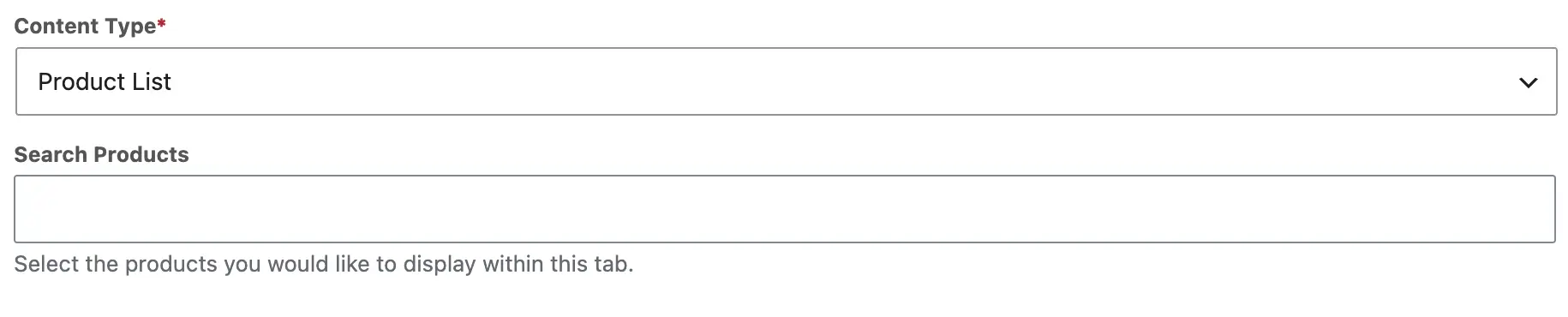
The Product List content type displays a curated list of products you select, right inside the tab. This is useful for:
- Cross-selling accessories or complementary items
- Highlighting a bundle or collection related to the current product
- Featuring “frequently bought together” style recommendations
Choosing the Right Type
| Content Type | Best For | Availability |
|---|---|---|
| General Content | Text, video, image galleries, custom HTML | Free |
| Question/Answer | FAQ-style content in an accordion layout | Pro |
| Product List | Displaying a curated list of related products | Pro |
What’s Next
Once you’ve picked a content type, head back to Add a New Custom Product Tab to finish setting up your tab, or continue to Set Tab Visibility and Exclude Products or Categories to control where it appears.