
The Message section lets you customize the offer condition text shown inside the BOGO Offer Banner, tailored to match your brand’s voice. Each reward type has its own message template, using placeholders that are automatically replaced with the actual offer values.
BOGO for WooCommerce applies these message templates across every product using that reward type, so you only need to configure them once.
Step 1: Navigate to the Message Settings
You’ll find these settings under WooCommerce > BOGO > Banner, in the Message section.
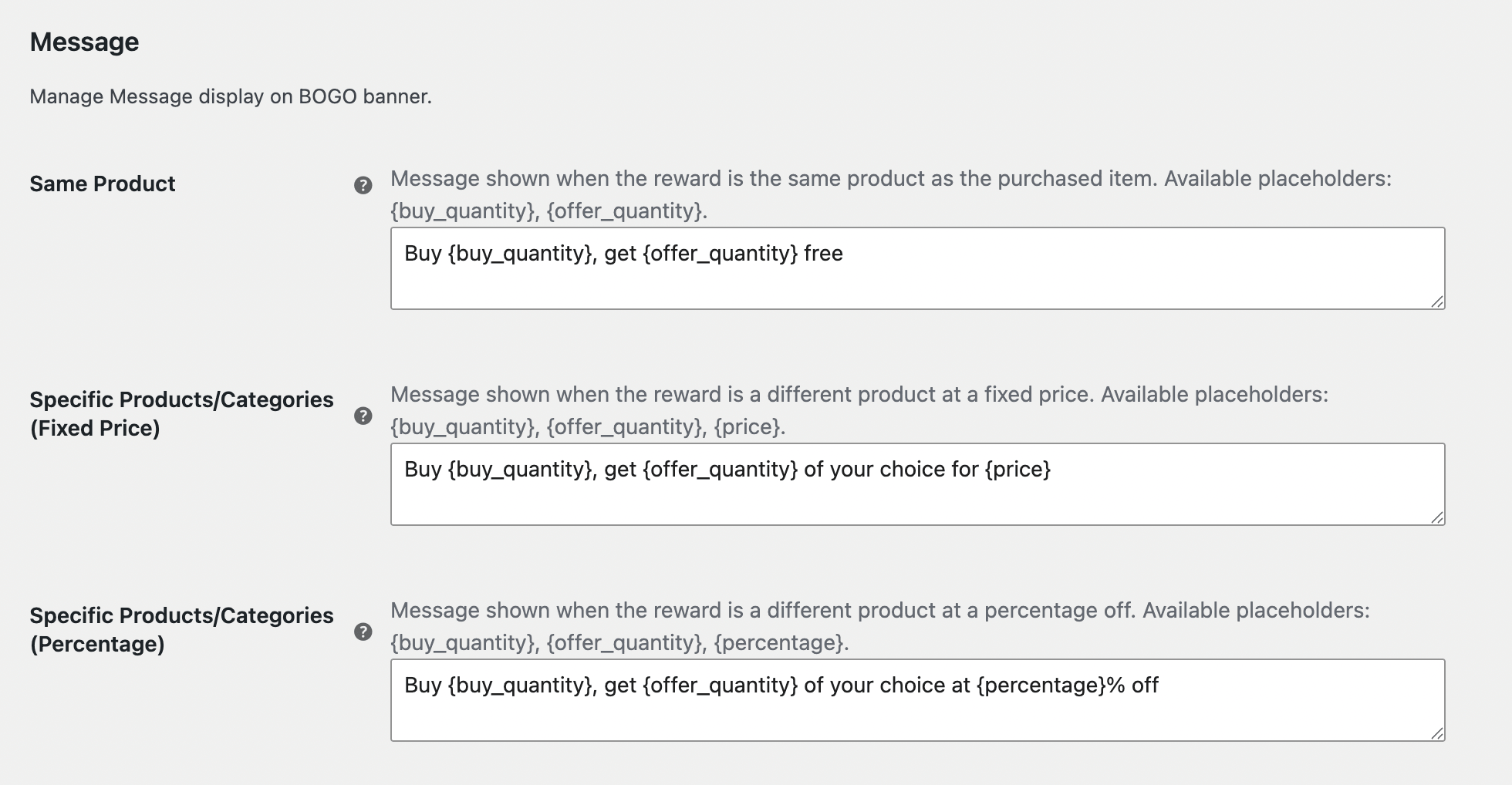
Step 2: Customize the Same Product Message
This message displays when the reward is the same product as the purchased item. See Set Up a Buy X Get X Free Offer for how this reward type is configured.
Available placeholders: {buy_quantity}, {offer_quantity}
Default: Buy {buy_quantity}, get {offer_quantity} free

Step 3: Customize the Specific Products/Categories (Fixed Price) Message
This message displays when the reward is a different product or category with a fixed price. See Set Up a Buy X Get Y Offer for how this reward type is configured.
Available placeholders: {buy_quantity}, {offer_quantity}, {price}
Default: Buy {buy_quantity}, get {offer_quantity} of your choice for {price}

Step 4: Customize the Specific Products/Categories (Percentage) Message
This message displays when the reward is a different product or category, discounted by a percentage.
Available placeholders: {buy_quantity}, {offer_quantity}, {percentage}
Default: Buy {buy_quantity}, get {offer_quantity} of your choice at {percentage}% off

Step 5: Save Your Settings
Once you’ve customized the messages above, click Save Changes at the bottom of the page.

What’s Next
Continue to Badge Settings to style the badge shown on reward product images inside the banner.