
Not every tab belongs on every product. Product Tabs Manager gives you precise control over where each tab appears through Tab Settings and Advanced Tab Settings, whether you’re configuring a custom tab or editing a default tab. These settings work the same way in both places.
Choosing a Visible Type

Under Tab Settings, the Visible Type field controls which products the tab shows on. You have three options:
- All Products – the tab appears on every product in your store.
- Specific Products – the tab only appears on the individual products you choose.
- Specific Categories – the tab only appears on products belonging to the categories you choose.
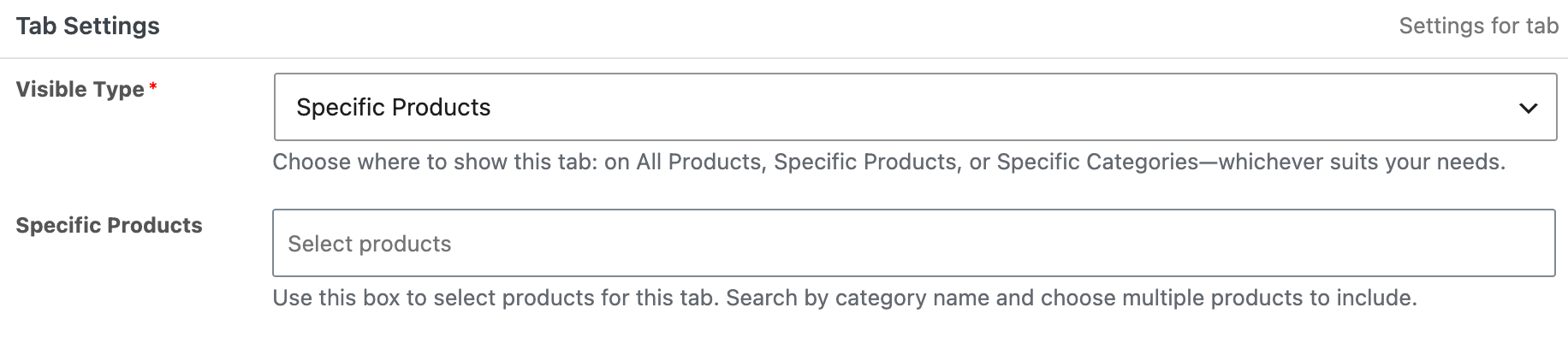
When you select Specific Products or Specific Categories, a new field appears below, allowing you to search for and select the products or categories you want the tab to show on.
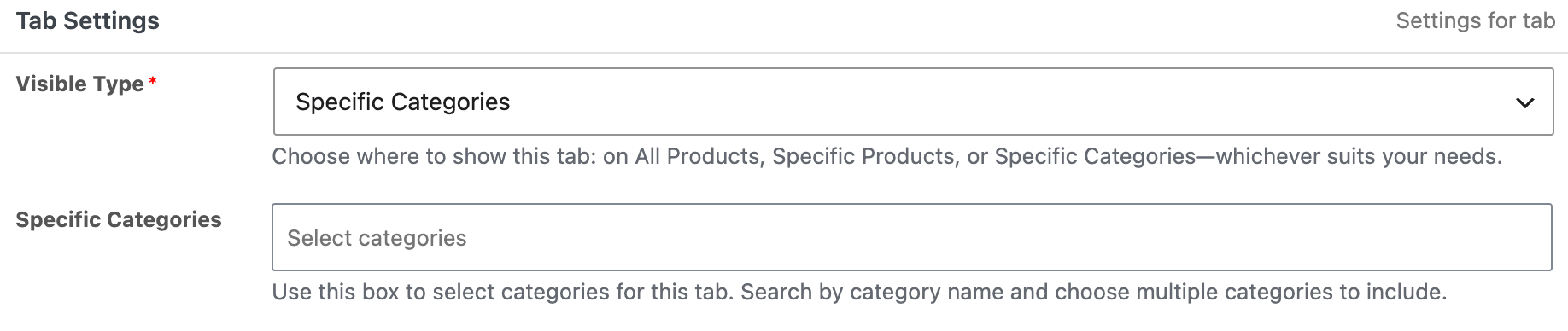
Tip: Use Specific Categories when you want a tab, like a “Care Instructions” tab, to automatically apply to every product you add to that category going forward, without needing to update the tab each time.
Excluding Products or Categories
The Advanced Tab Settings section lets you carve out exceptions to whatever visibility rule you’ve set above.
Exclude Products
Select individual products that should never show this tab, regardless of the Visible Type rules that would otherwise include them. This is useful when a tab applies broadly, but one or two products need to be left out.

Exclude Categories
Select entire categories to exclude from the tab, even if those products would otherwise qualify under All Products or a broader category rule.

Note: Exclusions always take priority. If a product is both included by your Visible Type setting and listed in an exclusion field, the exclusion wins, and the tab will not display on that product.
Saving and Verifying
After setting your visibility and exclusion rules, save your changes by hitting Publish. Check a few products from each affected group, an included one, an excluded one, and an unrelated one, to confirm the tab appears exactly where you expect.
What’s Next
Applying these settings to a brand-new custom tab? Head back to Add a New Custom Product Tab. Applying them to a default WooCommerce tab instead? See Customize Default Product Tabs.