
Instead of rewarding customers with more of the same product, a Buy X, Get Y Offer lets you reward them with a different product, or let them pick from a curated selection. This guide walks through setting one up, including how to price the reward.
Step 1: Enable the Offer and Set Quantities
Enable BOGO Offer, Buy Quantity, and Free/Discounted Quantity work the same way here as they do for a same-product offer. See Set Up a Buy X Get X Free Offer for the full walkthrough of these fields before continuing.
Step 2: Choose Specific Products as the Reward Source
In Reward Product Source, select Choose from Specific Products. This reveals two new fields for setting up the reward.

Eligible Reward Products
Select one or more individual products you want to offer as the reward. All the products you add here will display on the product page, letting the customer pick their preferred one as the offered product.
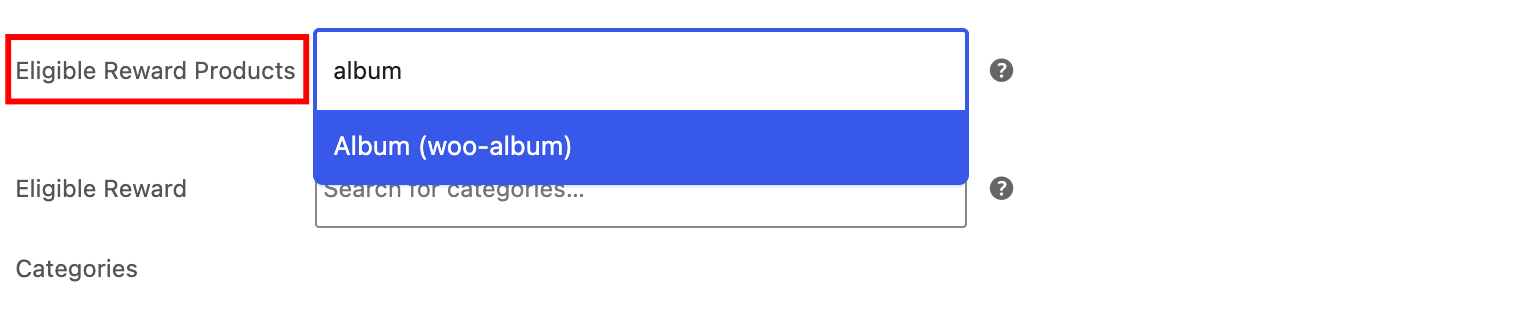
Eligible Reward Categories
Instead of, or in addition to, individual products, you can select entire categories. Any product within a chosen category becomes available for the customer to pick as their reward.

Tip: Use Eligible Reward Categories when you want new products added to that category to automatically become eligible rewards, without needing to update the offer each time.
Step 3: Choose a Pricing Method
Under Pricing Method, choose how the offered product is priced once a customer selects it.

Percentage Off
Selecting Percentage Off reveals the Reward Discount field, where you enter the percentage discount to apply to the offered product. For example, entering 50 gives a 50% discount, while entering 100 makes the offered product completely free.

Fixed Price
Selecting Fixed Price also reveals the Reward Price field, but here you enter the exact price the offered product should cost. Entering 0 makes it completely free, entering 1 sets its price to $1, and so on.

Important: To offer the gifted product completely free of cost, set Reward Price to 0 when using Fixed Price, or set Reward Discount to 100 when using Percentage Off.
Step 4: Publish and Verify
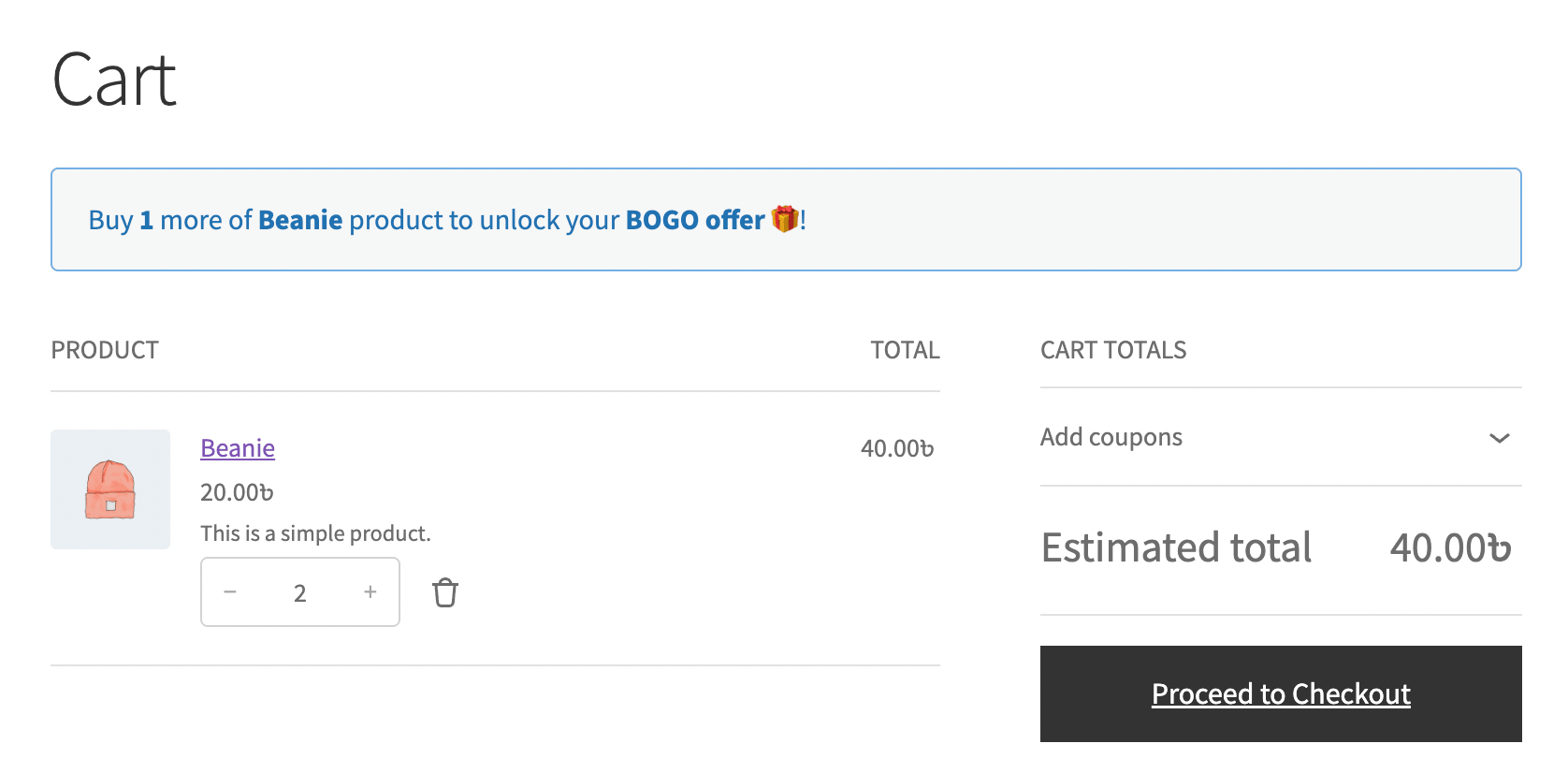
Update the product, then visit its page on the frontend. Add the Buy Quantity to your cart and confirm the eligible reward products or categories appear for the customer to choose from, priced as expected.
What’s Next
Want the reward to always be more of the same product instead? See Set Up a Buy X Get X Free Offer.