
This guide walks you through the process of downloading and installing a premium PluginEver plugin on your WordPress site. The process takes about five minutes.
Important: Some of the PluginEver’s premium plugins are extensions of their free counterparts (e.g., WC Min Max Quantities). The free version must be installed and activated on your site before you install the premium version. You can download the free version from WordPress.org.
Step 1: Download Your Plugin
After purchasing a premium plugin, you can download it from your PluginEver account:
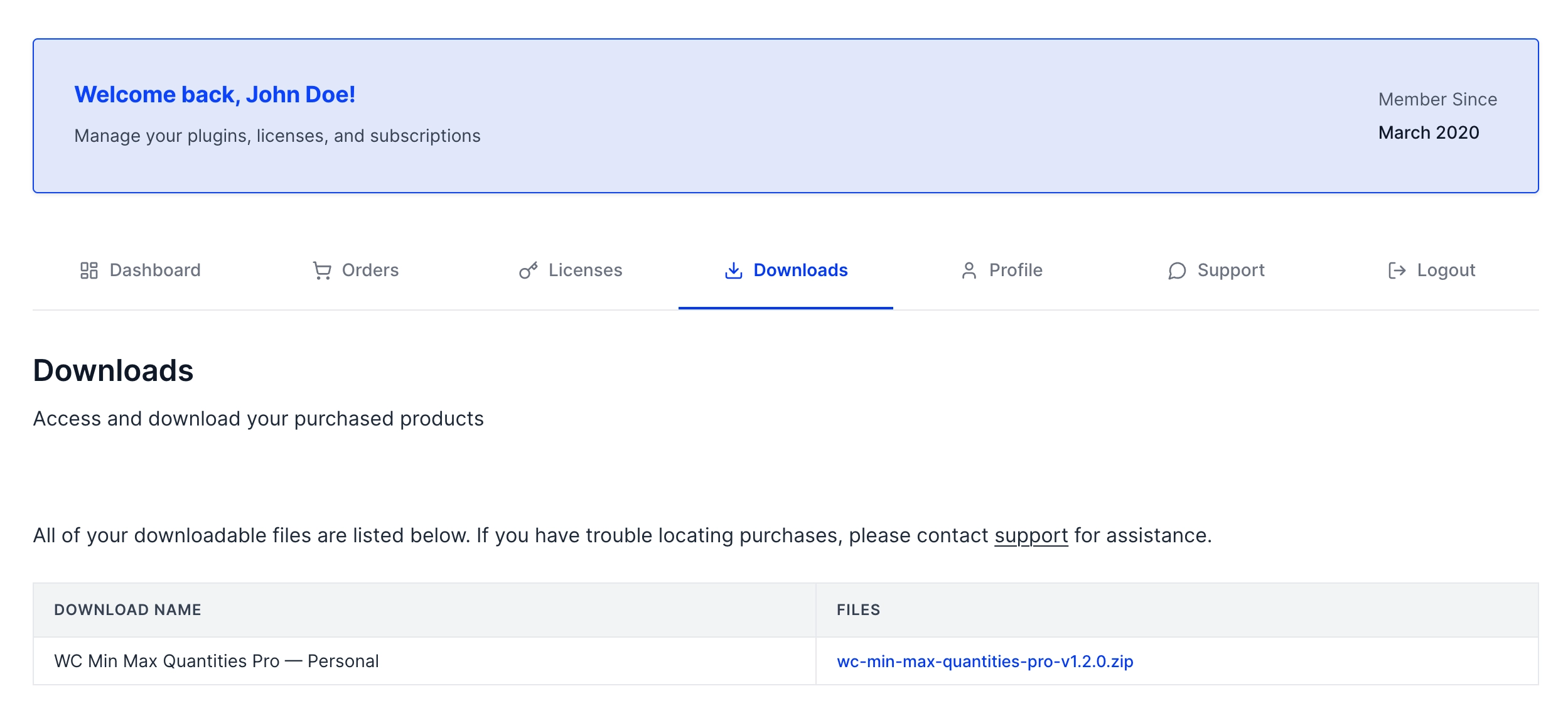
- Log in to your account at pluginever.com/login.
- Go to the Downloads tab in your account dashboard.
- Find your purchased plugin and click the download link.
- Save the .zip file to your computer.
Tip: Your purchase confirmation email also contains a direct download link if you prefer.
Step 2: Install the Plugin
Choose the installation method that suits you. For most users, Option A (Admin Dashboard) is the fastest and simplest.
Option A – WordPress Admin Dashboard (Recommended)
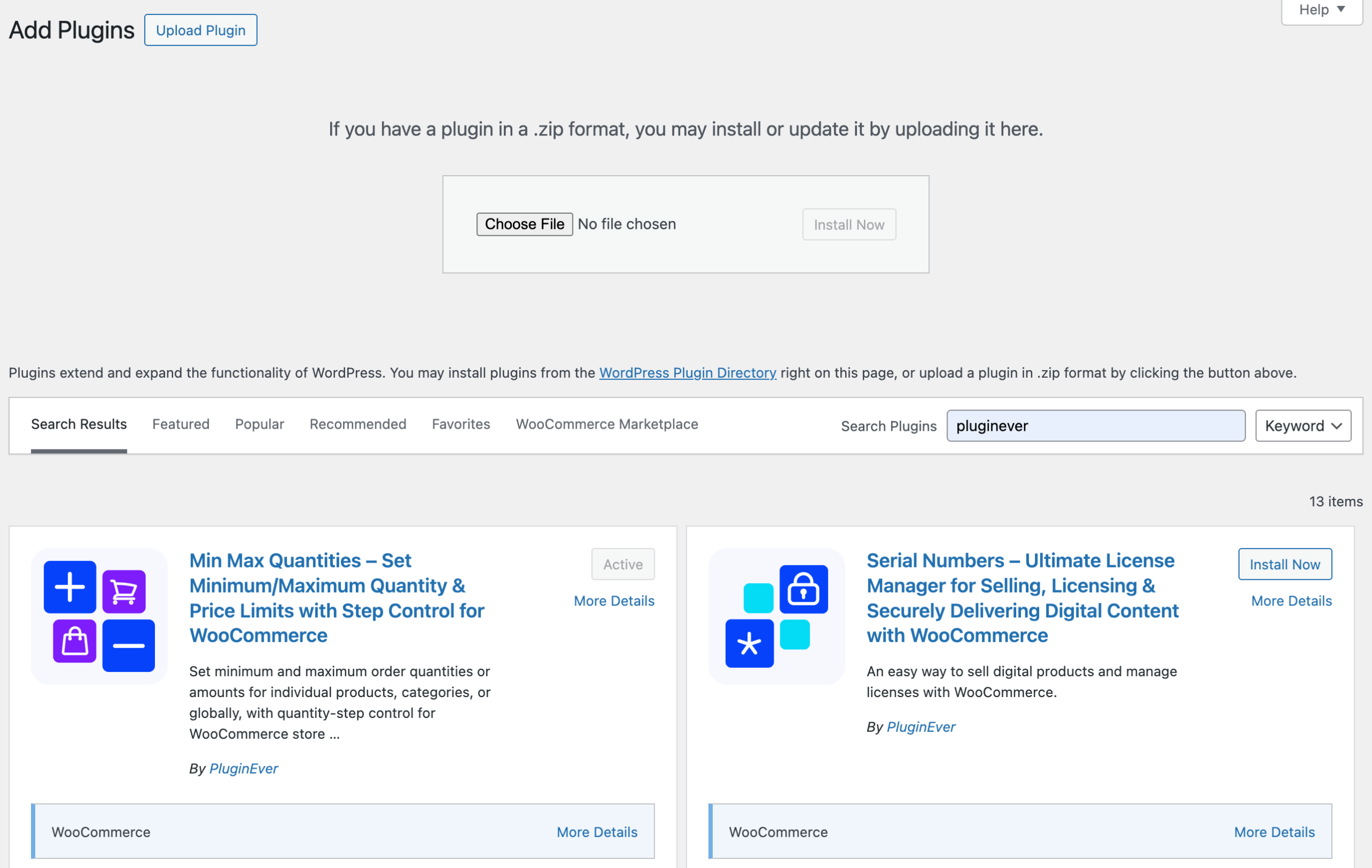
- Log in to your WordPress site and go to your admin dashboard.
- Navigate to Plugins → Add New → Upload Plugin.
- Click Choose File and select the .zip file you downloaded in Step 1.
- Click Install Now. WordPress will upload and unpack the plugin automatically.
- When the installation completes, click Activate Plugin.
Option B – FTP Upload (For Developers)
Use this method if you prefer direct server access or if the admin upload method times out on large files.
- Unzip the plugin .zip file on your computer.
- Connect to your server using an FTP client (such as FileZilla).
- Navigate to
wp-content/plugins/on your server. - Upload the unzipped plugin folder into the plugins/ directory.
- In your WordPress admin, go to Plugins → Installed Plugins, find the plugin, and click Activate.
Step 3: Activate Your License Key
With the plugin installed and activated, the final step is to connect it to your license key to unlock all premium features. See the Activating Your License guide to continue.
Troubleshooting
| The plugin upload fails or times out | Your server’s upload file size limit or PHP execution timeout may be too low. Try installing via FTP (Option B above) instead. |
| The premium plugin does not appear after FTP upload | Make sure you uploaded the unzipped folder, not the ZIP file itself, into wp-content/plugins/. Refresh the Installed Plugins page once the upload is complete. |
| The license key is not working | Check the following: – Make sure you are using the key for the correct plugin – each plugin has its own unique key. – Check whether the key has reached its activation limit (visible in your account under the Licenses tab). – Verify that the license has not expired. |
| Still stuck? | Contact the PluginEver support team from your account dashboard under the Support tab, or visit pluginever.com/support. |