
Show rules and conditions displays purchase limit information directly on product pages, informing customers about quantity restrictions, steps, and value requirements before they add items to their cart. This helps customers understand purchasing rules upfront and order accordingly.
How to Configure
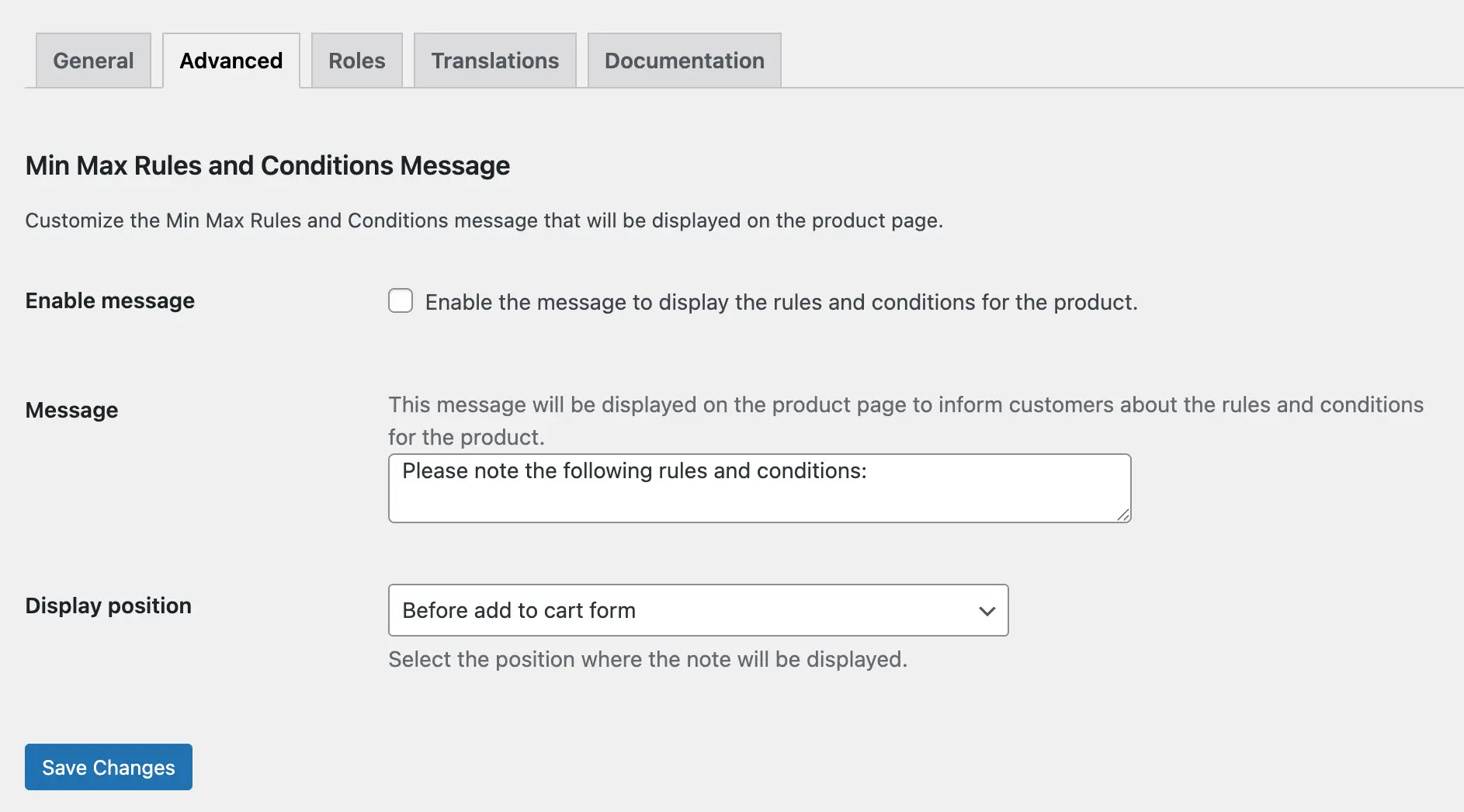
Step 1: Navigate to Advanced Settings
- Go to WooCommerce > Min Max Quantities > Advanced
- You will see the Min Max Rules and Conditions Message section
Step 2: Enable Conditional Messages
Check the Enable message to display conditional messages on product detail pages.

When enabled, customers will see applicable rules and conditions on product pages before adding items to cart.
Step 3: Set Message Header
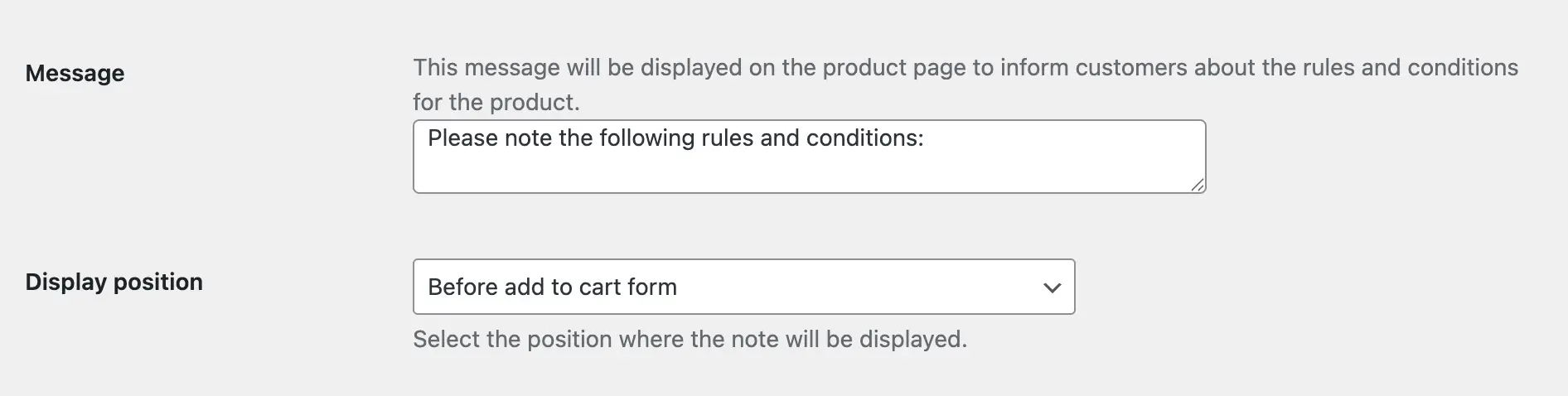
Edit the message header as your preference.
Default: “Please note the following rules and conditions:”
Step 4: Set Display Position
Choose where messages should display on product pages:
- After Add to Cart form
- Before Add to Cart form
Step 5: Save Changes
Click Save Changes to apply conditional display rules.
What Gets Displayed
The conditional message shows all applicable rules for the specific product.
Example Display
Product has: Min quantity = 5, Quantity step = 5
Customer sees on product page:
Please note the following rules and conditions:

Minimum quantity: 5
Quantity step: 5