
Individual product variation limits allow you to set unique purchase restrictions for each specific variation of a variable product. This gives you granular control when different sizes, colors, or styles need different purchasing requirements.
How to Configure
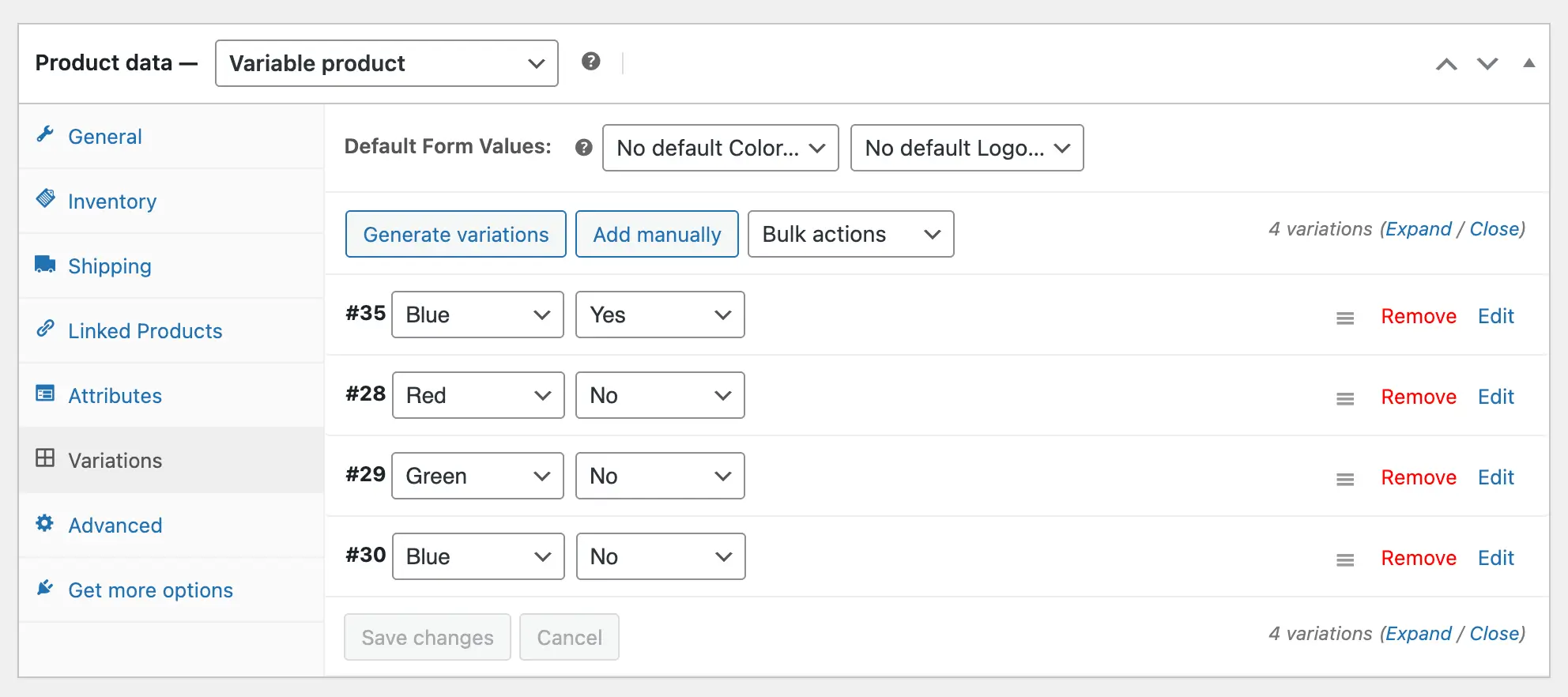
Step 1: Access Variation Settings
- Go to Products > All Products
- Click Edit on the variable product
- In the Product Data section, click the Variations tab
- Click on the specific variation you want to configure (or expand it)
Step 2: Scroll to Min/Max Quantities Pro Section
Each variation has its own dedicated Min/Max Quantities settings panel.
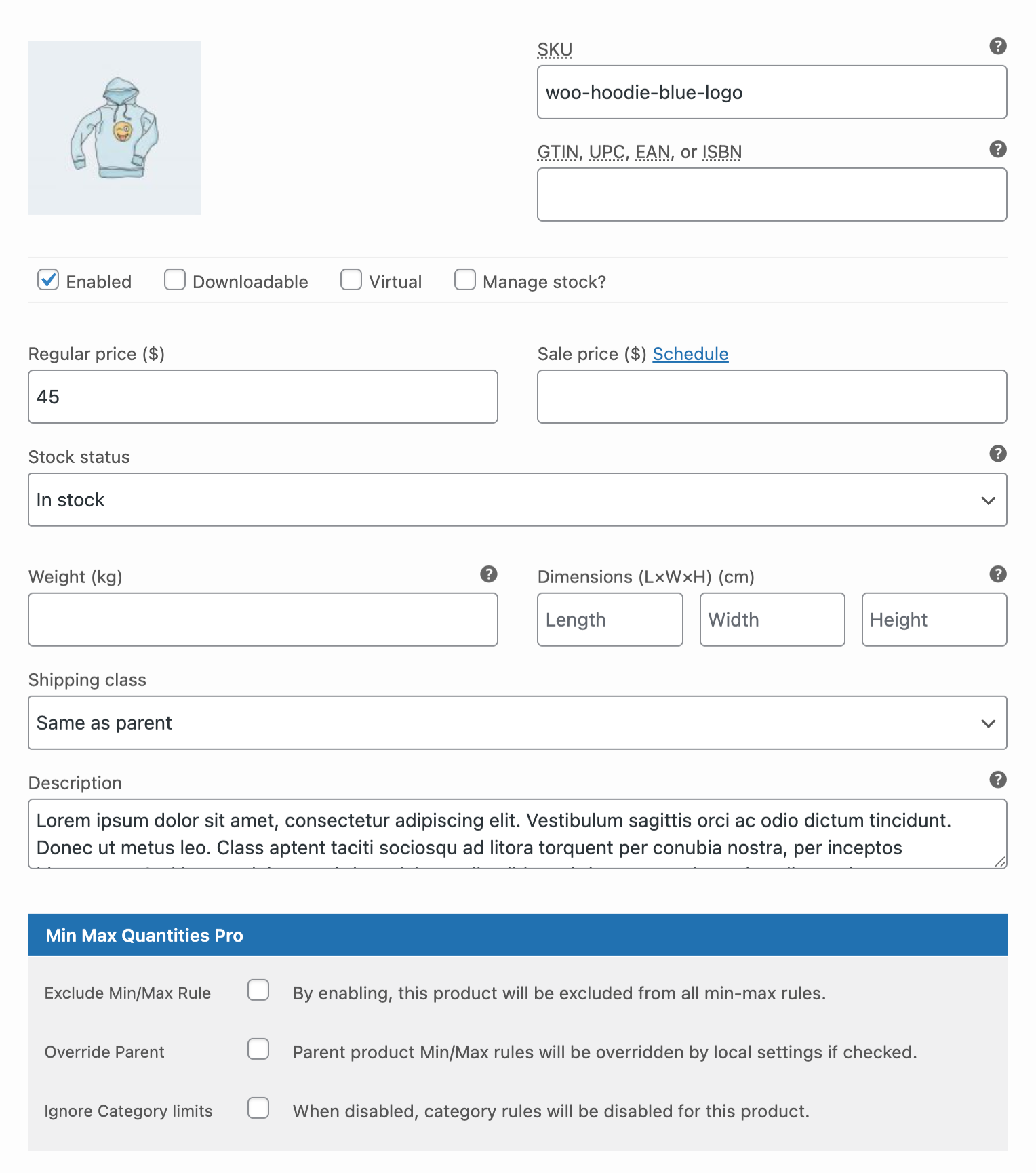
Step 3: Configure Variation-Specific Options
You’ll see the following options for this specific variation:
Exclude Min/Max Rule
- Removes all purchase restrictions for this variation only
- Other variations still follow parent product or global rules
Override Parent
Turn this on to set custom rules for the variation. These rules will replace the parent product’s settings, so the variation follows only what you define here.
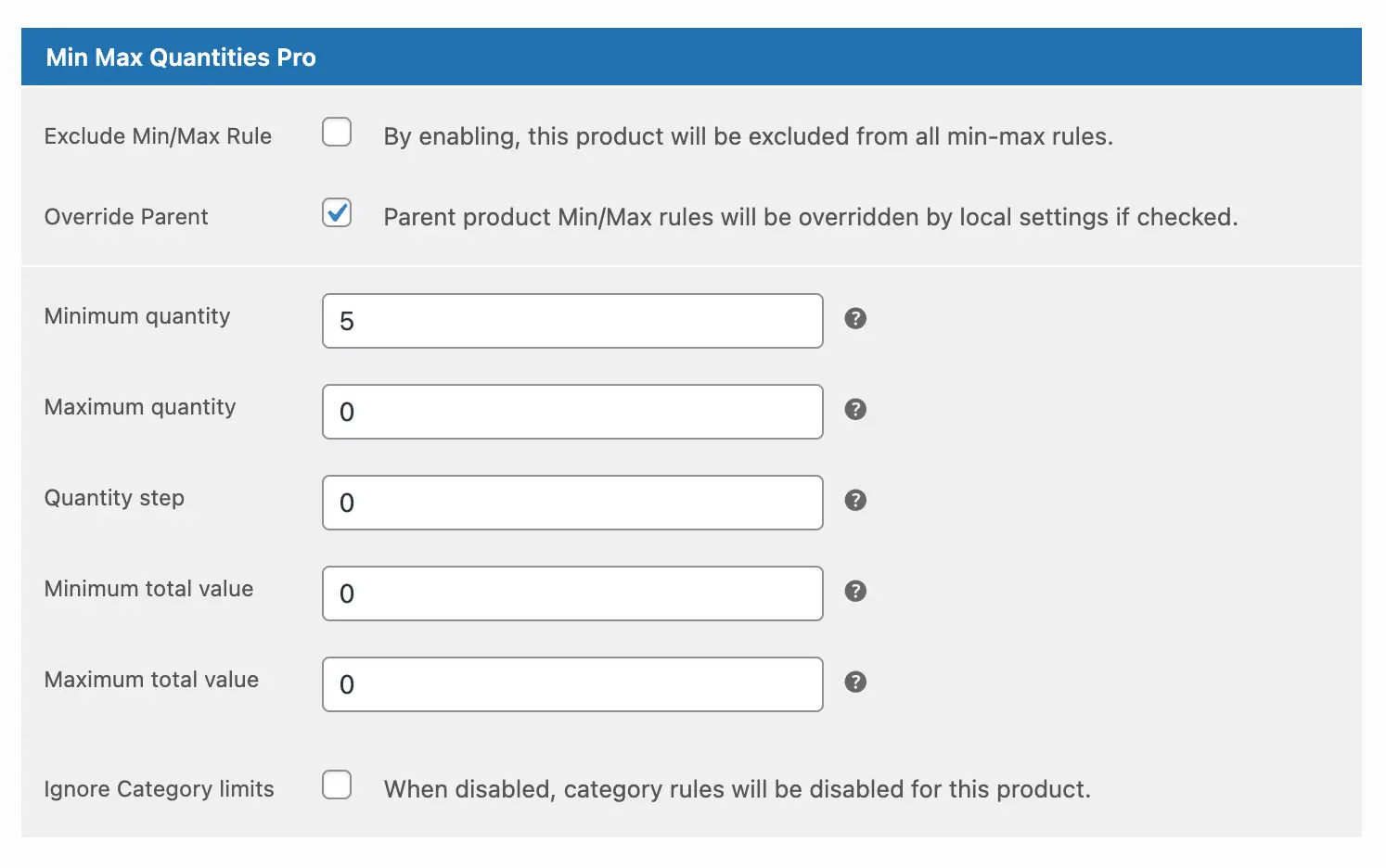
- Minimum Quantity: Minimum units required for this variation
- Maximum Quantity: Maximum units allowed for this variation
- Quantity Step: Required increment multiples for this variation
- Minimum Total Value: Minimum spend required for this variation
- Maximum Total Value: Maximum spend allowed for this variation
Ignore Category Limits
- Prevents category-level restrictions from applying to this variation
- Useful when product is in restricted category, but this variation needs different rules
Step 4: Save Changes
- Click Save changes within the variation panel
- Click Update to save the product
The custom limits will immediately apply to the specific variation.
Next Steps
Now that you understand individual variation-level limits:
- Order-Based Limits to set restrictions across entire carts.
- Role-Based Limits to set different rules based on customer roles.