
Override global or category settings to define lead times for specific products. Perfect when a single product needs unique delivery information.
Access Product Settings
Go to Products > All Products in your WordPress dashboard. Click Edit on the product you want to configure. In the Product Data section, open the Inventory tab and scroll to the Lead Time section.
Configuration Options
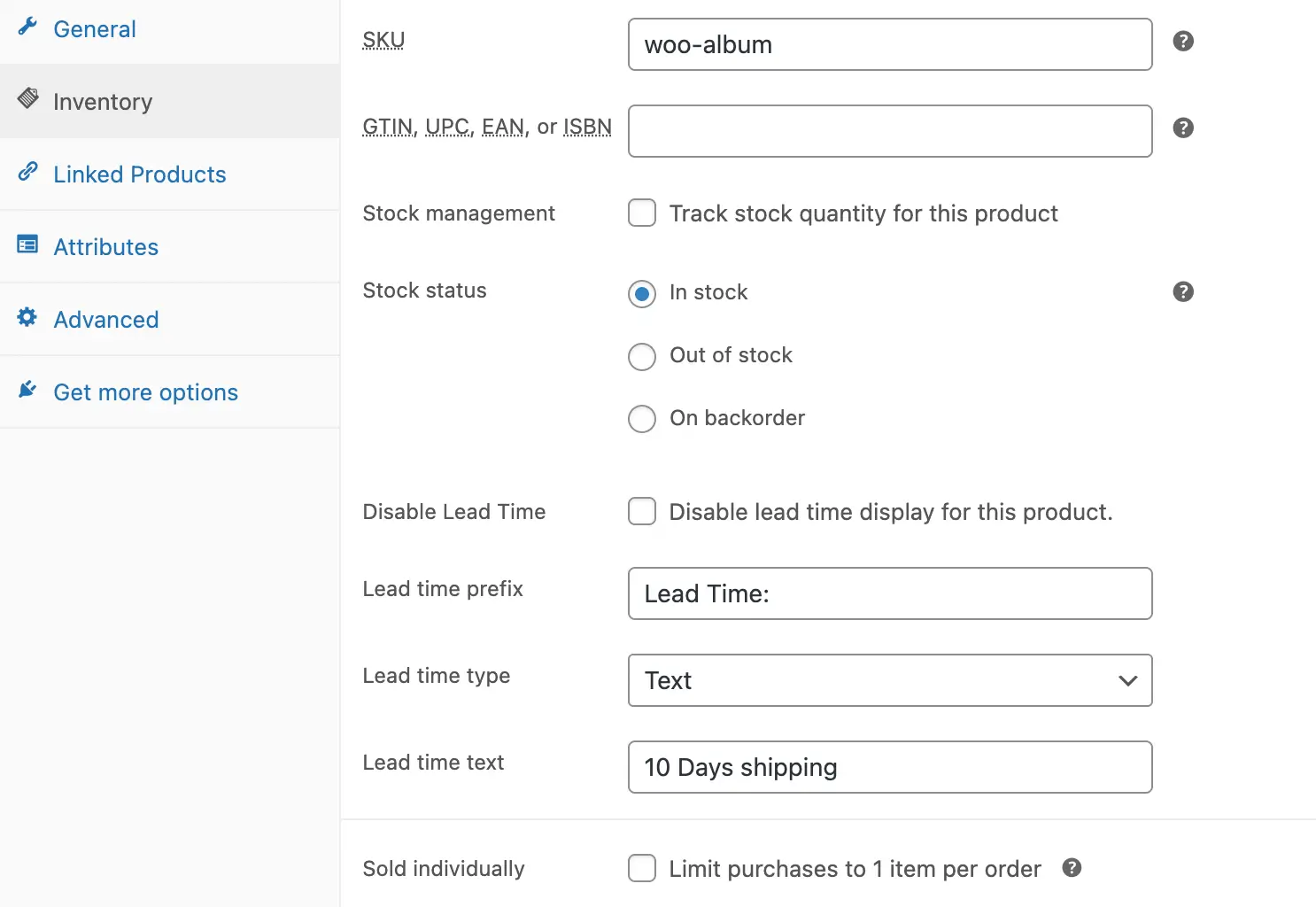
Disable Lead Time
Turn off lead time display for this product only, even if global or category lead time is set.
Quick Tip: Product-level settings have the highest priority and will override both global and category settings.
Lead Time Prefix
Add text before the lead time message. Example: “Estimated Delivery:” or “Available in:”
Lead Time Type
Choose how to display lead time:
- Manual Input (Text) – Choose Text to show custom text like “Ships within 1–2 weeks” or “Made to order: 5-7 business days”.
- Specific Date – Select Date to display a calendar date as the availability or delivery date.
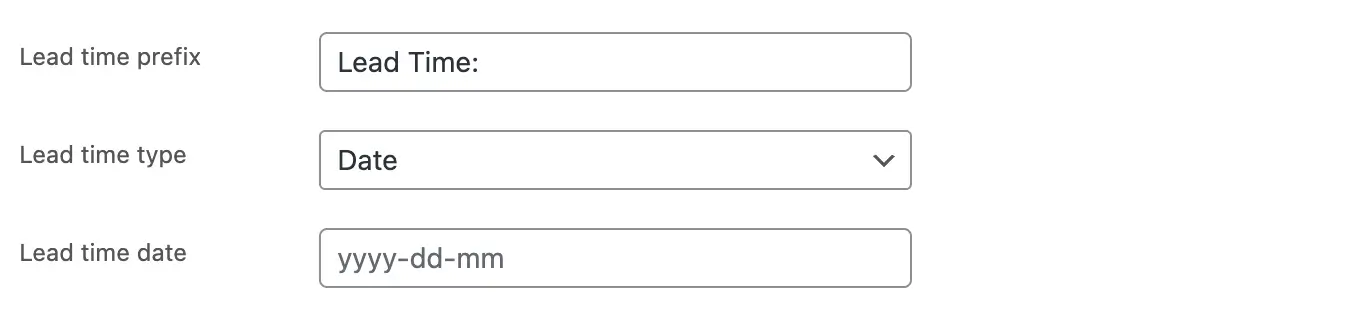
Lead Time Text/Date
Enter your lead time message or select a date based on your chosen Lead Time Type above.
Save Changes
Update the product to apply product-specific lead time settings.
Related Settings
You can also configure lead times at different levels:
- Set global lead time for your entire store.
- Set category lead time for specific product categories.