
Define default lead time behavior for your entire store. Perfect for maintaining consistent messaging across all products without configuring each one individually.
Access Global Settings
Navigate to WooCommerce > Lead Time Manager in your WordPress dashboard, then scroll down to the Global Settings section.
Configuration Options
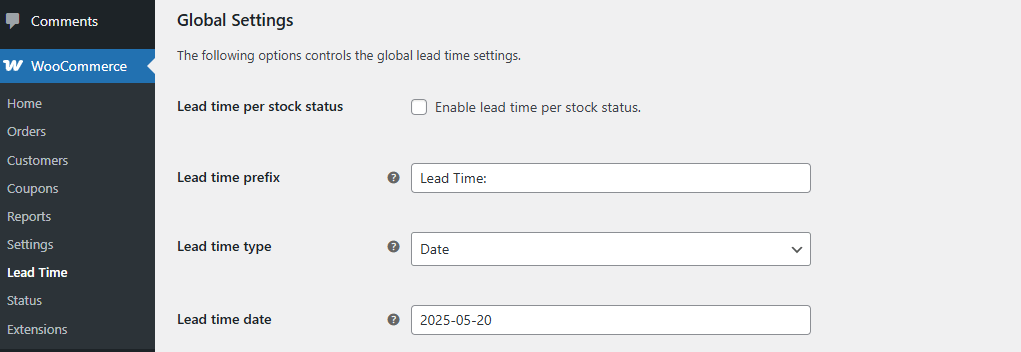
Lead Time Per Stock Status
Set default lead times based on product availability. Configure separate messages for:
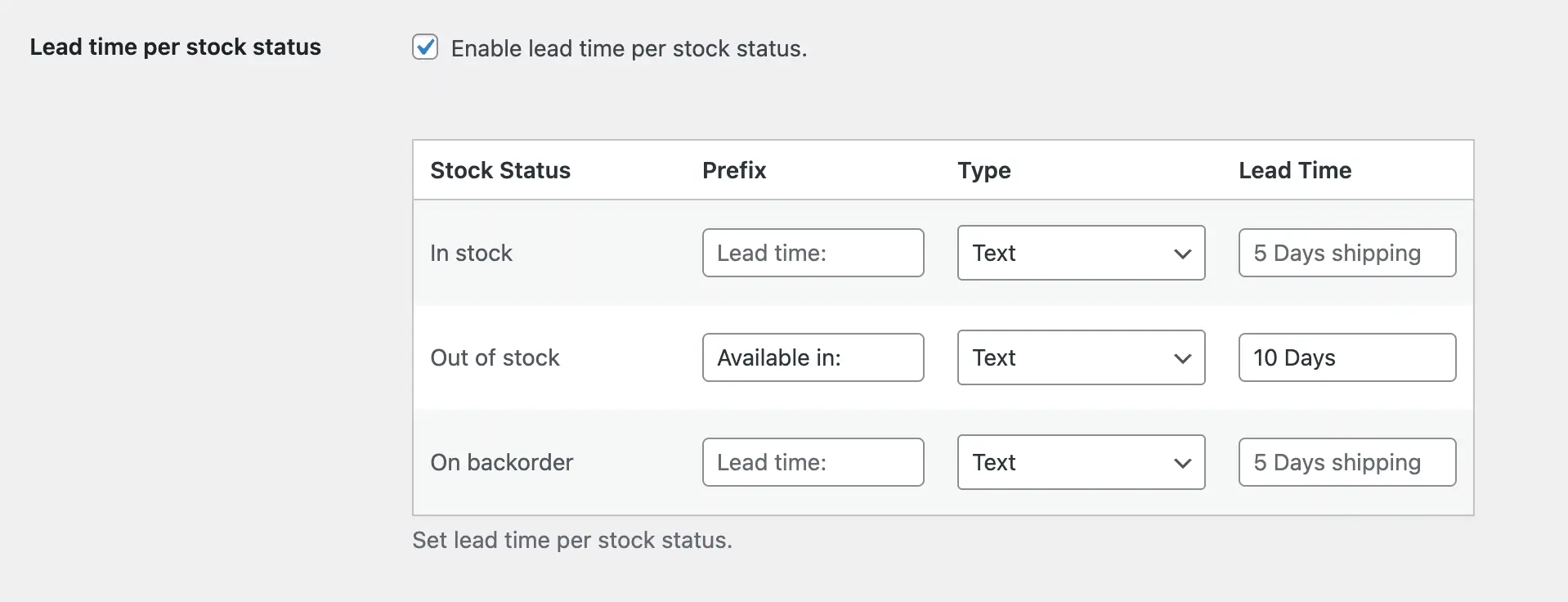
- In Stock – Show processing or shipping time for available products.
- Out of Stock – Inform customers when items will be restocked.
- On Backorder – Communicate fulfillment time for backordered items.
Lead Time Prefix
Add a custom prefix to appear before the lead time text (e.g., “Estimated Delivery:”).
Quick Tip: Start with global settings to cover your entire store, then override only the categories or products that need different lead times.
Lead Time Type
Choose how to display lead time:
- Manual Input (Text) – Choose Text to show custom text like “Ships within 1–2 weeks” or “Made to order: 5-7 business days”.
- Specific Date – Select Date to display a calendar date as the availability or delivery date.
Lead Time Text/Date
Enter your lead time message or select a date based on your chosen Lead Time Type above.
Save Changes
Click Save Changes to apply global lead time settings across your store.
Next Step
Global settings can be overridden at more specific levels:
- Set category lead time for specific product groups
- Set product lead time for individual items