
Configure the global behavior and appearance of variation swatches across your WooCommerce store. These settings control styling, attribute display, and how unavailable options appear to customers.
Access Variation Swatches Settings
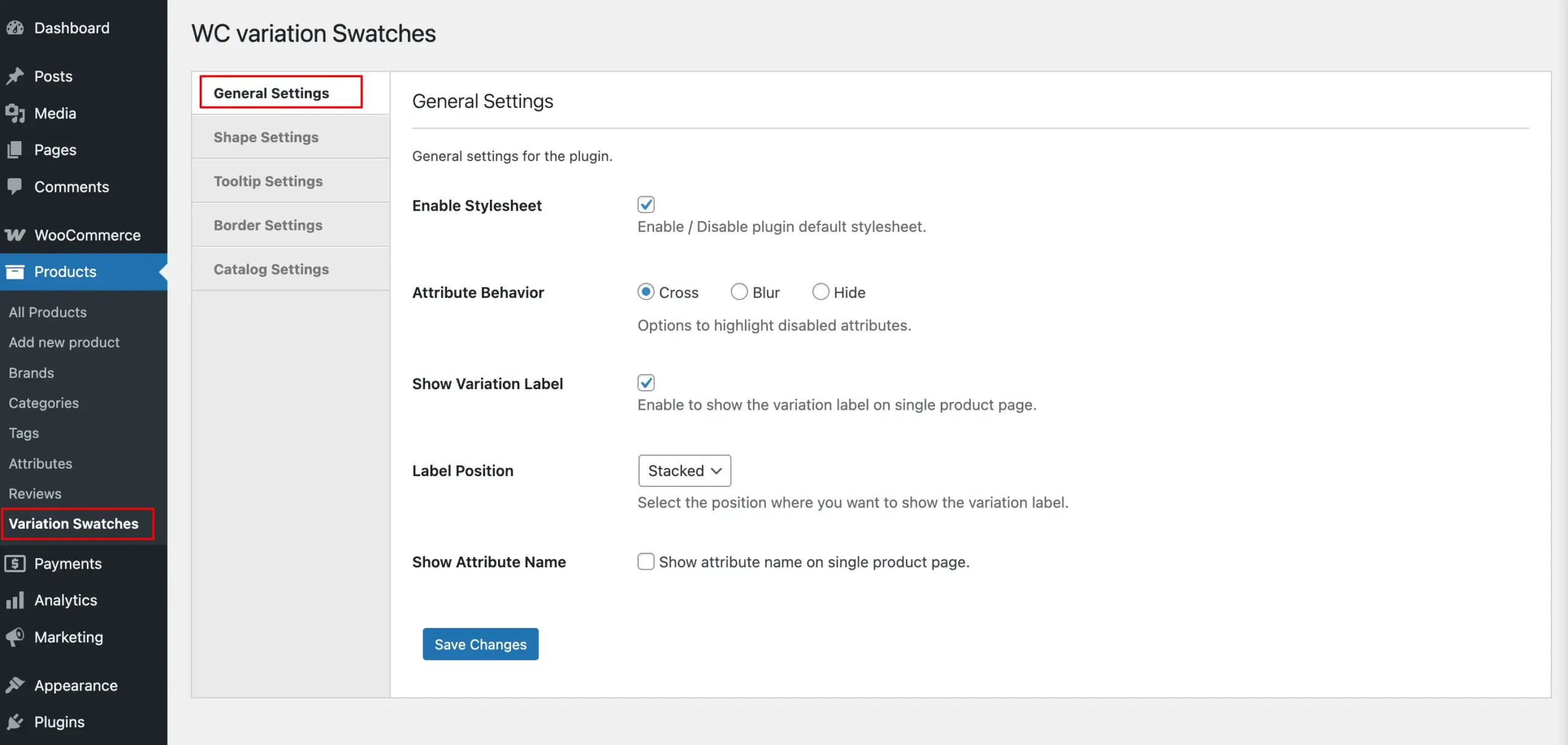
Navigate to Products > Variation Swatches in your WordPress dashboard, and click the General Settings tab.
Configuration Options
Enable Stylesheet
Toggle the plugin’s default stylesheet on or off. When enabled, the plugin applies its built-in styling to swatches. Disable this if you’re using custom CSS or want swatches to inherit your theme’s styles.
Attribute Behavior
Control how unavailable or out-of-stock variation attributes display on product pages:
- Cross – Adds an X mark over unavailable swatches
- Blur – Blurs unavailable options to show they can’t be selected
- Hide – Completely removes unavailable swatches from view
Show Variation Label
Enable this to display variation labels on single product pages. Labels show the selected option (e.g., “Color: Red” or “Size: Large”).
Label Position
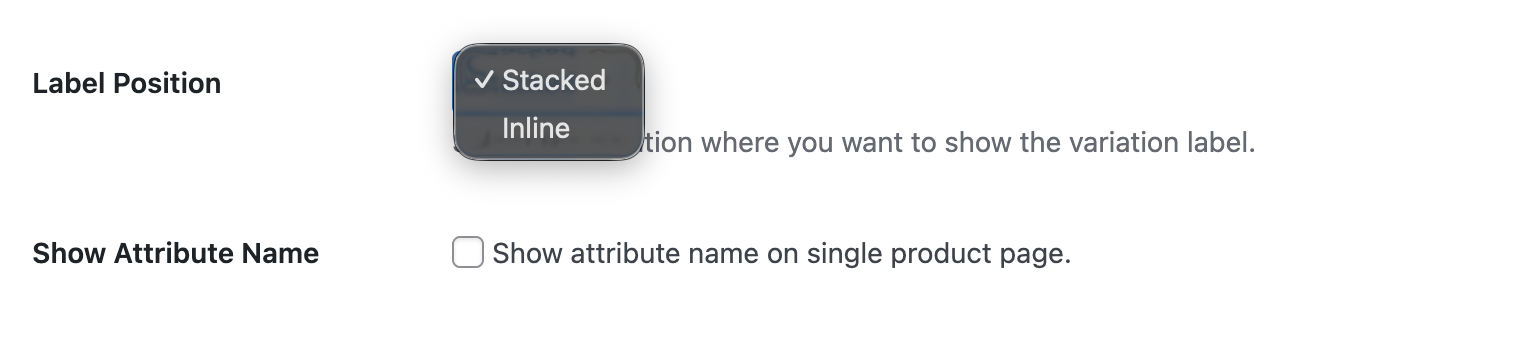
Choose where variation labels appear:
- Stacked – Labels appear above swatches in a vertical layout
- Inline – Labels appear next to swatches in a horizontal layout
Show Attribute Name
Display the attribute name (like “Color” or “Size”) alongside swatches on product pages. This helps customers understand what they’re selecting.
Save Changes
Click Save Changes to apply your general settings across all variation swatches.
Next Step
After configuring general behavior, proceed to set up Shape Settings to customize the visual appearance of your swatches.