
After activating WC Show Single Variations, you can display individual variations as standalone products across your store. This allows customers to find and purchase specific options without opening the main product page.
Navigate to Single Variation Settings
From your WordPress dashboard, go to WooCommerce > Settings > Single Variation Settings.
All global options for displaying variations are managed here.
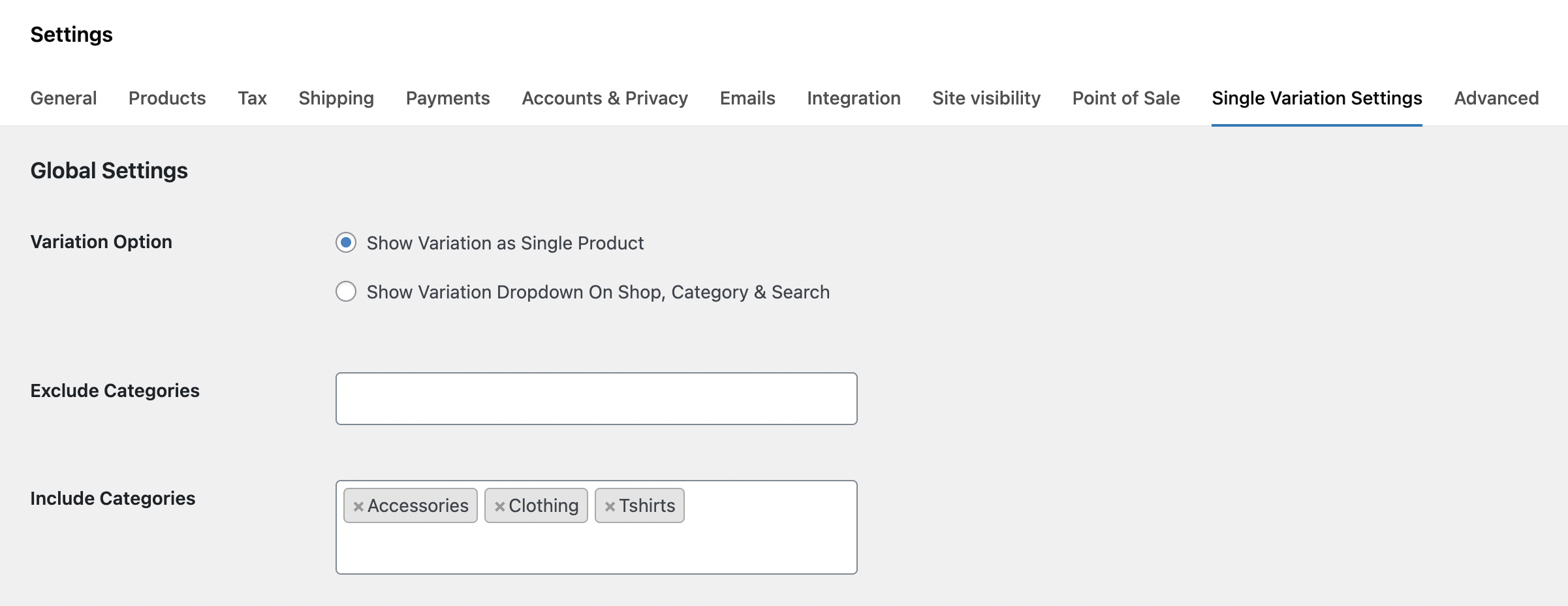
Variation Option
In the Global Settings tab, choose how variations should appear on the frontend.
Show Variations as Single Product
Displays each variation as its own product on the shop, category, and search pages.
Show Variation Dropdown on Shop, Category, & Search
Keeps variations grouped under the main product but allows selection directly from listing pages.
Choose the option that best fits how you want customers to browse your products.
Exclude Categories
Select one or more categories where variations should not be displayed as single products. If you want the setting to apply across the entire store, select All.
Include Categories
Choose the categories where variations should appear as standalone products. Selecting All applies the feature storewide.
Save Changes
Click Save Changes after adjusting the settings. Your variation display rules will take effect immediately.
Once saved, individual variations, such as a red medium T-shirt, will appear like regular products. This improves visibility and helps customers find exactly what they want faster.
Next Step
After setting the variation display option and category rules, continue to Advanced Settings to fine-tune how single variations behave across your store.