
You can override all global settings by configuring individual product variation settings. This allows you to apply custom behavior to specific products without affecting your store-wide configuration. Perfect for products that need special handling or different visibility rules.
Accessing Product Variation Settings
Navigate to the variation product edit page. In the Product Data section, locate the Single Variation Settings tab.
Available Settings
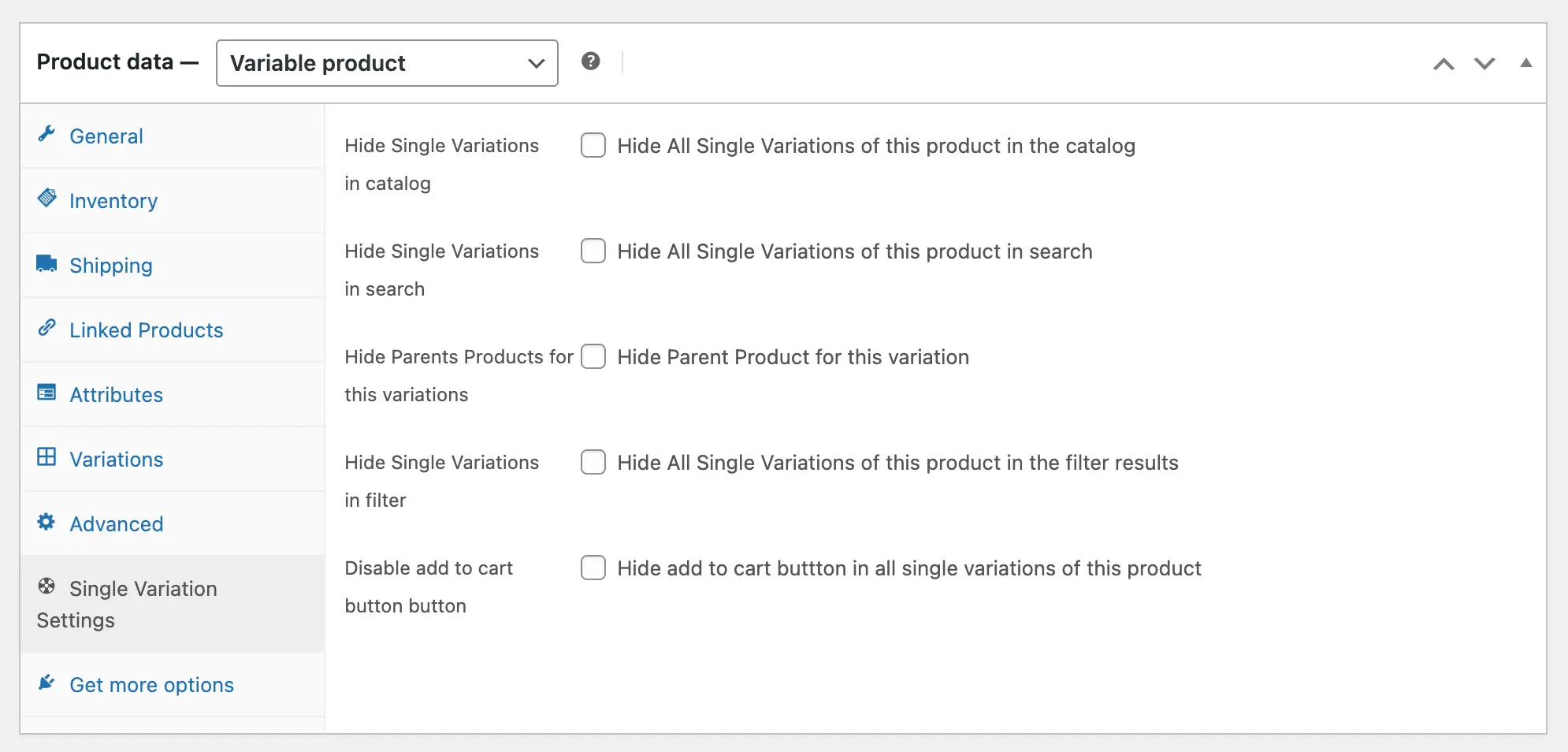
Hide Single Variations in Catalog
Keep the parent product visible in your catalog while hiding its individual variations. Shoppers will need to visit the product page to see available options.
Hide Single Variations in Search
Exclude all single variations of this product from search results. Customers will only find the parent product when searching.
Hide Parent Product for This Variation
Hide the parent product completely and display only individual variations in your store. This makes each variation appear as a standalone product, ideal when variations are significantly different.
Hide Single Variations in Filter
Hide all single variations of this product from filter results on category and shop pages.
Disable Add to Cart Button
Display variations without the ability to purchase them. Use this for “Coming Soon” products, discontinued items, or when you want to show products for reference only.
Save Your Changes
Click the Update button to save and apply your changes. Your settings will take effect immediately on the front-end of your store.
Next Step
After configuring product-level settings, explore individual variation settings to customize each variation separately, or return to Advanced Settings to adjust global preferences.