
With recommendations enabled on the cart page, you can complete the setup by adding suggestions at checkout. This helps present relevant products to the customer while they are preparing to place an order.
Step-by-Step Instructions
Enable Checkout Recommendations
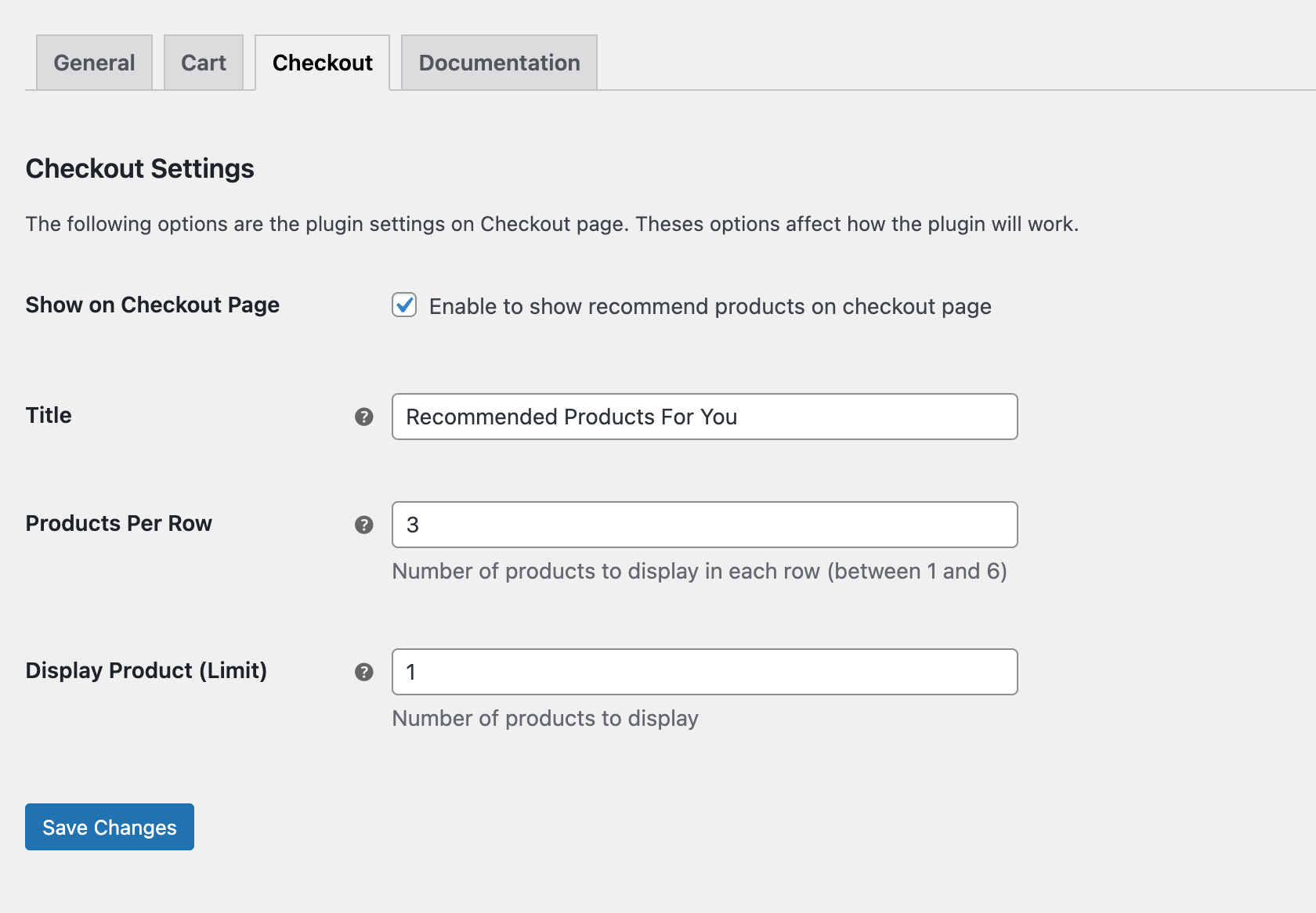
Go to WooCommerce → Product Recommendations → Checkout and turn on Show on Checkout Page. This activates the recommendation block on the checkout screen.
Configure Layout Settings
- Title: Enter a heading that fits the visual tone of your checkout page.
- Products Per Row: Set how many items appear in a single row. You may choose any number between one and six.
- Display Product (Limit): Specify the total count of recommended products to show during checkout.
Save and Review
Click Save Changes to apply your settings. Visit the checkout page and confirm that the block appears correctly and follows your chosen layout.
Next Step
Your recommendation settings are now active across product pages, the cart, and checkout. You may continue to advanced configuration or proceed with styling and customization as needed.