
After setting the display rules for product pages, you have to choose which products or categories should appear as recommendations for each item. This allows you to tailor suggestions based on the purpose and context of individual products.
Step-by-Step Instructions
Edit the Product
Edit any product in WooCommerce. In the Product Data panel, you will find a tab labeled Product Recommendations.
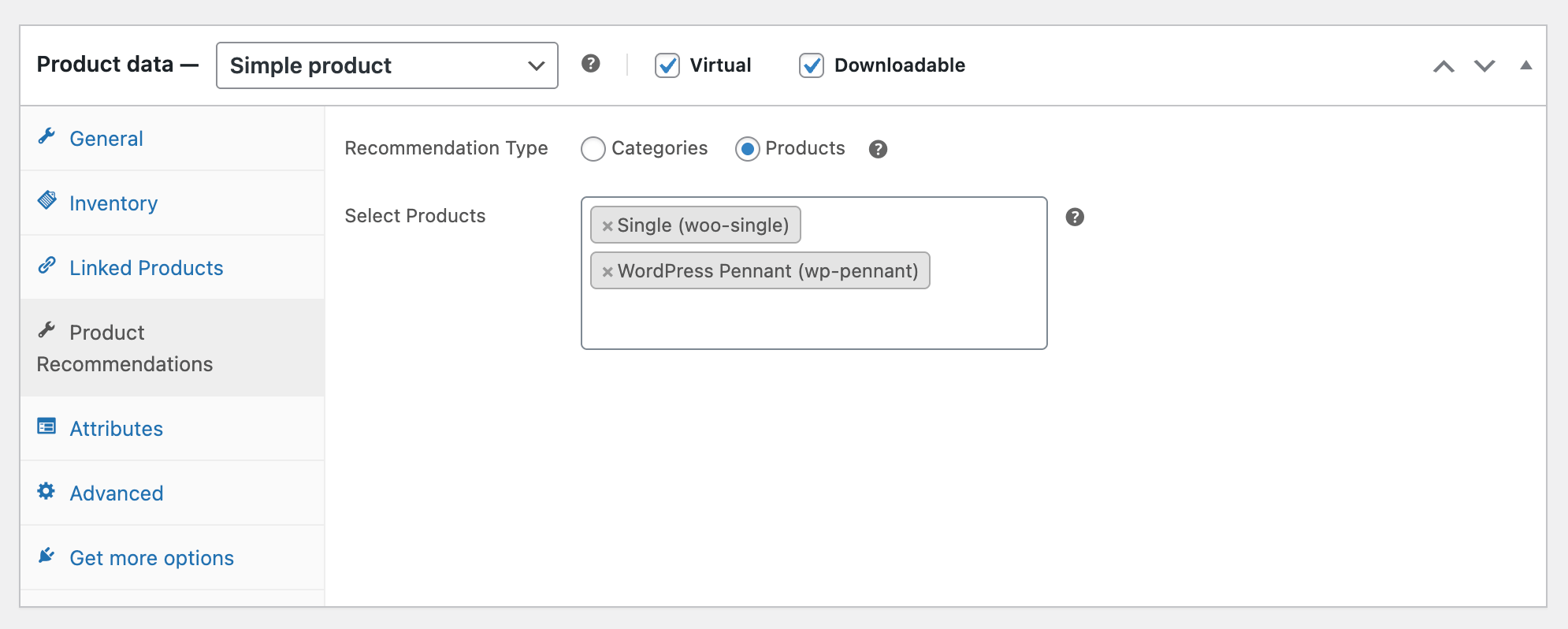
Set Product as Recommendations
Select Categories
Pick one or more categories to display a broader set of related items. This is useful when the product belongs to a collection where multiple alternatives or accessories make sense.
Select Products
Choose one or more specific products to recommend when this item is viewed. This is helpful when certain items naturally pair with or complement the product being sold.
These settings let you build focused, relevant recommendation blocks tailored to each product.
Save and Check
Update the product and view it on the front end to confirm that the correct recommendations appear.
Next Step
Your recommendation settings are now active across product pages. Proceed to Enable Recommendations in Cart section to configure recommendations that show in the shopping cart.