
If your store serves customers in different languages or regions, you can customize all labels, descriptions, and error messages used by the uploader. This helps keep the checkout experience clear and consistent for international users.
Navigate to Localization
Go to WooCommerce > Checkout Files > Localization. You will find two groups of settings: Order Details and Notices.
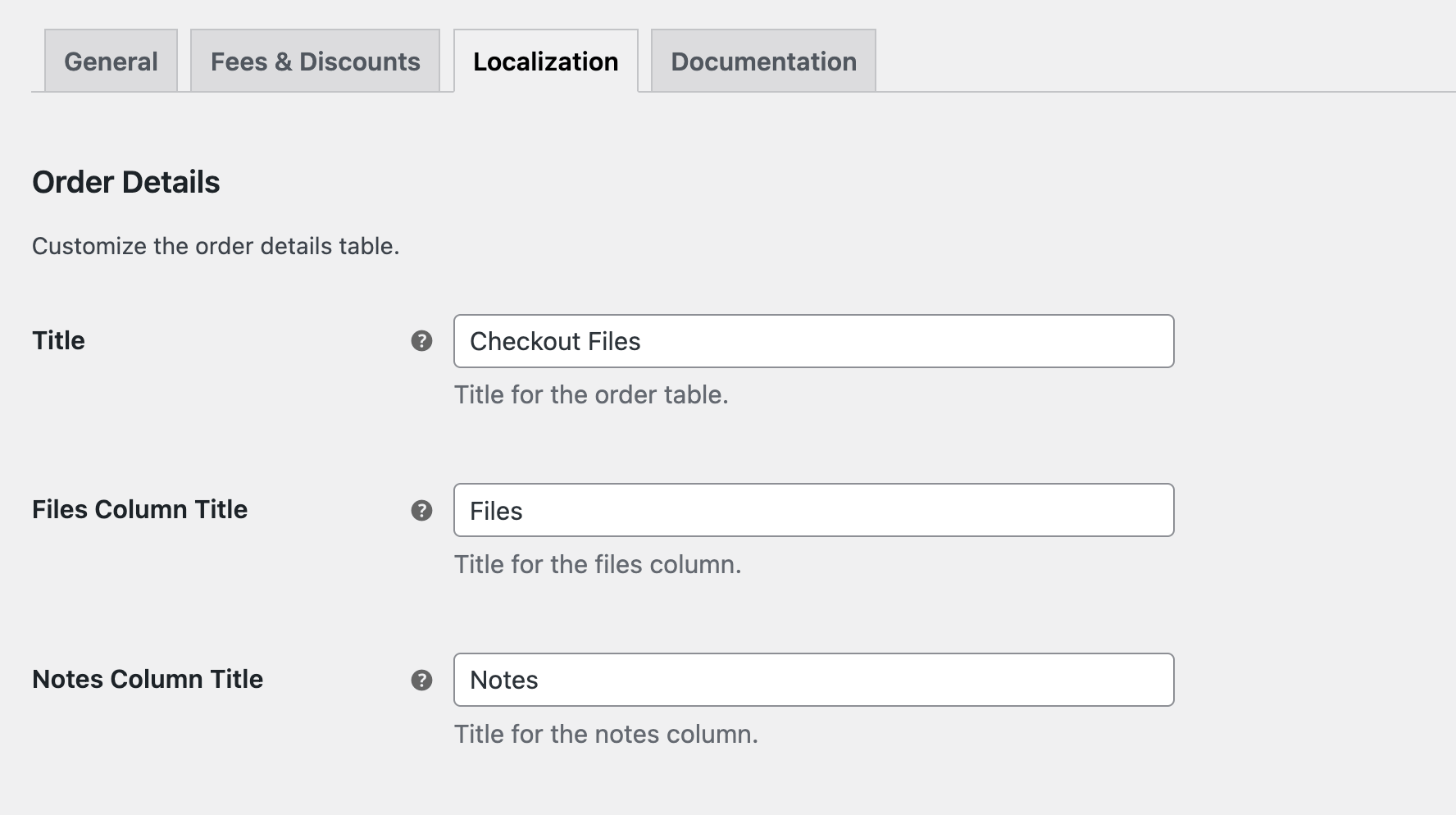
Order Details
These settings control how information appears in the order details table.
Title
Set the title of the order details table. Choose a name that matches your store’s style.
Files Column Title
Enter the label for the column that displays uploaded files.
Notes Column Title
Set the title for the notes column if customers add additional information.
Notices
These fields let you customize the text shown when specific conditions or errors occur.
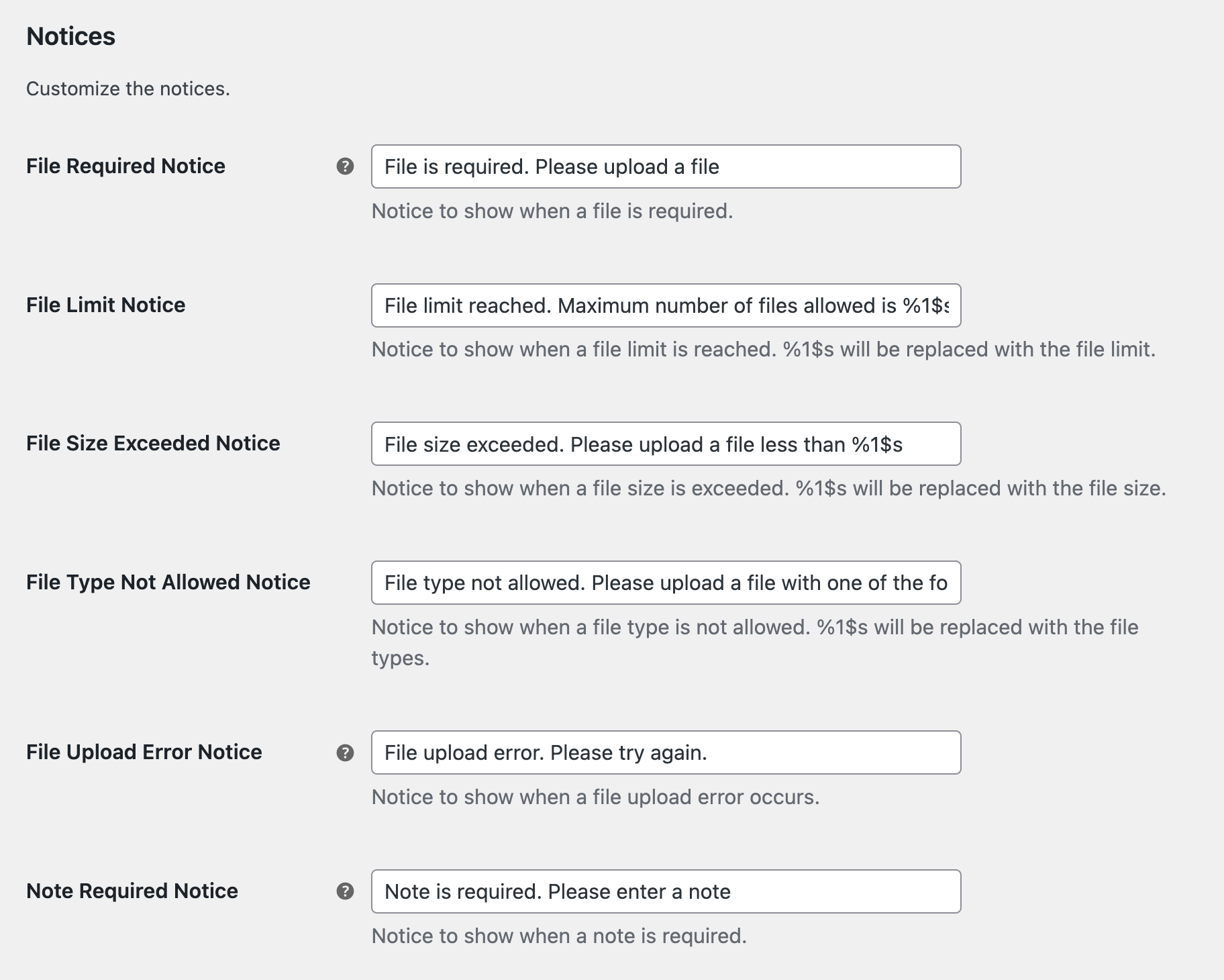
File Required Notice
Displayed when a file upload is required but missing.
File Limit Notice
Shown when the customer reaches the maximum number of allowable files. The limit will be dynamically inserted into the message.
File Size Exceeded Notice
Appears when a file is larger than the allowed size. The size limit will be dynamically added to the notice.
File Type Not Allowed Notice
Shown when a customer uploads a file type that is not permitted. The allowed types will be included in the message automatically.
File Upload Error Notice
Displayed when something goes wrong during the upload process.
Note Required Notice
Shown when the note field is required but left empty.
Save Changes
Click Save Changes when you finish editing the labels and notices. Your custom translations will take effect immediately throughout the site.