

Running a WooCommerce store means dealing with a constant stream of orders, invoices, and customer documentation. By default, WooCommerce assigns order numbers based on the WordPress post ID system, a shared counter used for posts, pages, products, and other content on your site. This means your order numbers can appear irregular, with random-looking gaps that make order tracking confusing and bookkeeping unnecessarily difficult. For store owners who need professional, auditable records, this is a significant pain point.
Custom invoice numbers solve this problem. A well-structured invoice number, such as INV-2025-0001 or WT-240100, tells customers exactly where their order stands, gives your accounting team a clean audit trail, and satisfies the invoicing requirements that many tax authorities impose. In this article, we walk through the best plugins for setting up custom invoice numbers in WooCommerce, covering both WebToffee’s specialized tools and reputable alternatives, so you can choose the right fit for your store.
Why WooCommerce Doesn’t Have Sequential Invoice Numbers by Default
WooCommerce is built on top of WordPress’s native post system, which means every order, product, page, and media upload shares the same ID sequence. When a customer places order #1003, and the next order comes in as #1007, those gaps are not missing orders; they are simply IDs used by other WordPress objects created in between. While harmless in technical terms, these gaps look unprofessional on customer invoices and make it harder to cross-reference records during audits or returns.
Beyond order numbering, WooCommerce has no built-in mechanism for generating PDF invoices with custom numbering schemes. It does not attach invoices to order emails, does not support prefix/suffix formats, and does not allow you to set a starting invoice number or auto-reset counters annually. Store owners who need compliant, branded invoices must rely on plugins to fill these gaps, and the market offers several solid options across both free and premium tiers.
Best Plugins for Custom Invoice Numbers in WooCommerce
WebToffee’s PDF Invoices & Packing Slips plugin
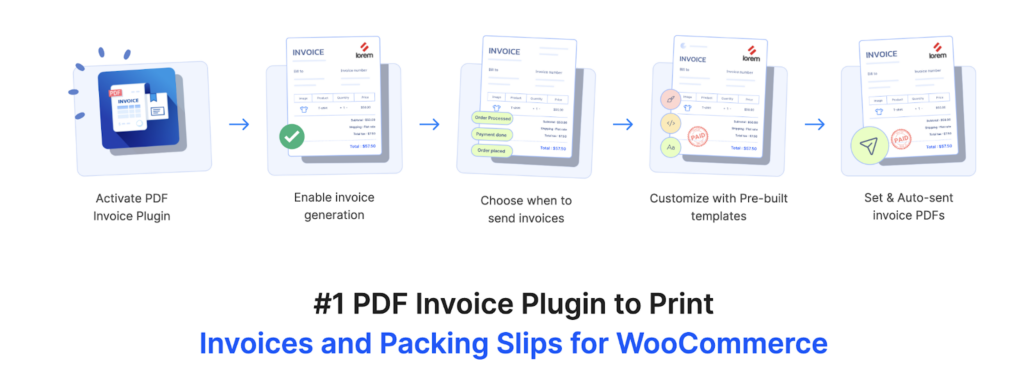
The PDF Invoices & Packing Slips plugin is one of the most widely used invoicing solutions in the WooCommerce ecosystem, trusted by over 90,000 WordPress stores. The free version, available directly from the WordPress plugin directory, lets you automatically generate professional invoices, packing slips, delivery notes, and shipping labels for every order. It includes a setup wizard that guides you through company details and invoice configuration, and automatically attaches PDF documents to the appropriate WooCommerce order emails. Even on the free tier, you can set a custom document number prefix and control its length, giving you a basic but functional invoice numbering system right out of the box.
The free version allows you to personalize invoice numbers with a prefix, number length, and custom starting number. The premium Pro Add-On extends this further with suffix support and additional advanced settings. The premium Pro Add-On extends this further with credit note number customization and additional advanced settings. For example, you can produce invoice numbers like WT241000, where ‘WT’ is the prefix, ’24’ is the year, and ‘1000’ is the unique sequence number. The plugin also supports bulk export of invoice PDFs filtered by date range, customer, or payment method, and it integrates with WPML for multilingual stores. For businesses operating in the EU, it supports UBL/XML e-invoicing formats to meet international compliance requirements. Combined with its pre-built layout templates, code editor, and real-time preview. and the option to add the separate Customizer Add-On for visual drag-and-drop editing, it offers one of the most complete invoice customization experiences available for WooCommerce.
WooCommerce PDF Invoices & Packing Slips by WP Overnight
The free core version covers the essentials for most small stores, and paid extensions are available to expand functionality as needed. Compared to more feature-rich alternatives, WP Overnight’s plugin is more minimalist in its default feature set. Bulk document generation, customer My Account download access, and template customization via hooks and filters are supported, but advanced capabilities such as credit notes, visual template editors, or UBL e-invoicing require purchasing separate premium extensions. For a store just getting started with invoice automation and seeking a reliable, low-overhead solution with strong community support, WP Overnight remains a highly credible starting point.
Sequential Order Numbers for WooCommerce
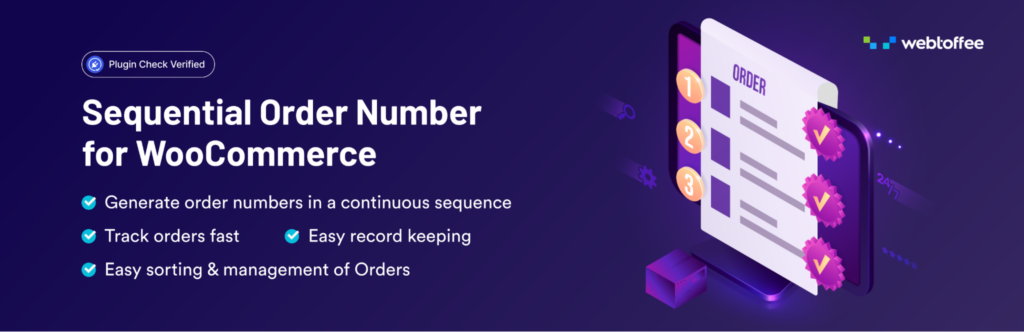
WooCommerce order numbers are not sequential by default because they share the WordPress post ID system with all other site content. WebToffee’s Sequential Order Numbers for WooCommerce plugin solves this by decoupling order numbers from the WordPress ID system and generating clean, consecutive numbers in your preferred format. The free version lets you define a custom starting number, add a prefix, select a date format, and control the number length. For instance, entering a number length of 7 with the prefix ‘WT’ and order number 123 produces WT0000123, a clean, consistently padded format that looks professional on invoices and is easy to sort in any spreadsheet or accounting tool.
The Pro version adds suffixes, auto-reset intervals (daily, monthly, or yearly), and the ability to generate odd- or even-numbered sequences via a custom increment counter. This means you can maintain structured, time-bound order sequences, for example, resetting to ORDER-1-Jan at the start of each month, making it far easier to estimate order volumes per period. With over 40,000 active installations and a 4.9-star average rating on WordPress.org, it is one of the most trusted custom order number tools available for WooCommerce.
Sliced Invoices
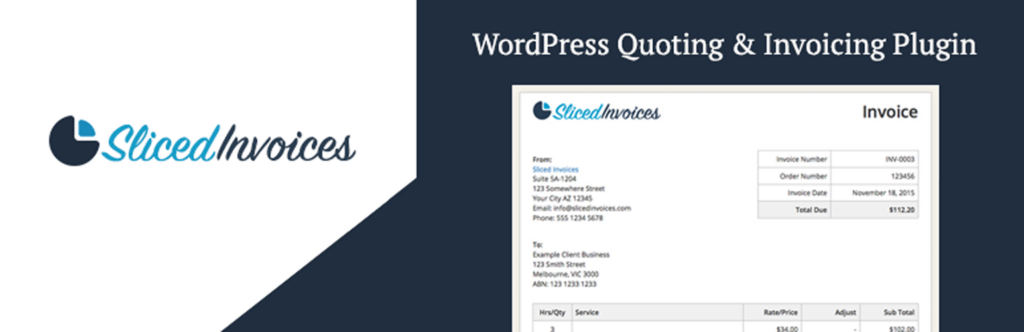
Sliced Invoices takes a different approach to WooCommerce invoicing, treating the billing process as a complete quote-to-payment workflow rather than a pure order-document automation tool. The plugin lets you create professional quotes for clients, convert approved quotes into invoices with a single click, and track payment status throughout the billing lifecycle. Custom invoice numbering is built in: you can configure a prefix (such as INV-), a starting number, and the sequence increments automatically with each new invoice. Three fully customizable templates are included, and all invoice data is stored as WordPress custom post types, meaning records are backed up with the rest of your site and are easily accessible through standard WordPress tools.
Where Sliced Invoices excels is in its suitability for service-based businesses, agencies, and freelancers who manage WooCommerce stores alongside project-based client billing. It integrates with PayPal and Stripe for payment collection, and extensions are available for PDF invoices, recurring payments, and deposit invoices. The plugin is translation-ready, enabling invoices in customers’ preferred languages. The free core plugin provides solid invoicing fundamentals, while add-ons can be purchased individually or as a bundle membership starting at around $79/year. For WooCommerce stores that primarily handle product orders in volume, it is a less automated solution than WebToffee or WP Overnight, but for mixed-use stores that blend product sales with service engagements, Sliced Invoices offers a flexibility that pure order-document plugins do not.
Customizer Add-On for PDF Invoices
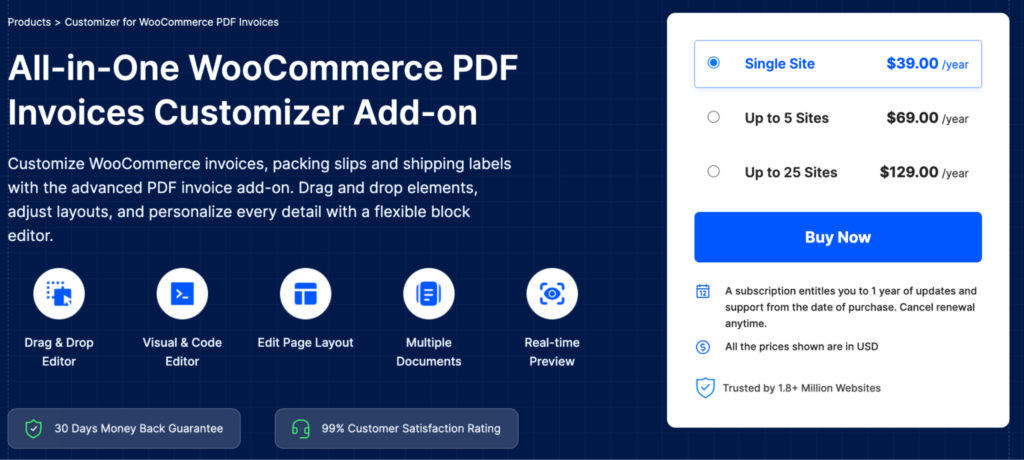
While invoice number formatting is handled by the core WebToffee invoice plugins, the Customizer Add-On for WooCommerce PDF Invoices controls how those numbers are displayed in the document template. Using a drag-and-drop block-based editor, you can control the exact placement of the invoice number field, repositioning it, resizing it, adjusting the font, color, and alignment, all with a real-time preview of the final document. This means your custom invoice number is not just correctly formatted behind the scenes but is also visually prominent and on-brand. The add-on works seamlessly with both the free WebToffee invoice plugin and the premium Pro Add-On.
The Customizer supports all document types generated by WebToffee’s invoice plugin family, including packing slips, delivery notes, dispatch labels, shipping labels, and credit notes. Customized templates can be saved as new templates, allowing you to maintain distinct invoice designs for customer segments or product lines. For store owners who want the invoice number to appear prominently, perhaps as part of a branded header or highlighted within the document’s metadata section, this add-on provides the granular design control needed to achieve that without touching a single line of code.
Step-by-Step: Setting Up Custom Invoice Numbers in WooCommerce
The following walkthrough uses the PDF Invoices & Packing Slips plugin, which covers the most complete invoice number customization available. The steps apply to the premium Pro Add-On; free users will see a subset of these options.
Step 1 – Install and Activate the Plugins
Go to Plugins > Add New from your WordPress dashboard. Search for “WooCommerce PDF Invoices” and click Install Now, then Activate. The setup wizard will launch automatically. Enter your company name, address, logo, and other business details. Click Save and Continue. If using the premium Pro Add-On, install and activate it after the free plugin is active. Navigate to Invoice/Packing from the sidebar to confirm both are running.
Step 2 – Configure Invoice Number Settings
In your WordPress dashboard, go to Invoice/Packing > Invoice > General. Scroll to the Invoice Number section. In the Prefix field, enter your chosen prefix (e.g., INV-, WT-, or a year code like 2025-). In the Suffix field (Pro only), add an optional suffix such as -LTD or -IN. Set the Number Length to control zero-padding (e.g., entering 6 pads invoice 1 as 000001). Set the Start Number to begin from a specific invoice number (e.g., 1001 for a new fiscal year). Click Update Settings to save.
Step 3 – Automate Invoice Generation
In the same Invoice > General settings page, find the Automate invoice creation dropdown. Select the order statuses that should trigger automatic invoice generation (e.g., Processing, Completed). Under Attach invoice PDF to selected WooCommerce emails, choose the email types that should include the invoice as a PDF attachment (e.g., New Order, Processing Order). Make sure the selected email types match the same order statuses used for automation. Click Update Settings.
Step 4 – Configure Credit Note Numbers (Pro)
Navigate to Invoice/Packing > Credit Note > General. Set a separate prefix (e.g., CN-) and start number for credit notes to keep them distinct from your invoice sequence. Enable automatic credit note generation on refund order statuses. Click Update Settings.
Step 5 – Preview and Test
Go to WooCommerce > Orders and click on any order. Scroll to the Invoice/Packing section in the order detail view. Click Print or Download next to Invoice to generate the document. Verify that the invoice number follows your configured format (e.g., INV-2025-000001). Place a test order from your storefront to confirm that the increment number increases correctly with each new order.
Tips for Choosing the Right Invoice Number Format
A well-designed invoice number format serves both operational and compliance purposes. Here are some practical guidelines to keep in mind when setting up your scheme:
Include a year indicator in your prefix (e.g., INV-2025-) so you can immediately identify which fiscal year an invoice belongs to. Many accounting systems also require year-segregated invoice sequences. Use consistent number padding to ensure alphabetical sort order matches numerical sort order. An invoice sequence of 000001 through 009999 will sort correctly in any spreadsheet, while an unpadded sequence of 1 through 9999 will not. Keep prefixes short (2–5 characters) to avoid invoice numbers becoming unwieldy on printed documents. If your store operates in multiple countries or regions, check the local tax authority requirements. Some jurisdictions require invoice numbers to be sequential within a calendar year, with no gaps, while others mandate a specific format. Use the auto-reset feature (available in Sequential Order Numbers Pro) to restart numbering at the beginning of each year or month, making it trivial to count invoices per period for reporting. If you run separate stores or selling channels, use a unique prefix for each to prevent number collisions when consolidating records.
Conclusion
Setting up custom invoice numbers in WooCommerce is a foundational step toward professional order management, regulatory compliance, and streamlined bookkeeping. Whether your priority is a clean PDF invoice with a branded number sequence, an end-to-end sequential order numbering system, or a fully automated document workflow for high-volume operations, the right plugin combination can handle it all without custom development.
The PDF Invoices & Packing Slips plugin, in both its free and premium versions, stands out as the most capable tool for invoice number customization in WooCommerce, offering prefix/suffix control, custom starting numbers, number length padding, and automated generation tied to order status. Pair it with the Sequential Order Numbers plugin if you also need consistent, gap-free order IDs, and add the Customizer Add-On if you want precise control over how the invoice number appears within the document template. For stores with simpler needs or developer-led setups, WP Overnight’s plugin is a well-maintained free alternative.
Leave a Reply
You must be logged in to post a comment.