
After setting up the Store Timer globally, you can apply timer rules and notice messages to products within a specific category. These settings affect only the products assigned to that category and do not impact the rest of your store.
This is helpful when a group of products follows a different schedule or needs a category-specific notice.
Access Category Store Timer Settings
To configure the Store Timer for a category, go to Products > Categories. Edit the category you want to configure. Scroll down to the Store Timer Settings section.
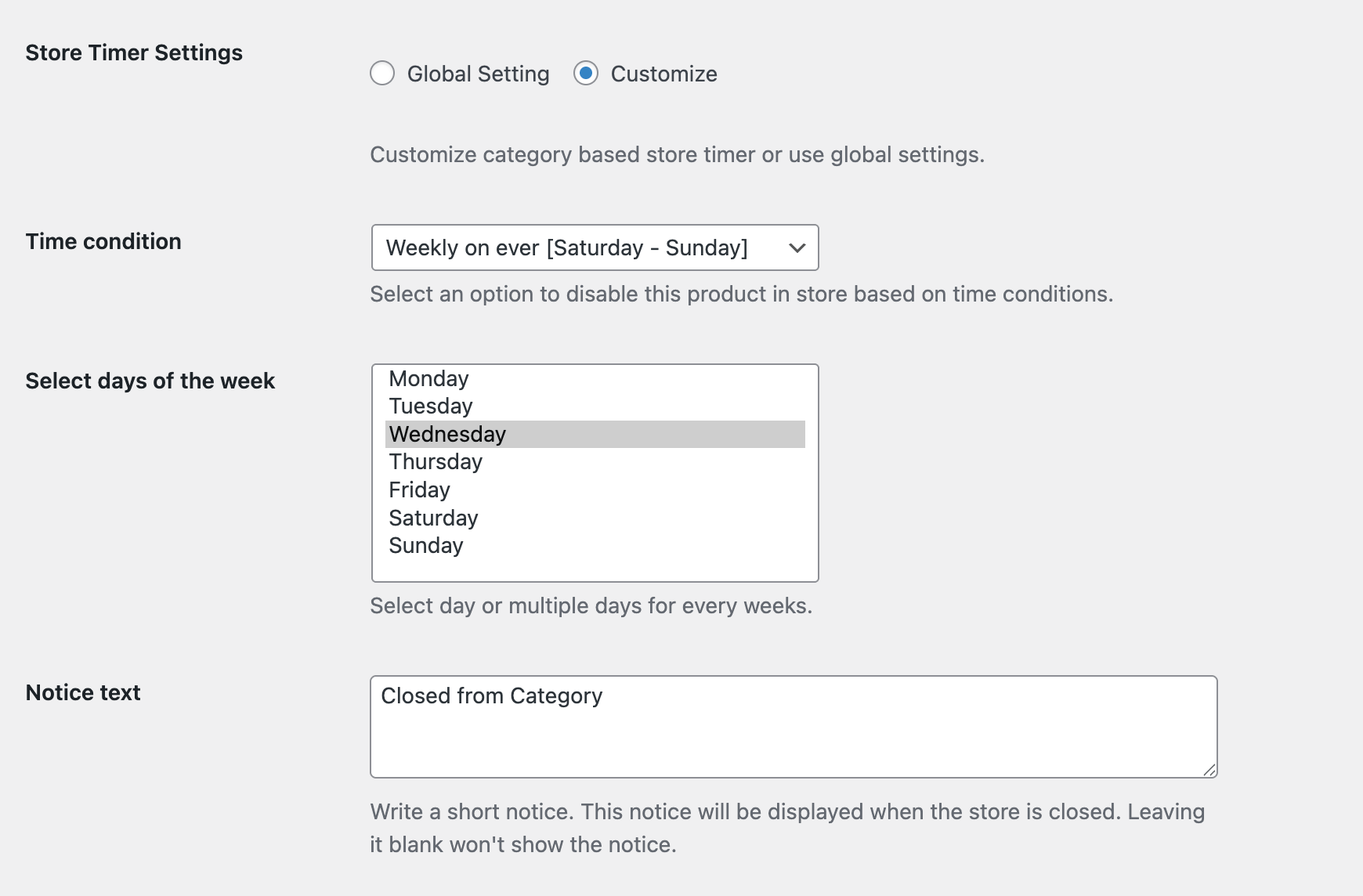
Store Timer Settings
In the Store Timer Settings, you can control how the timer behaves for products in this category.
Global Settings
When Global Setting is selected, all products in the category follow the Store Timer rules defined in the global configuration. No additional setup is required at the category level.
Customize
Select Customize if products in this category need their own timer rules. Once selected, you can configure custom time conditions and notice messages.
Time Condition
Time conditions define when purchases should be disabled for products in this category.
Choose the option below that best fits your schedule.
Time
Set a specific start and end time for a single period. Example: 05/12/2025 09:00 AM to 05/01/2026 06:00 PM.
Weekly on Every [Saturday – Sunday]
Disable products in the category on selected weekdays. Example: every Saturday and Sunday.
Monthly on Every [1 – 31]
Disable products in the category on specific days of the month. Example: the 15th of each month.
On the Month of [January – December]
Disable products in the category during selected months of the year. Example: every August.
Notice Text
Set the message customers will see based on the configured time conditions. This notice explains why products in the category are unavailable during certain periods.
These rules work the same way as global and product-level settings, but apply only to products within this category.
Save Changes
After completing your configuration, click Update to apply the Store Timer settings to the category.
Next Step
To manage timers across your entire store, review the global settings or create advanced product-level rules for a specific product.