
Once you have set where the uploader will appear, you can choose to charge a fee when customers upload files. This is useful for products that require extra handling, inspection, or preparation.
Navigate to Fees Settings
Open WooCommerce > Checkout Files > Fees & Discounts. The first section on this page controls how fees are applied.
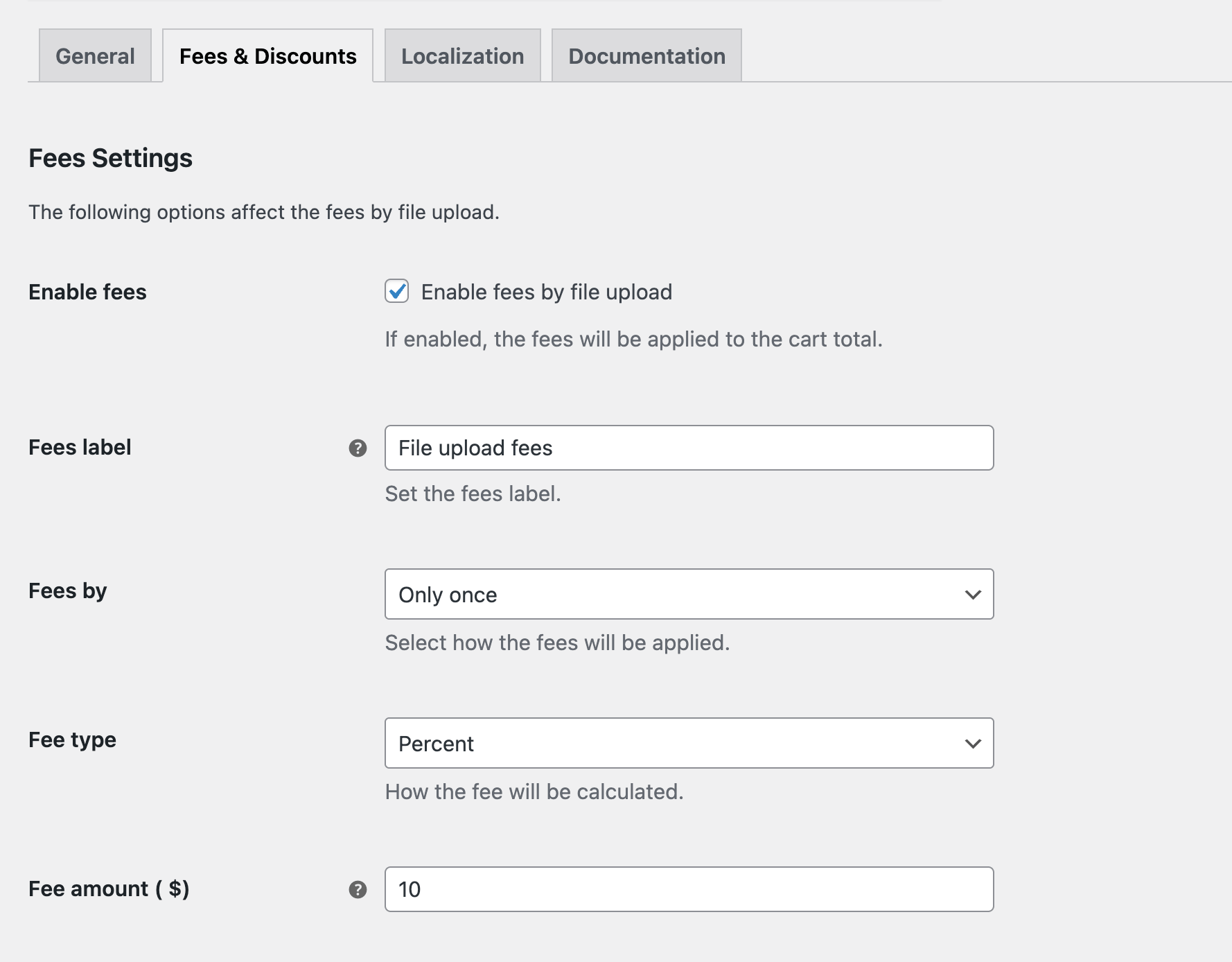
Enable Fees
Turn this option on to start charging customers when a file is uploaded. When enabled, the fee will automatically be added to the cart total according to the setting below.
Fees Label
Set the label that customers will see during checkout. Choose a short and clear label that explains the added cost.
Fees By
Decide how the fee should be calculated. You can apply it:
- Per File – Fee added for each file the customer uploads.
- Per Product – Fee applied per product that requires a file upload.
- Only Once – A single fee added to the entire order, regardless of the number of files.
Fee Type
Choose how the fee amount should be calculated:
- Fixed Amount – A set fee added to the order.
- Percentage – A percentage based on the product or order value.
Fee Amount
Enter the value for the fee. This can be a fixed amount or a percentage, depending on the Fee Type you selected.
Save Changes
When all settings are adjusted, click Save Changes. Your fee rules will now apply whenever customers upload files.
Next Step
If you want to offer a reward instead of a charge, continue to Discount Settings to set up discounts for file uploads.