
With the plugin active, you can enable and configure product recommendations for your product pages. This section guides you through turning on the feature and shaping how recommendations appear.
Step-by-Step Instructions
Enable Product Recommendations
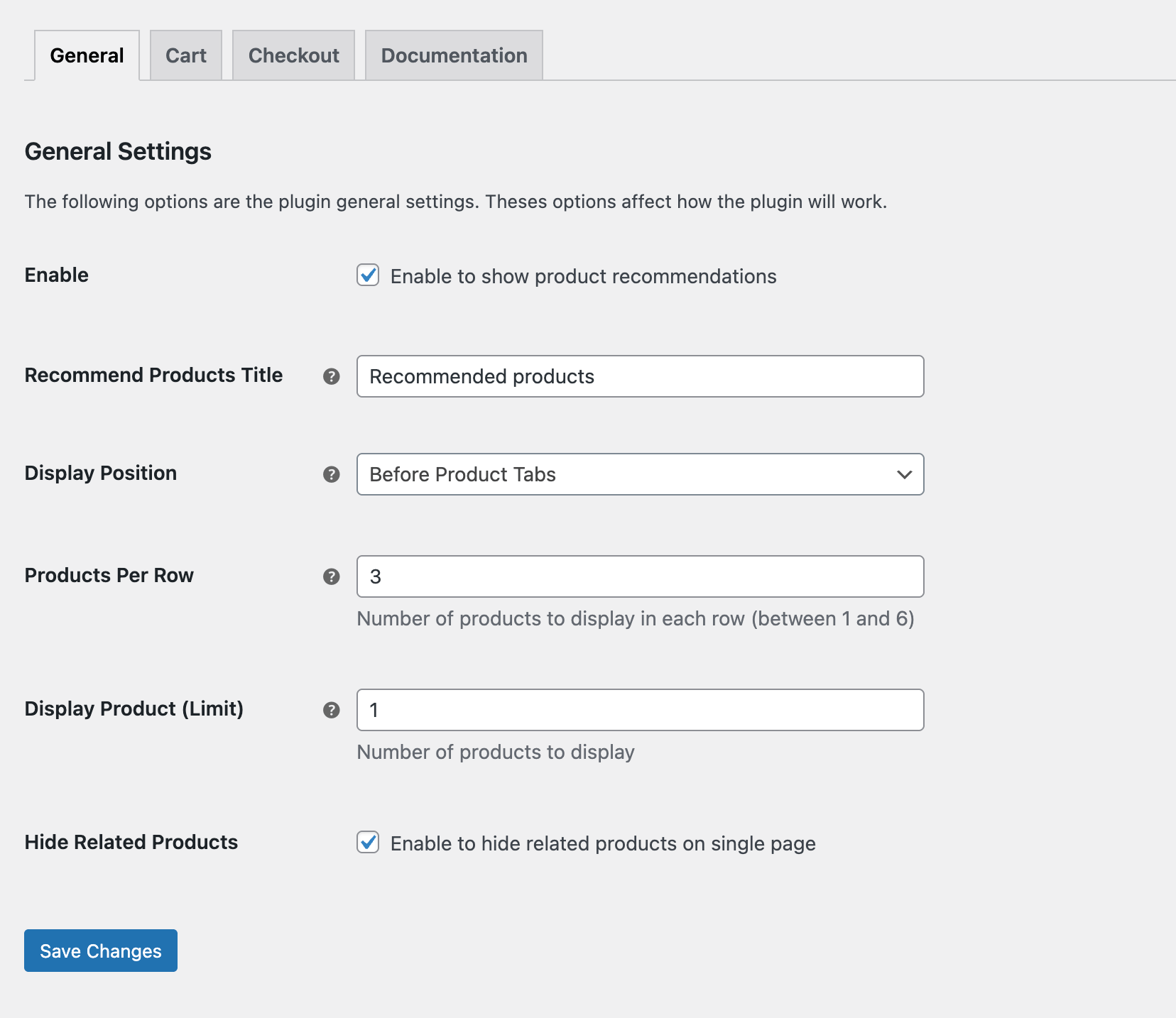
Go to WooCommerce → Product Recommendations → General Settings, then enable the toggle to display recommendations on product pages.
Configure Layout Settings
- Recommend Products Title: Enter a heading that aligns with the tone and style of your site.
- Display position: Choose where to insert the recommendation block: either Before Product Tabs or After Product Tabs.
- Products Per Row: Input a number between 1 and 6 to determine how many items appear side-by-side.
- Display Product (Limit): Specify how many recommended products to show in total.
- Hide Default Related Products: Tick this option if you wish to remove WooCommerce’s default related-items section and replace it with this custom block.
Save and Test
After configuring the settings, click Save Changes. Then visit a product page on your site to verify the block appears in the correct position and displays as expected.
Next Step
You’ve now set up the recommendation block for product pages: the title, placement, layout, and product count are all under your control. Proceed to adding products or category to show as recommendations in the product details.