
After setting your global preferences, you can override them for specific products when needed. This is useful when one product requires different visibility rules, a unique notice, or its own alternative product suggestions.
Open the product you want to edit and scroll to the Product Data panel. Select the Inventory tab and locate the Discontinued section.
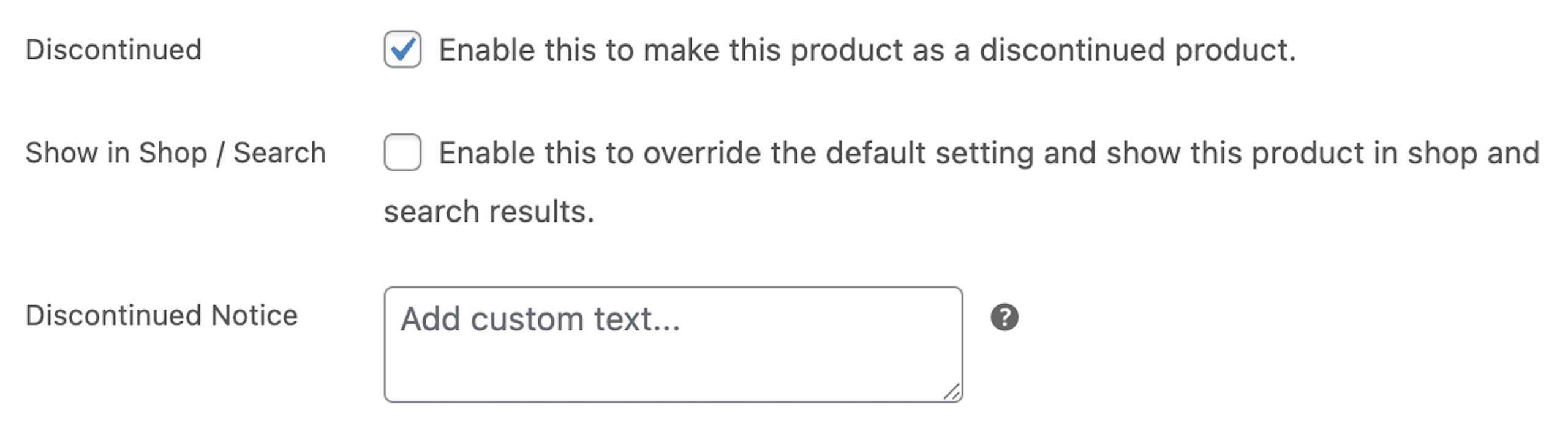
Show in Shop and Search
If you want this product to appear in shop pages or search results even when your global setting hides discontinued items, enable this option.
This allows you to control visibility on a per-product basis.
Discontinued Notice
You can add a custom notice for this product. This replaces the global discontinued message and lets you tailor the text to explain better why the product is no longer available.
Next Step
Once you have set a custom notice for individual products, continue to the guide on configuring alternative products to suggest replacements for discontinued items.